> ## Documentation Index
> Fetch the complete documentation index at: https://help.eazybe.com/llms.txt
> Use this file to discover all available pages before exploring further.
# Integration Check
> How to confirm that your Bitrix integration with EazyBe was successful
After completing the integration process, you'll want to verify that everything is working correctly.
## Verifying Successful Integration
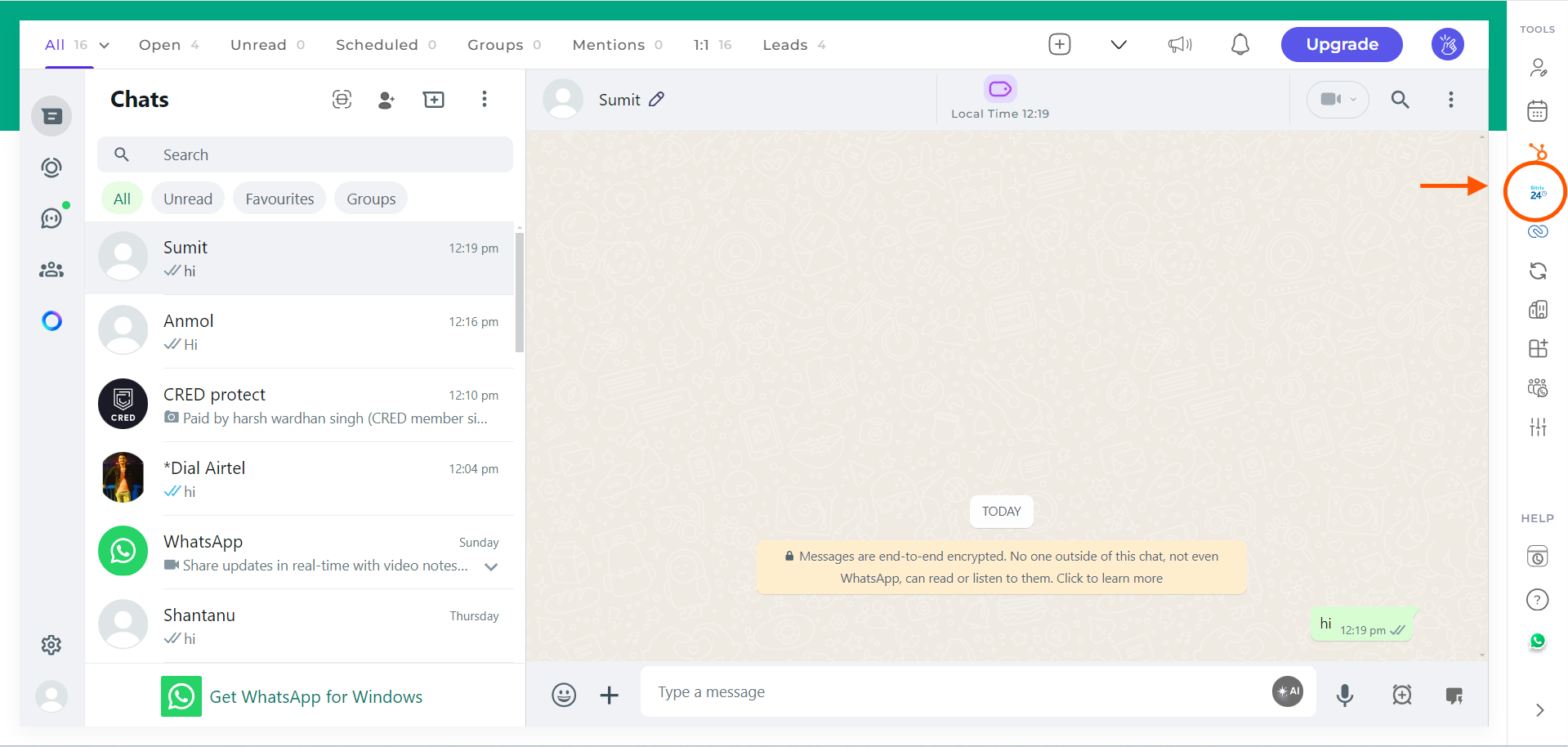
Once the integration of Bitrix with the EazyBe WhatsApp extension is completed, you will be automatically redirected back to WhatsApp.
Look for the **Bitrix icon** in the right sidebar of the EazyBe extension. If you can see the icon, it indicates that the integration has been successfully completed.
 ## Troubleshooting
If you don't see the Bitrix icon after completing the integration:
1. **Refresh the WhatsApp Web page** - Sometimes a simple refresh resolves the issue
2. **Check your browser extensions** - Ensure EazyBe is enabled and running
3. **Re-attempt the integration** - Go through the connection process again
4. **Clear browser cache** - Cached data may interfere with the integration
If the issue persists after trying these steps, reach out to our support team for assistance.
***
If you have any questions, reach out to us at [hey@eazybe.com](mailto:hey@eazybe.com).
## Troubleshooting
If you don't see the Bitrix icon after completing the integration:
1. **Refresh the WhatsApp Web page** - Sometimes a simple refresh resolves the issue
2. **Check your browser extensions** - Ensure EazyBe is enabled and running
3. **Re-attempt the integration** - Go through the connection process again
4. **Clear browser cache** - Cached data may interfere with the integration
If the issue persists after trying these steps, reach out to our support team for assistance.
***
If you have any questions, reach out to us at [hey@eazybe.com](mailto:hey@eazybe.com).