> ## Documentation Index
> Fetch the complete documentation index at: https://help.eazybe.com/llms.txt
> Use this file to discover all available pages before exploring further.
# Disconnect Integration
> How to disconnect your Bitrix integration from the EazyBe WhatsApp extension
If you need to disconnect your Bitrix integration from EazyBe, follow these simple steps.
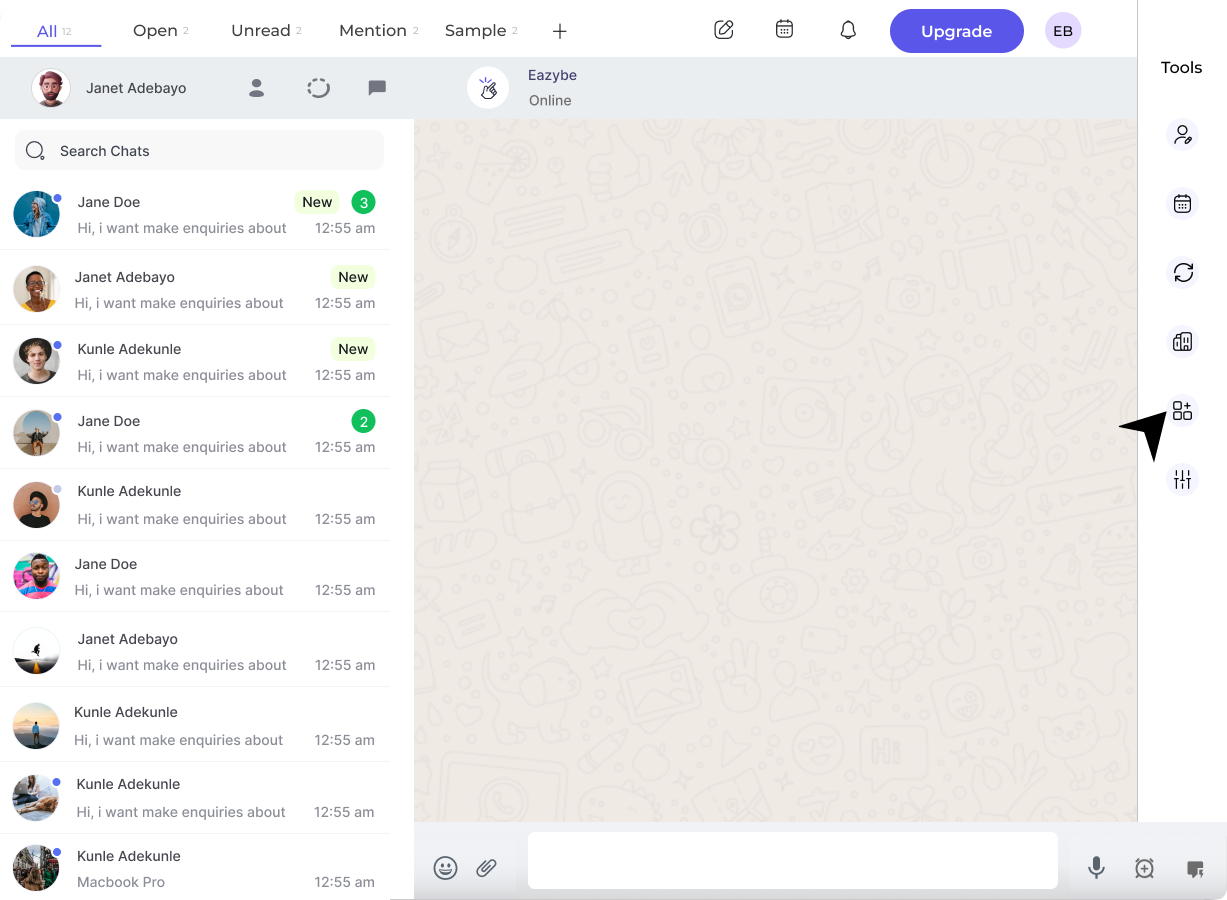
Click on the **integration button** in the right sidebar of the EazyBe extension.
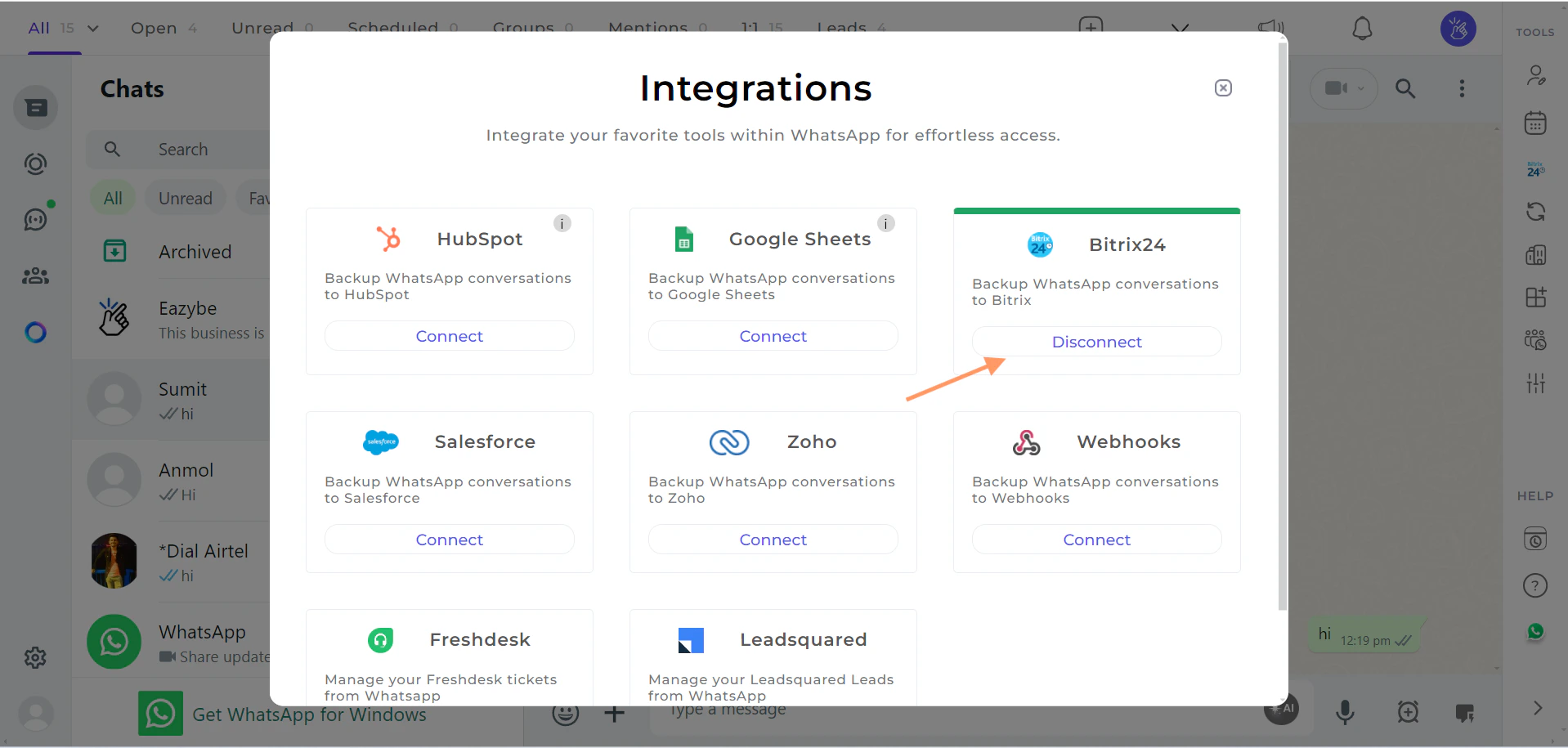
 Click on the **Disconnect button** under the Bitrix section.
 A confirmation prompt will appear asking you to confirm the disconnection.
Disconnecting the integration will stop automatic syncing of WhatsApp conversations with Bitrix. You can always reconnect later if needed.
***
If you have any questions or need further assistance, feel free to reach out to us at [hey@eazybe.com](mailto:hey@eazybe.com). We're happy to help!
A confirmation prompt will appear asking you to confirm the disconnection.
Disconnecting the integration will stop automatic syncing of WhatsApp conversations with Bitrix. You can always reconnect later if needed.
***
If you have any questions or need further assistance, feel free to reach out to us at [hey@eazybe.com](mailto:hey@eazybe.com). We're happy to help!