> ## Documentation Index
> Fetch the complete documentation index at: https://help.eazybe.com/llms.txt
> Use this file to discover all available pages before exploring further.
# Disconnect
> Learn how to disconnect your Bitrix account from the Eazybe WhatsApp extension using two simple methods.
Did you integrate the wrong Bitrix account or simply want to disconnect the integration? No worries, we've got you covered!
There are two ways to disconnect your Bitrix integration from Eazybe.
## Method A: Via Eazybe WhatsApp Extension
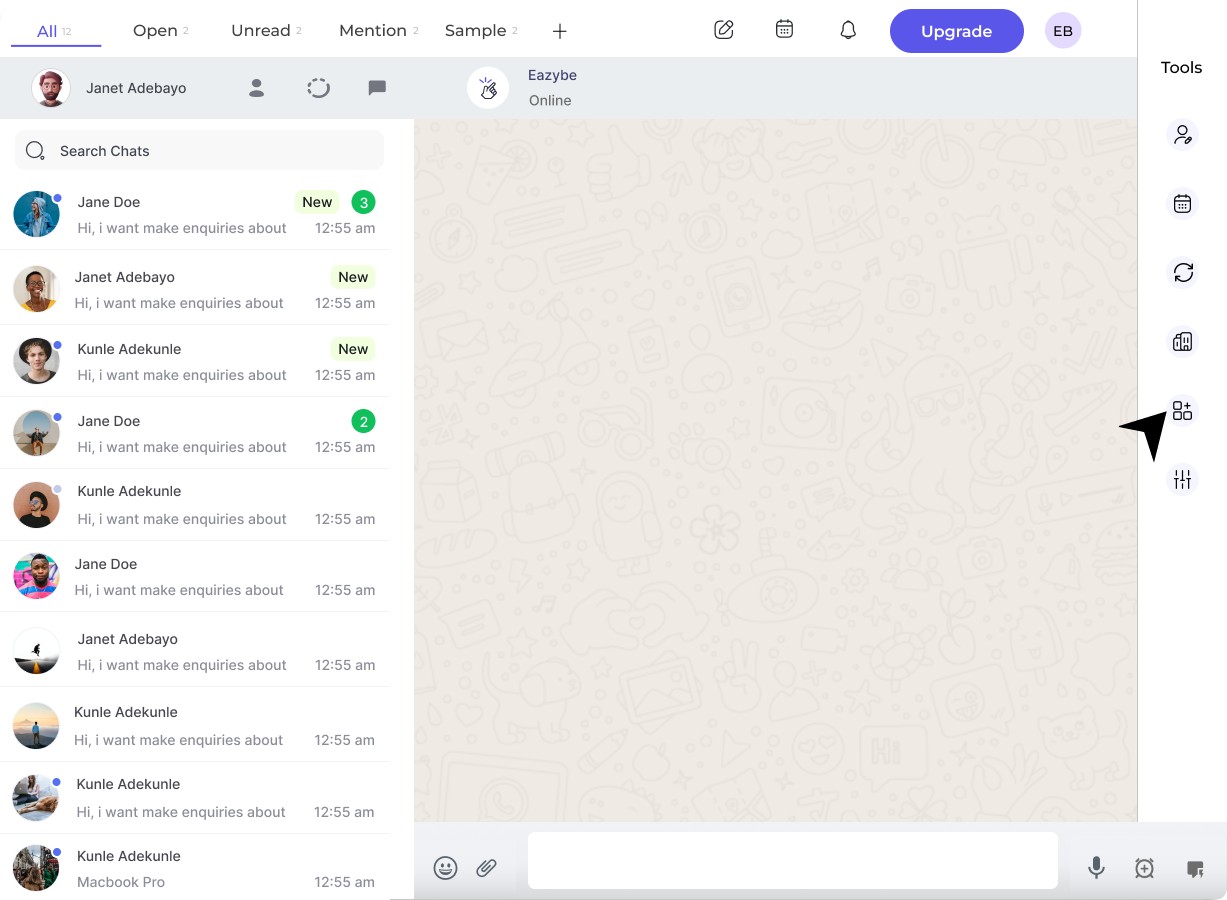
Click the **Integrations** icon in the Eazybe extension sidebar.
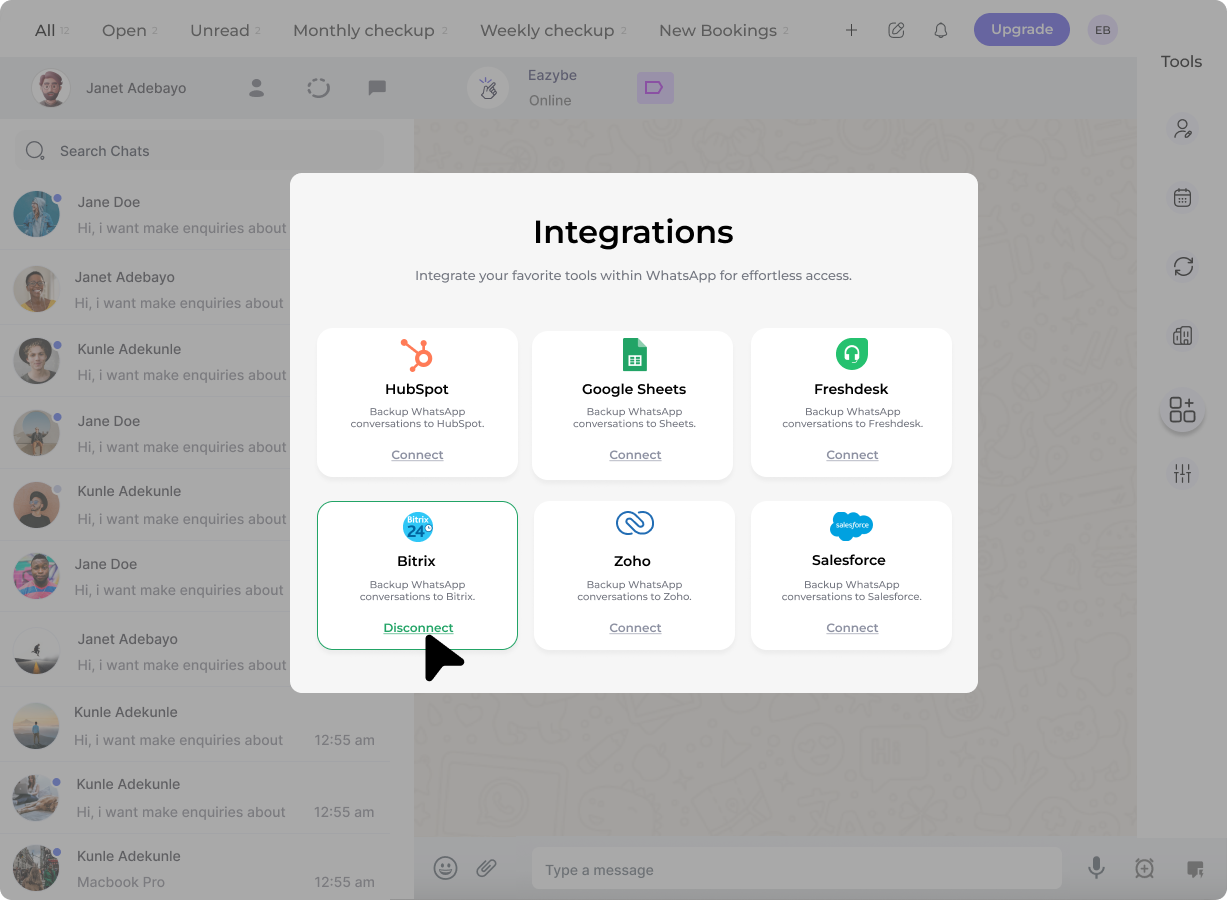
 Find the **Bitrix** section and click the **Disconnect** button.
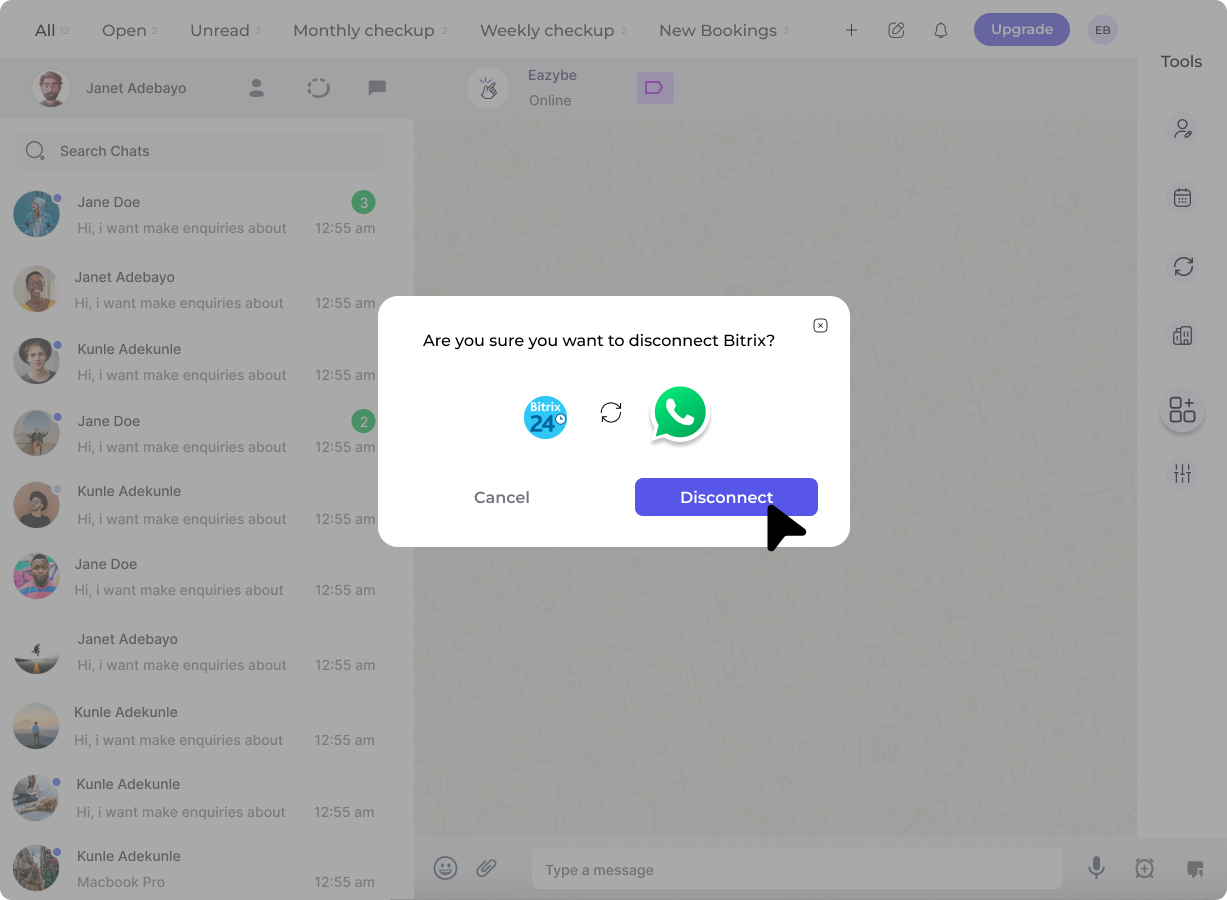
 A confirmation dialog will appear. Click **Disconnect** to verify and complete the process.
 ## Method B: Via Eazybe Workspace
Click the **Organisation** button in the right sidebar to open the Organisation page in Eazybe Workspace.
## Method B: Via Eazybe Workspace
Click the **Organisation** button in the right sidebar to open the Organisation page in Eazybe Workspace.
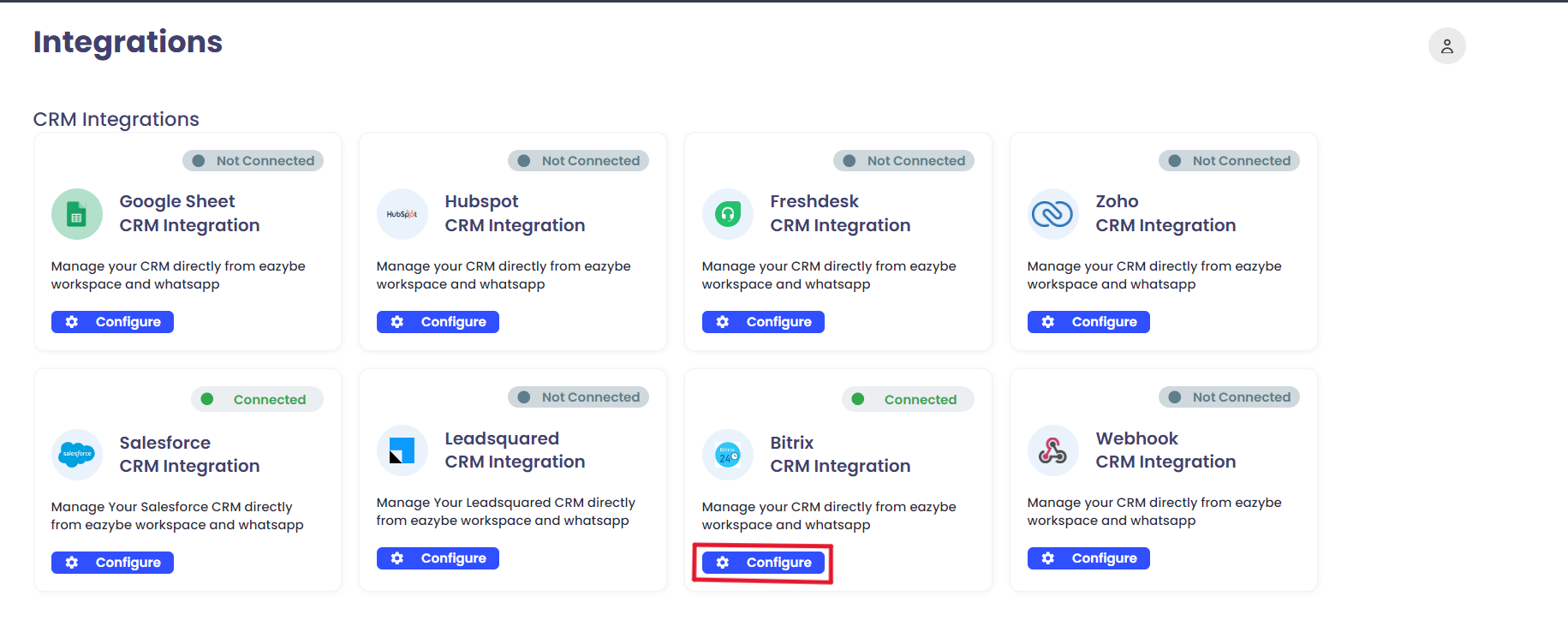 Click **Integrations** in the left sidebar. Under the **Bitrix CRM integration** section, click the **Configure** button.
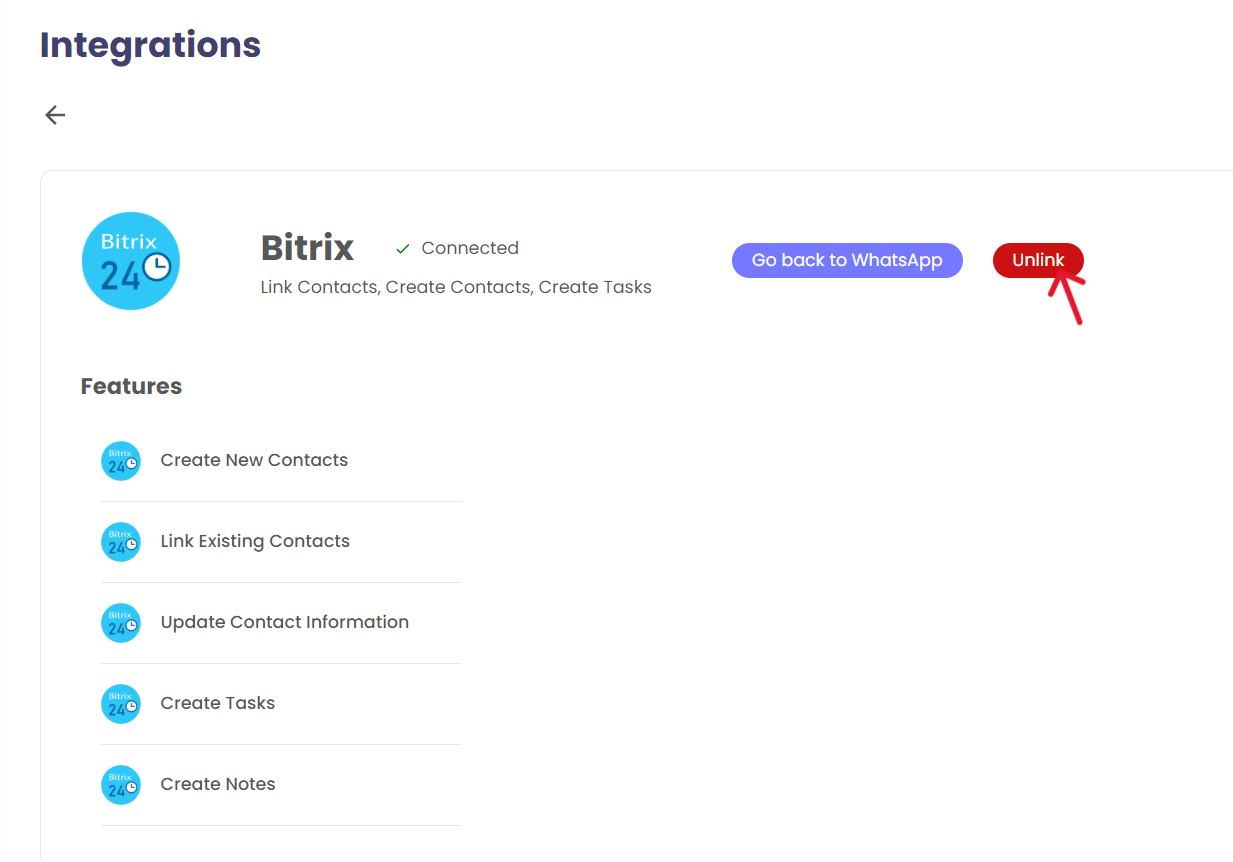
Click the red **Unlink** button. A confirmation popup will appear—click **Unlink** to confirm.
Click **Integrations** in the left sidebar. Under the **Bitrix CRM integration** section, click the **Configure** button.
Click the red **Unlink** button. A confirmation popup will appear—click **Unlink** to confirm.
 After successfully disconnecting, the Bitrix icon will no longer appear in the right sidebar of the extension.
To reconnect your Bitrix account, follow the original setup instructions in the [Install and Connect](/en/integrations/bitrix/install-and-connect) guide.
***
If you have any questions or need further assistance, feel free to reach out to us at **[hey@eazybe.com](mailto:hey@eazybe.com)**.
After successfully disconnecting, the Bitrix icon will no longer appear in the right sidebar of the extension.
To reconnect your Bitrix account, follow the original setup instructions in the [Install and Connect](/en/integrations/bitrix/install-and-connect) guide.
***
If you have any questions or need further assistance, feel free to reach out to us at **[hey@eazybe.com](mailto:hey@eazybe.com)**.