> ## Documentation Index
> Fetch the complete documentation index at: https://help.eazybe.com/llms.txt
> Use this file to discover all available pages before exploring further.
# Eazybe Onboarding: Your First Steps to AI-Powered WhatsApp
> Complete guide to setting up your Eazybe account, from sign-up to full platform access.
## Introduction
This guide will walk you through the entire Eazybe setup process, from creating your account and verifying your email to establishing your organization.
**This guide covers:**
* Creating and verifying your account
* Setting up your workspace
* Chrome Extension installation (optional)
* WhatsApp API connection (optional)
* CRM connection (optional)
* Understanding your free trial
* Platform navigation overview
***
## Getting Started
Start your journey at: [app.eazybe.com/signin](https://app.eazybe.com/signin)
***
## Account Creation
Navigate to [app.eazybe.com/signin](https://app.eazybe.com/signin) to begin your onboarding journey.
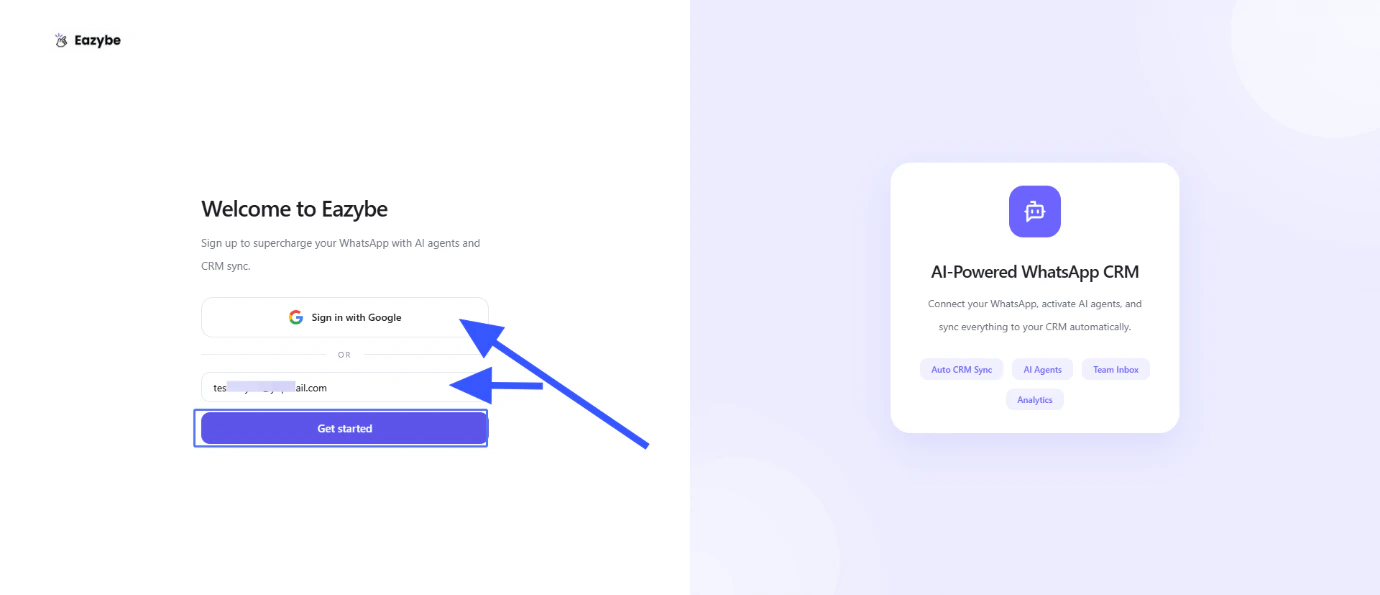
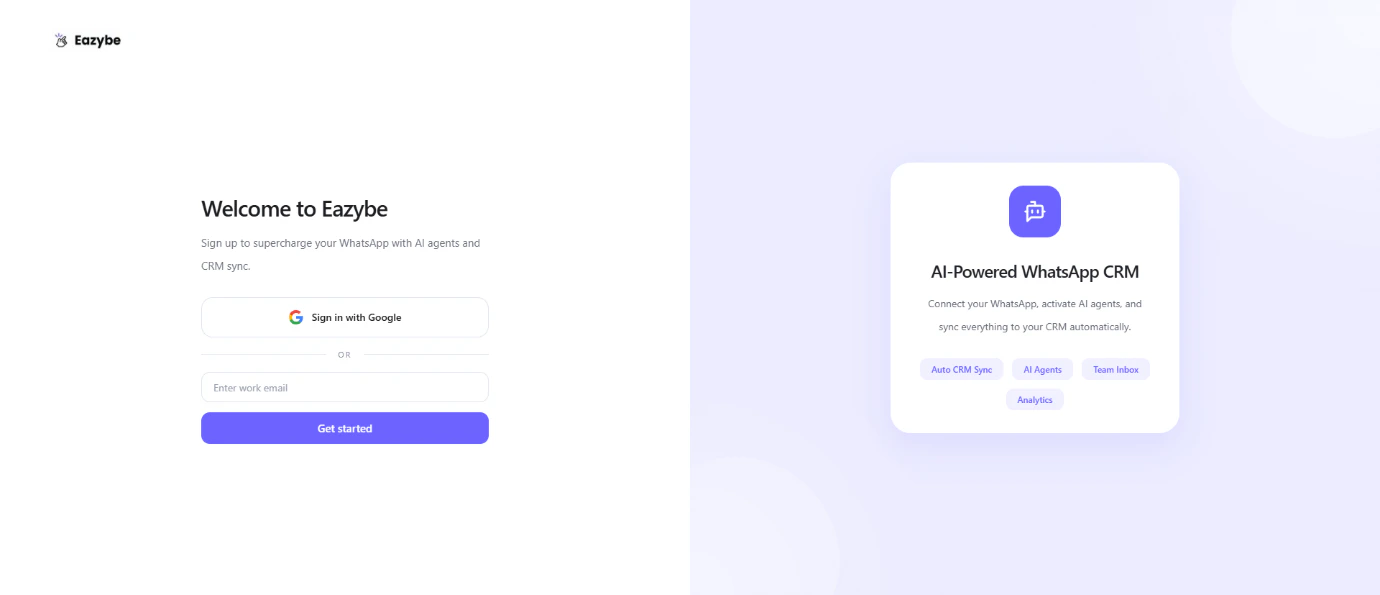 Enter your email address or sign in with Google. Then click on **Get Started**.
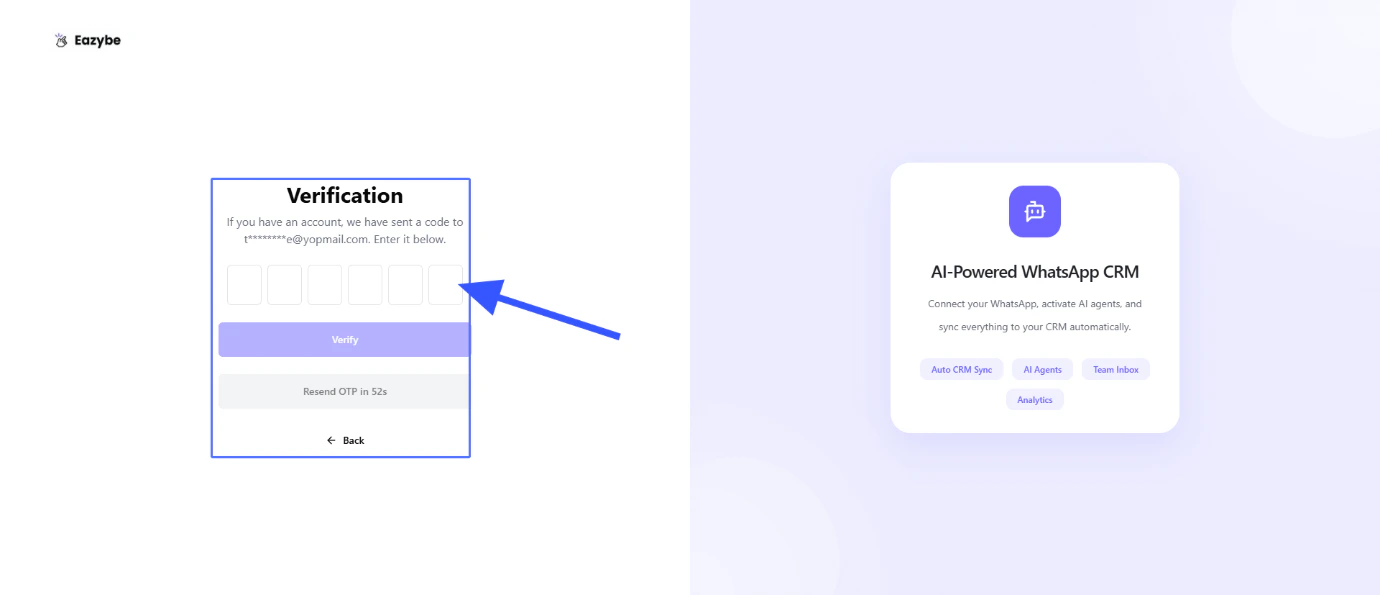
 Enter the verification code you received on your email, then click on **Verify**.
 ***
## Set Up Your Workspace
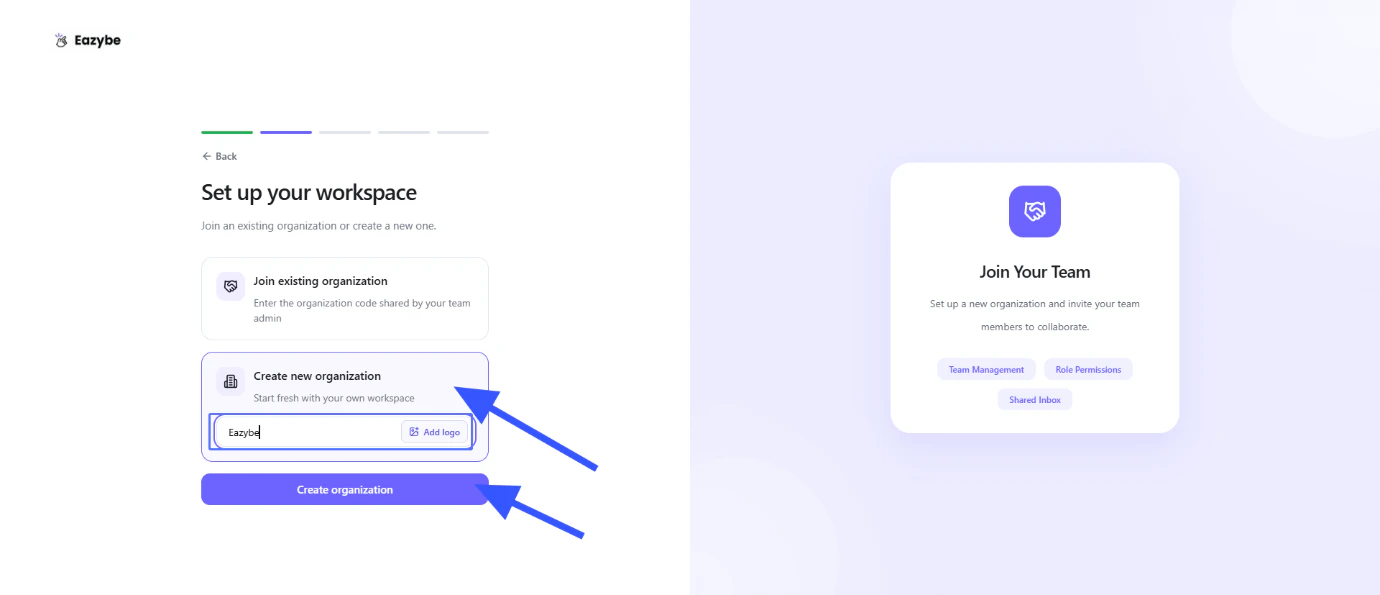
You can join your existing organization using the **organization code** or create a new organization. Then click on **Continue**.
***
## Set Up Your Workspace
You can join your existing organization using the **organization code** or create a new organization. Then click on **Continue**.
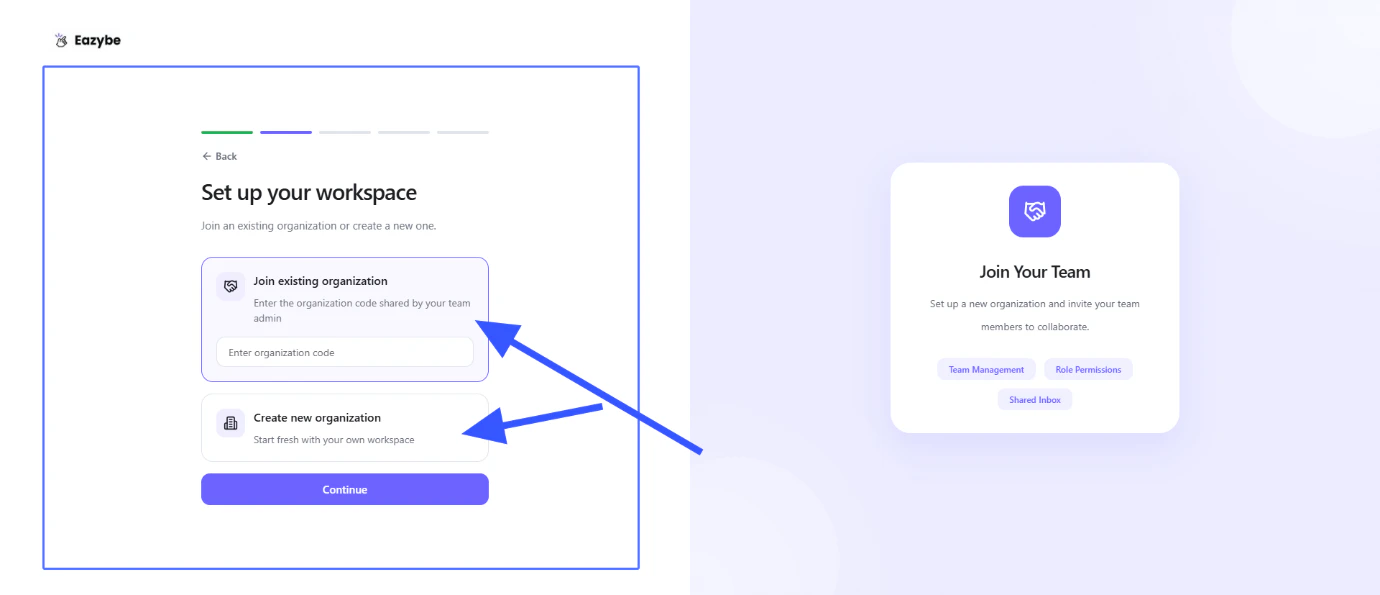 To create a new organization, enter your organization name, upload an organization logo (optional), and then click on **Create Organization**.
 ***
## Optional Setup Steps
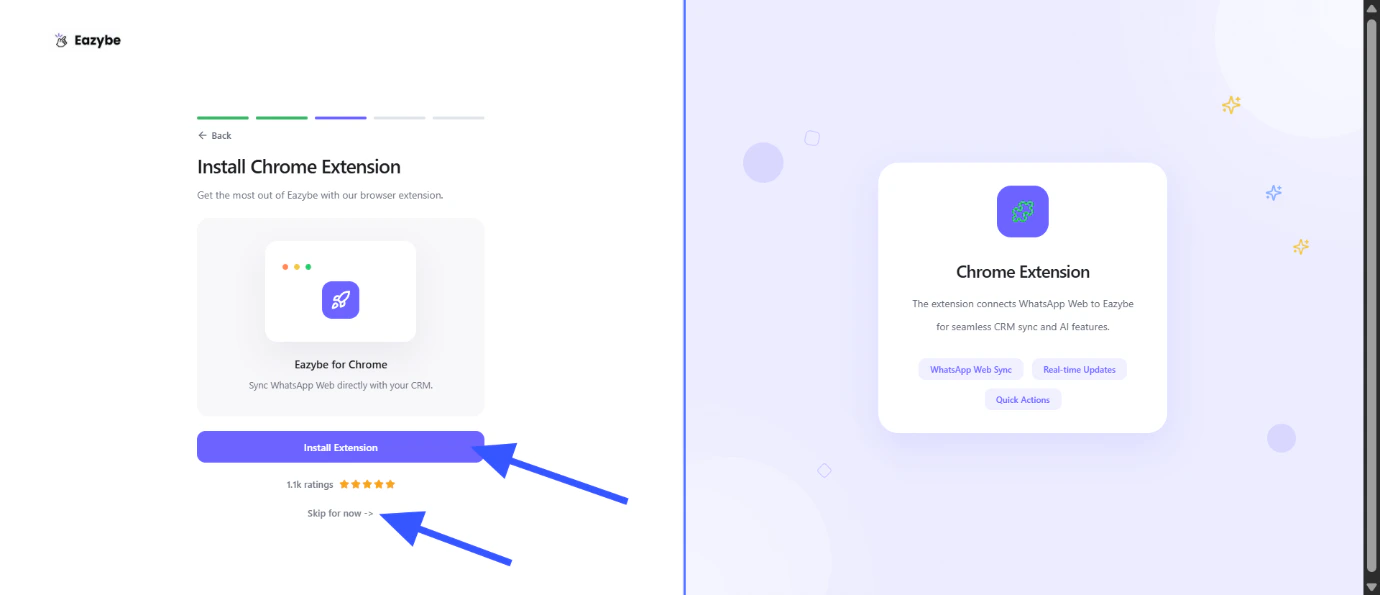
You can install the Chrome Extension for enhanced functionality or click on **Skip for now**.
***
## Optional Setup Steps
You can install the Chrome Extension for enhanced functionality or click on **Skip for now**.
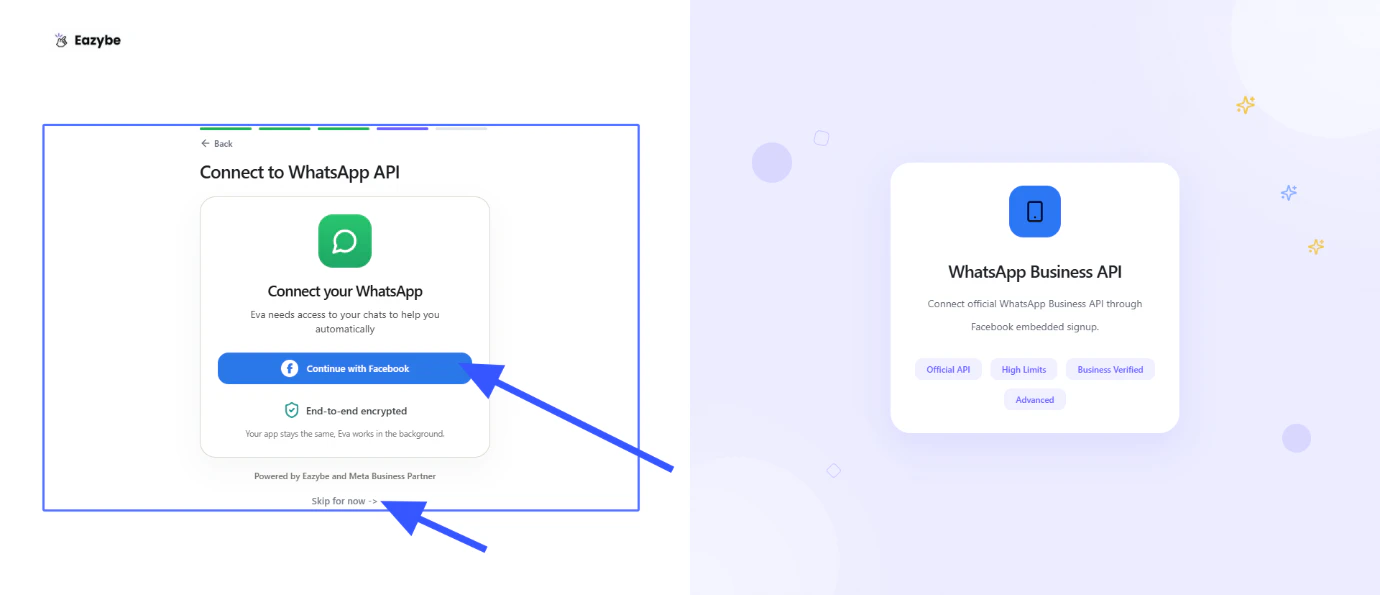
 You can connect your WhatsApp API now or click on **Skip for now**.
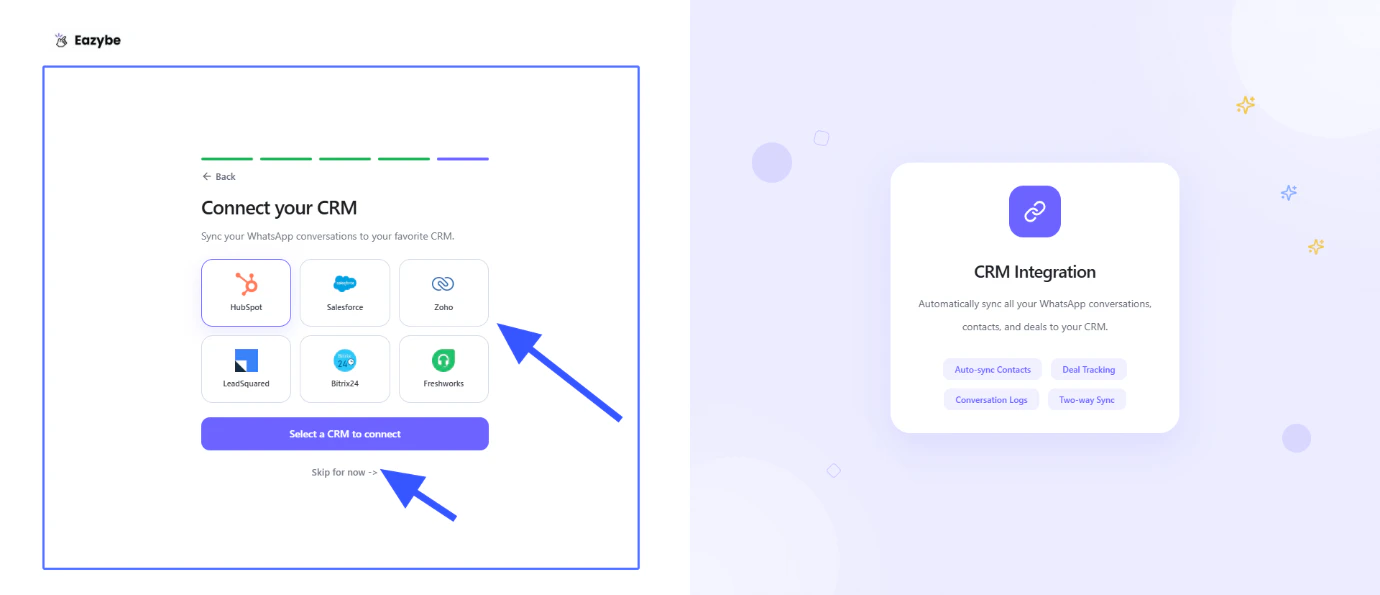
 You can connect your CRM now or click on **Skip for now**.
 You can complete these optional setup steps later from your dashboard.
***
## Your Free Trial
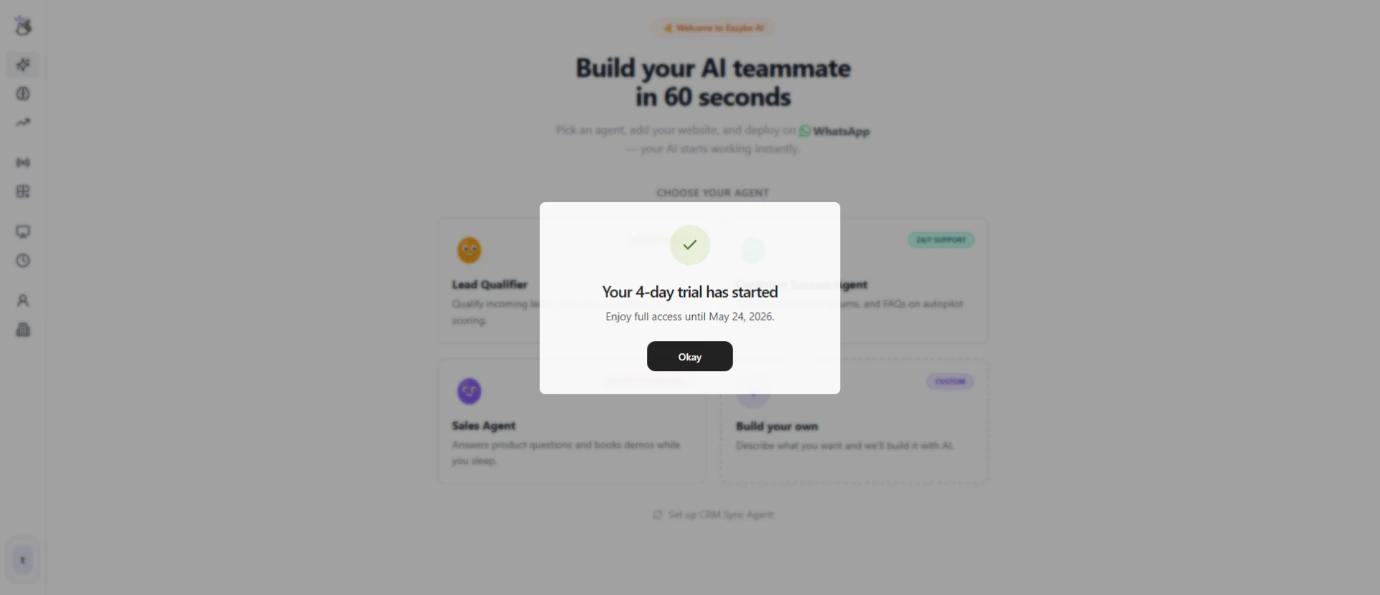
After the successful setup, you get a **Free 4-Day trial** with full access to all features.
You can complete these optional setup steps later from your dashboard.
***
## Your Free Trial
After the successful setup, you get a **Free 4-Day trial** with full access to all features.
 ***
## Platform Navigation
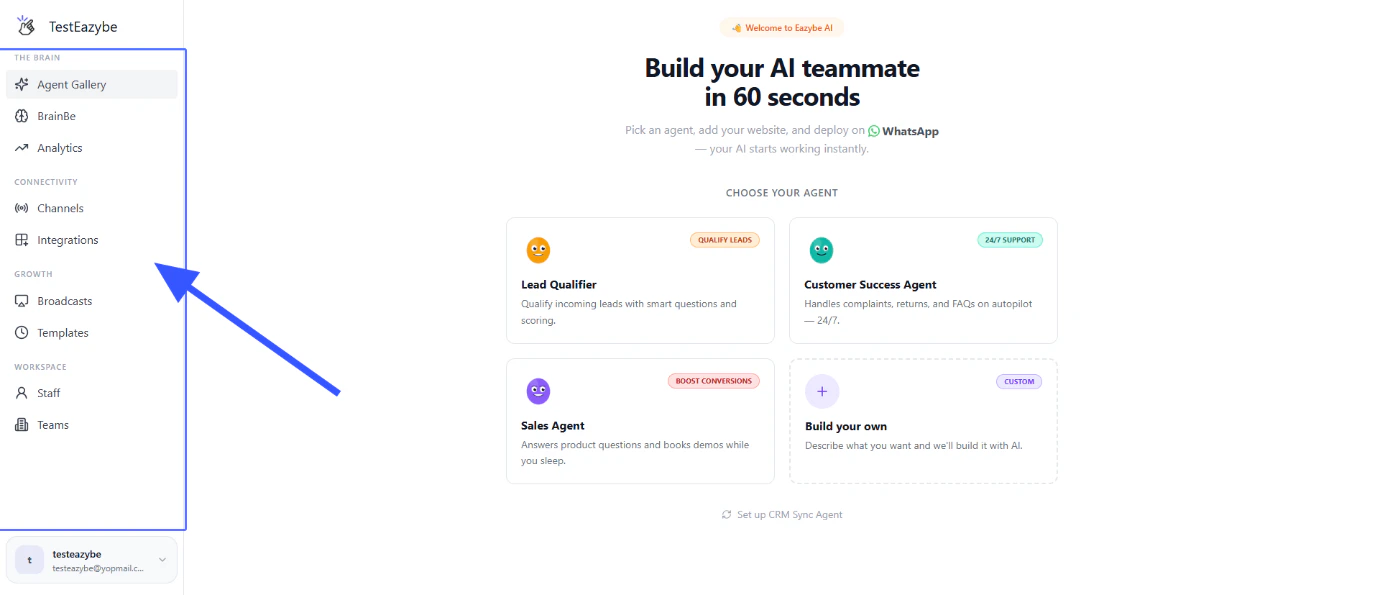
You have all the functionalities available on the **Sidebar Navigation**.
***
## Platform Navigation
You have all the functionalities available on the **Sidebar Navigation**.
 ***
## User Account Management
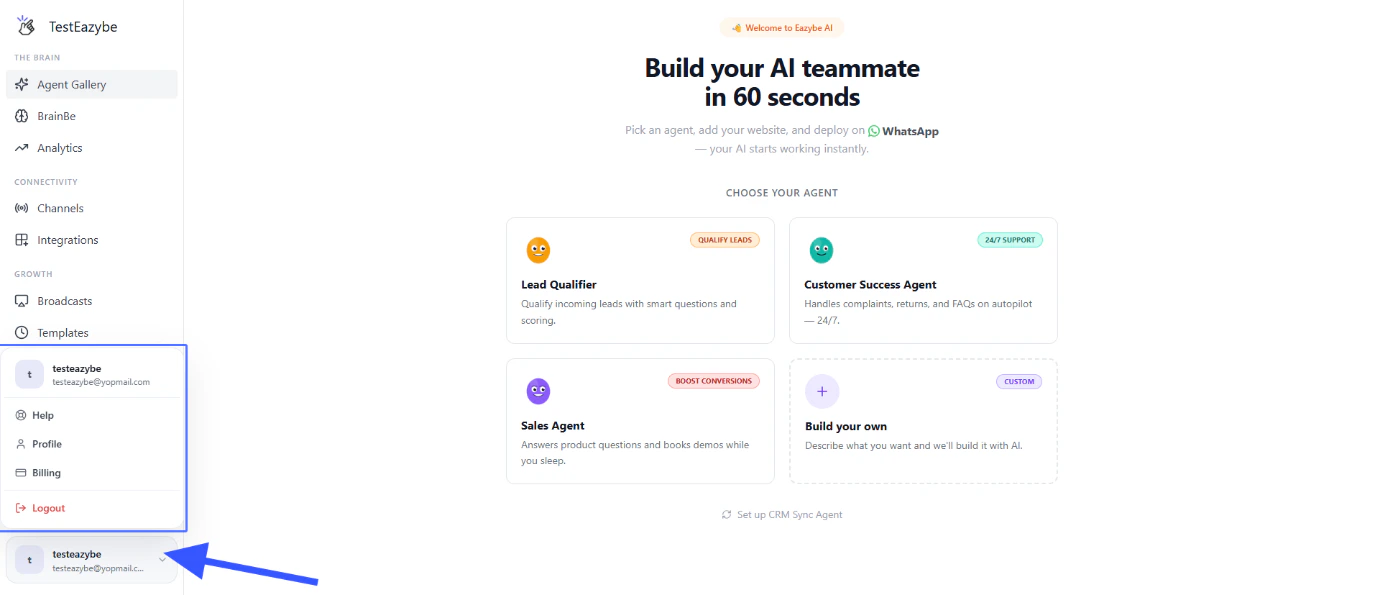
Manage your account settings, preferences, and profile from the user menu.
***
## User Account Management
Manage your account settings, preferences, and profile from the user menu.
 ***
## Related Articles
* [Onboarding to Coexistence](/en/getting-started/onboarding-to-coexistence)
* [Cloud WhatsApp Overview](/en/getting-started/cloud-whatsapp/about)
***
## Related Articles
* [Onboarding to Coexistence](/en/getting-started/onboarding-to-coexistence)
* [Cloud WhatsApp Overview](/en/getting-started/cloud-whatsapp/about)