> ## Documentation Index
> Fetch the complete documentation index at: https://help.eazybe.com/llms.txt
> Use this file to discover all available pages before exploring further.
# How to Connect
> Learn how to connect EazyBe Cloud WhatsApp through the Workspace or the Chrome Extension
You need a **Teams Plan subscription** to access Cloud features.
There are two ways to connect your Cloud WhatsApp:
## Method 1: Connect through EazyBe Workspace
Go to the EazyBe Workspace and log in to your account.
Go to your organization's page and select the account you want to connect.
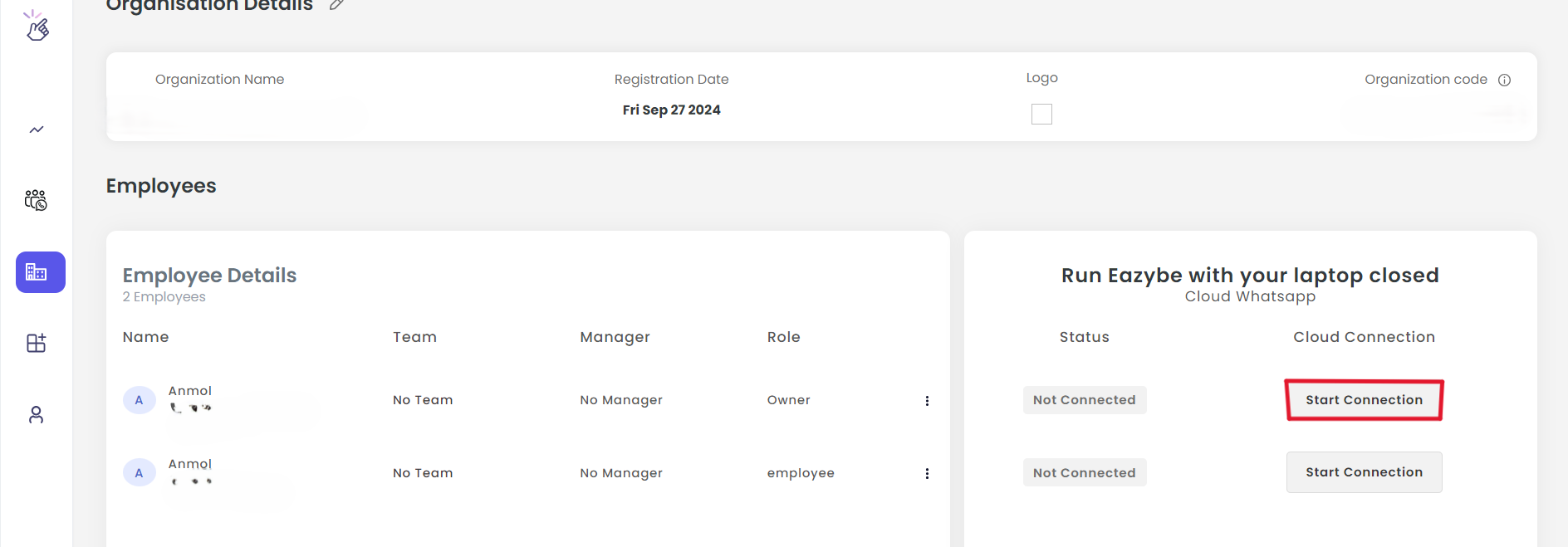 Click the **Start Connection** button. The status will change to "Preparing".
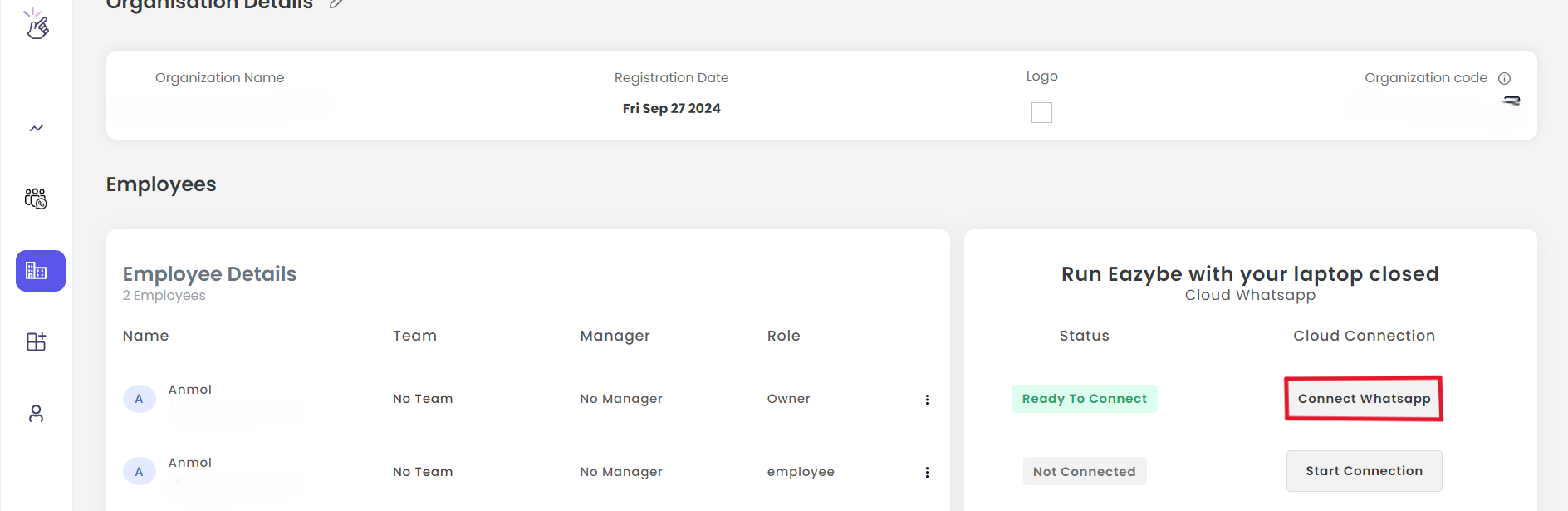 Wait for the status to update to **Ready To Connect**. The button will now display "Connect WhatsApp".
Click the button to open the QR code window. Scan the QR code using your WhatsApp mobile app.
Wait for the status to update to **Ready To Connect**. The button will now display "Connect WhatsApp".
Click the button to open the QR code window. Scan the QR code using your WhatsApp mobile app.
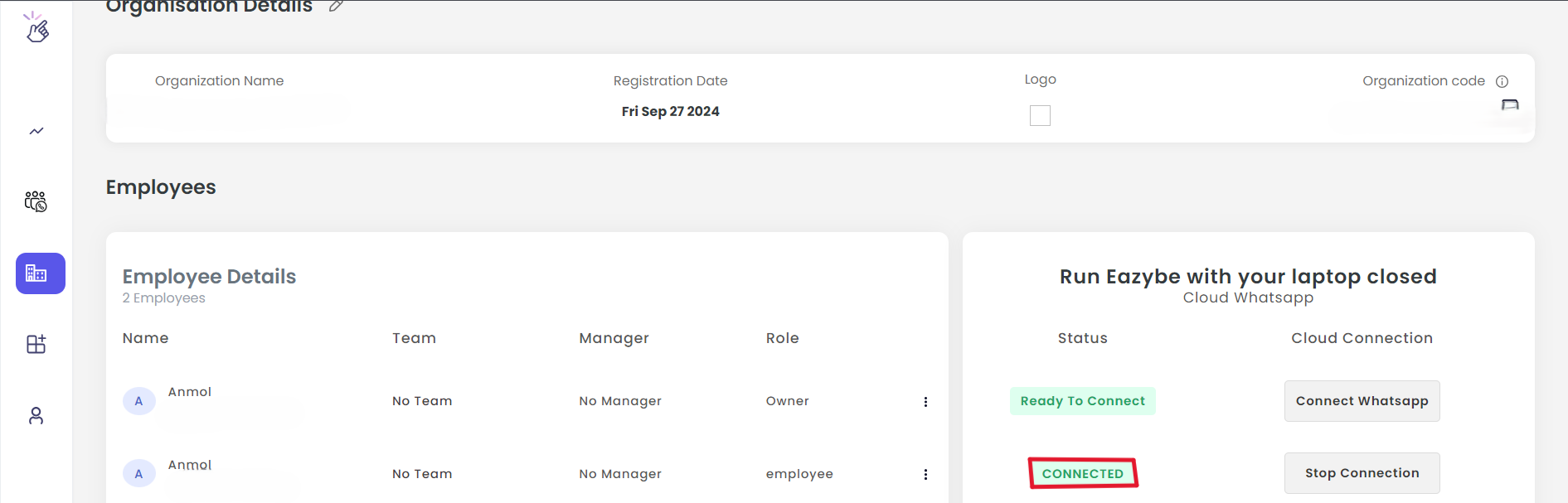 Once connected, the status will change to **Connected**.
Once connected, the cloud icon in the extension will turn **green**.
***
## Method 2: Connect through EazyBe Extension
Log into WhatsApp Web with the EazyBe extension active.
Find the cloud scanner icon on the left side of the screen.
Once connected, the status will change to **Connected**.
Once connected, the cloud icon in the extension will turn **green**.
***
## Method 2: Connect through EazyBe Extension
Log into WhatsApp Web with the EazyBe extension active.
Find the cloud scanner icon on the left side of the screen.
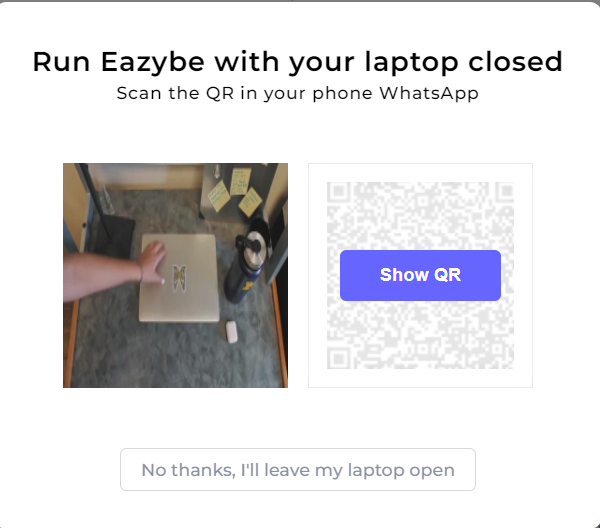 Click the cloud icon to open the popup window.
Click the **Show QR** button to generate a QR code.
Scan the QR code using your WhatsApp mobile application.
The cloud icon will turn **green** when successfully connected.
The connection status will also show as **Connected** in the EazyBe Workspace.
***
If you have any questions or need further assistance, feel free to reach out to us at **[hey@eazybe.com](mailto:hey@eazybe.com)**. We're happy to help!
Click the cloud icon to open the popup window.
Click the **Show QR** button to generate a QR code.
Scan the QR code using your WhatsApp mobile application.
The cloud icon will turn **green** when successfully connected.
The connection status will also show as **Connected** in the EazyBe Workspace.
***
If you have any questions or need further assistance, feel free to reach out to us at **[hey@eazybe.com](mailto:hey@eazybe.com)**. We're happy to help!