> ## Documentation Index
> Fetch the complete documentation index at: https://help.eazybe.com/llms.txt
> Use this file to discover all available pages before exploring further.
# Disconnect Cloud
> Learn how to disconnect EazyBe Cloud WhatsApp through the Workspace or the Chrome Extension
Once disconnected, you will no longer be able to sync chats or schedule messages while your laptop is closed.
There are two ways to disconnect your Cloud WhatsApp:
## Method 1: Disconnect through EazyBe Workspace
In your EazyBe Workspace, find the account you want to disconnect and click the **Stop Connection** button.
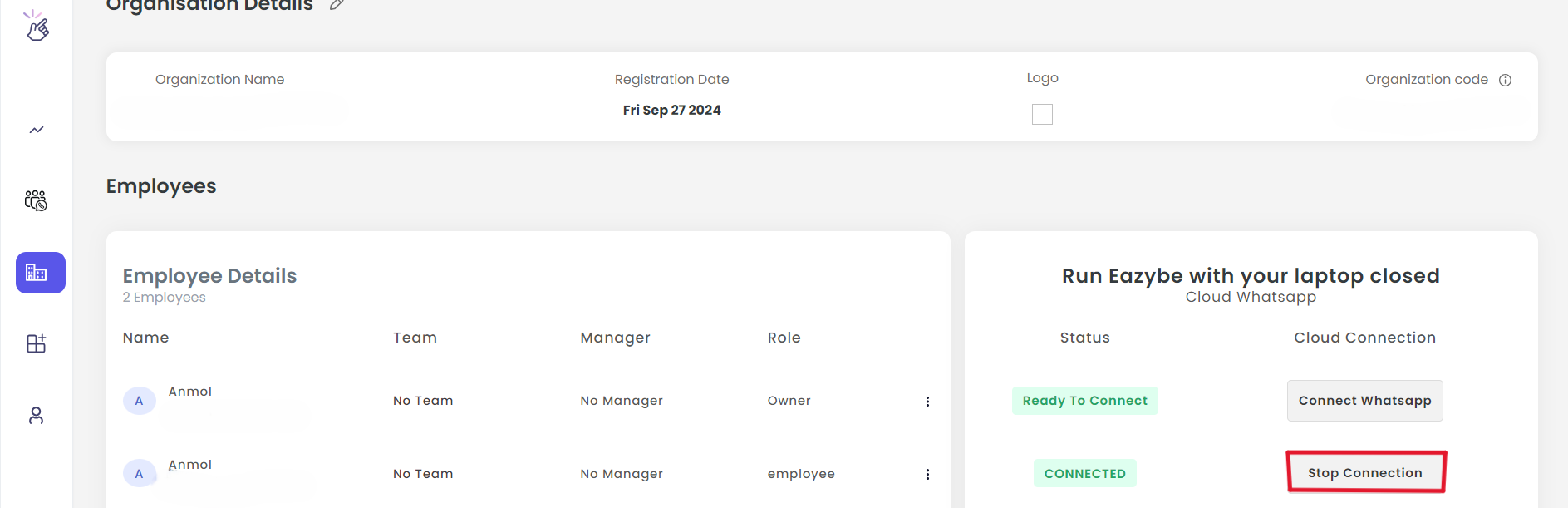 The status will change to **Stopped** and the button will convert to "Restart WhatsApp".
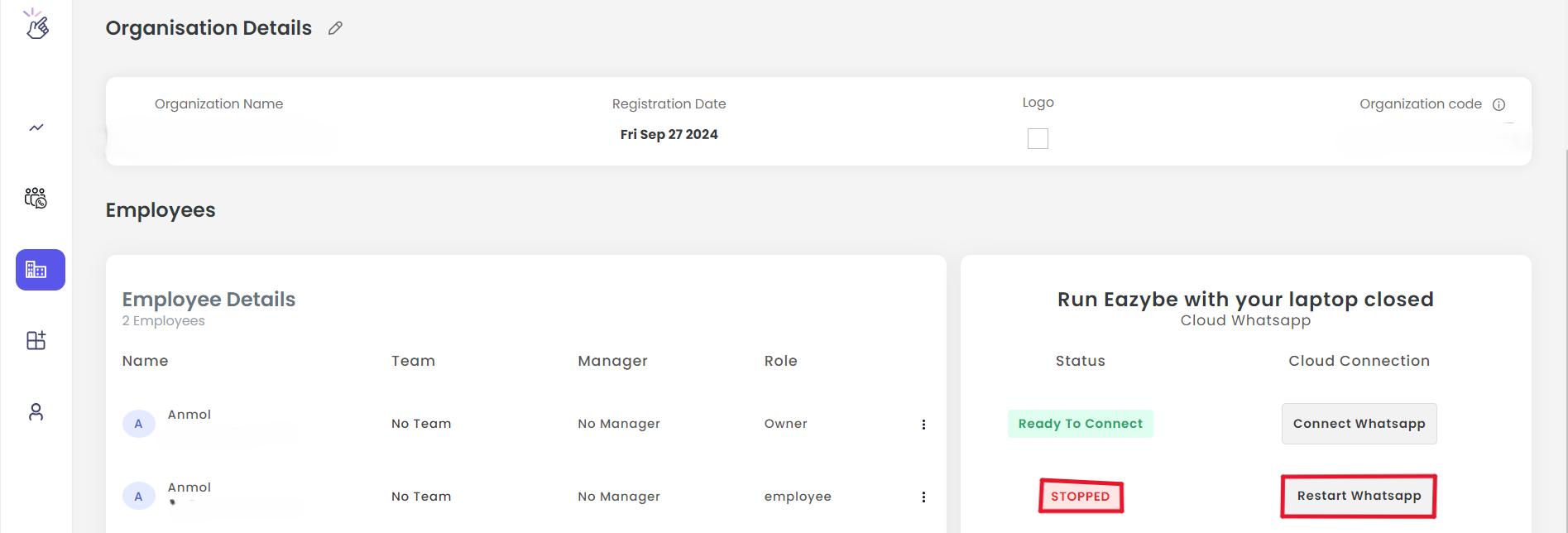 The cloud icon in the extension will turn **red**, confirming the disconnection.
***
## Method 2: Disconnect through EazyBe Extension
Click the cloud icon in the EazyBe WhatsApp extension.
The cloud icon in the extension will turn **red**, confirming the disconnection.
***
## Method 2: Disconnect through EazyBe Extension
Click the cloud icon in the EazyBe WhatsApp extension.
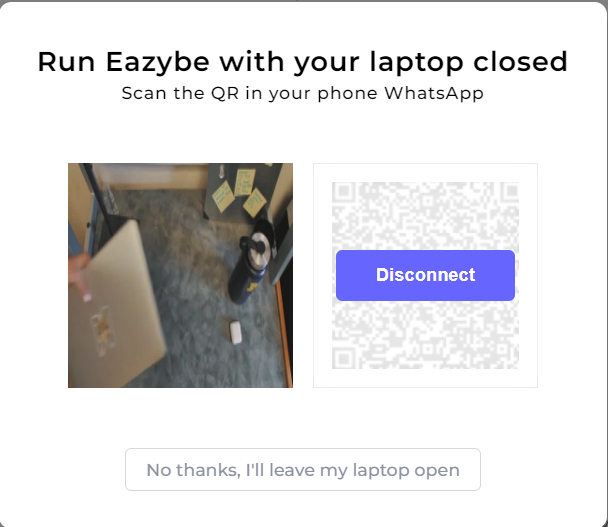 In the popup menu, click the **Disconnect** option.
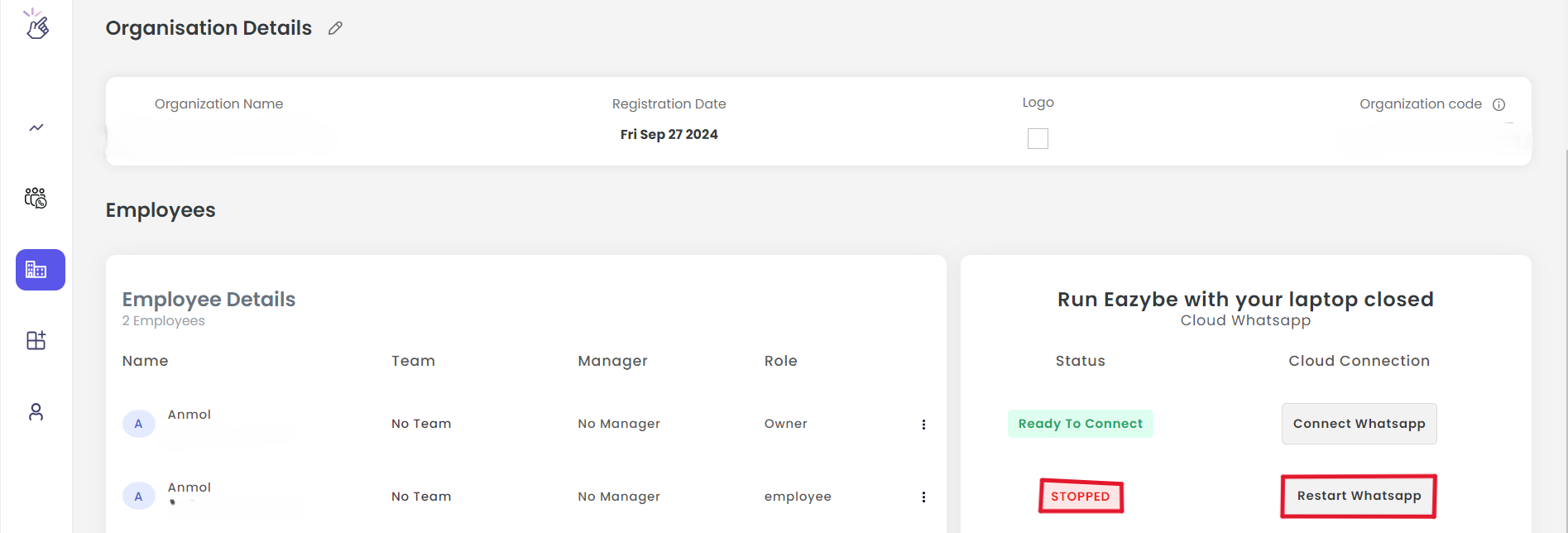
The cloud icon color will change, and the workspace status will update to **Stopped** with the button showing "Restart WhatsApp".
In the popup menu, click the **Disconnect** option.
The cloud icon color will change, and the workspace status will update to **Stopped** with the button showing "Restart WhatsApp".
 ***
If you have any questions or need further assistance, feel free to reach out to us at **[hey@eazybe.com](mailto:hey@eazybe.com)**. We're happy to help!
***
If you have any questions or need further assistance, feel free to reach out to us at **[hey@eazybe.com](mailto:hey@eazybe.com)**. We're happy to help!