> ## Documentation Index
> Fetch the complete documentation index at: https://help.eazybe.com/llms.txt
> Use this file to discover all available pages before exploring further.
# Connection Check
> How to ensure that your EazyBe Cloud WhatsApp has been successfully connected
There are two ways to verify that your EazyBe Cloud is successfully connected:
## Method 1: Check the Cloud Icon
Look for the cloud symbol in the EazyBe WhatsApp extension. A **green indicator** signifies successful connection status.
 The green cloud icon confirms your Cloud WhatsApp is actively connected and syncing.
***
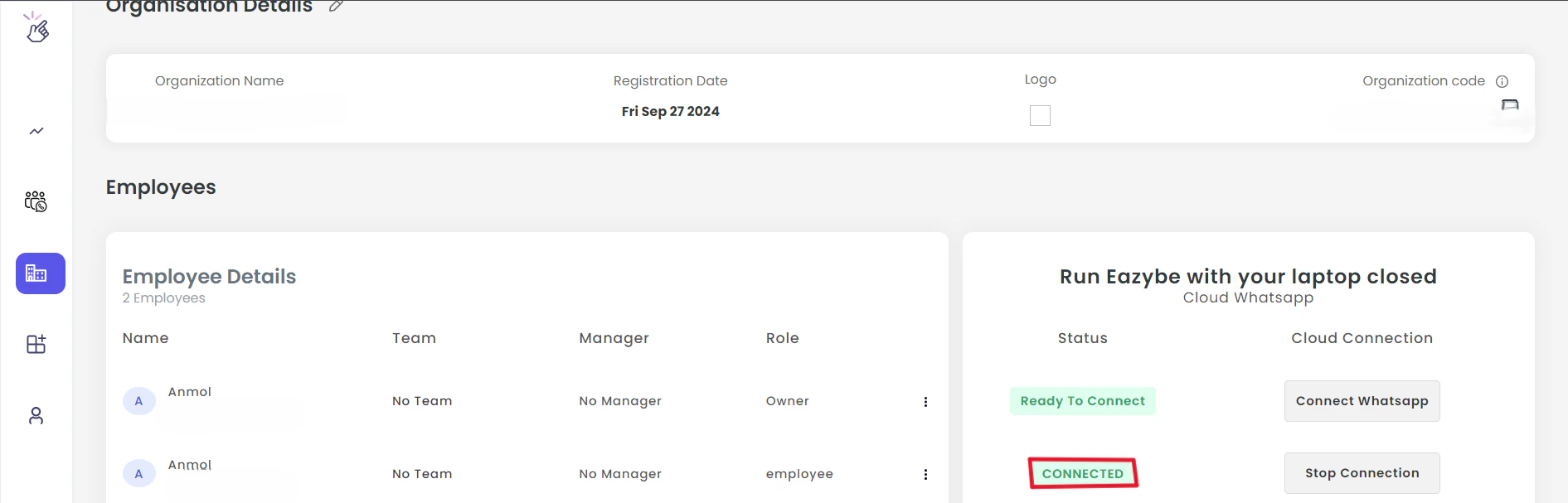
## Method 2: Check Your Workspace
Navigate to your EazyBe Workspace dashboard.
Find the account name in the workspace interface.
Examine the adjacent status field. The text **"Connected"** confirms successful cloud linking.
***
If you have any questions or need further assistance, feel free to reach out to us at **[hey@eazybe.com](mailto:hey@eazybe.com)**. We're happy to help!
The green cloud icon confirms your Cloud WhatsApp is actively connected and syncing.
***
## Method 2: Check Your Workspace
Navigate to your EazyBe Workspace dashboard.
Find the account name in the workspace interface.
Examine the adjacent status field. The text **"Connected"** confirms successful cloud linking.
***
If you have any questions or need further assistance, feel free to reach out to us at **[hey@eazybe.com](mailto:hey@eazybe.com)**. We're happy to help!