> ## Documentation Index
> Fetch the complete documentation index at: https://help.eazybe.com/llms.txt
> Use this file to discover all available pages before exploring further.
# Account Setup
> Learn how to ensure your Eazybe account is configured correctly, including profile overview, adding accounts, and joining organizations.
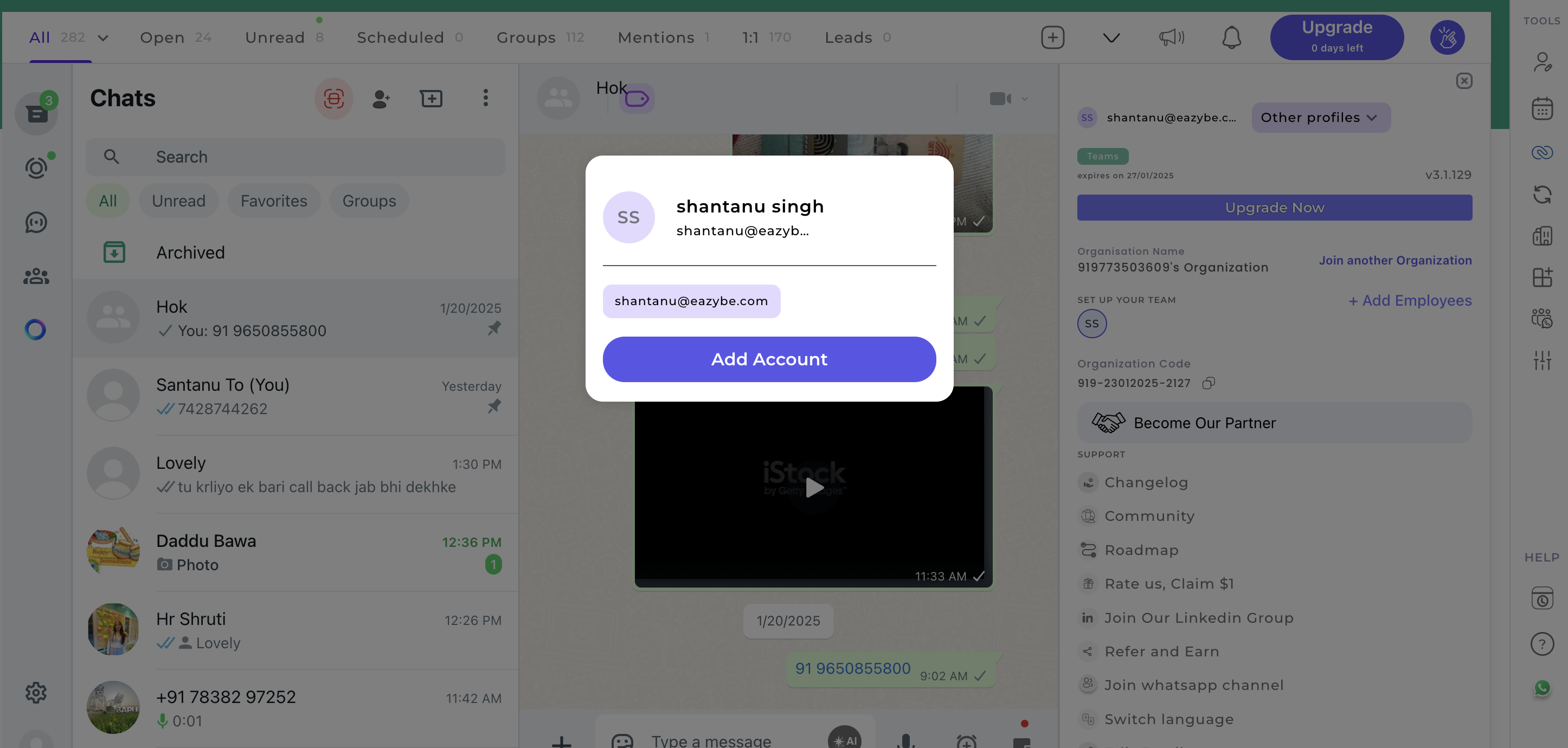
The account section provides an overview of your profile, current plan, and expiry date. Access it by clicking the Eazybe icon in the top right corner.
 ## Adding an Account
Click the **Other Profiles** button in your account section.
Select **Add Account** and enter your details to link an additional profile.
## Joining Another Organization
## Adding an Account
Click the **Other Profiles** button in your account section.
Select **Add Account** and enter your details to link an additional profile.
## Joining Another Organization
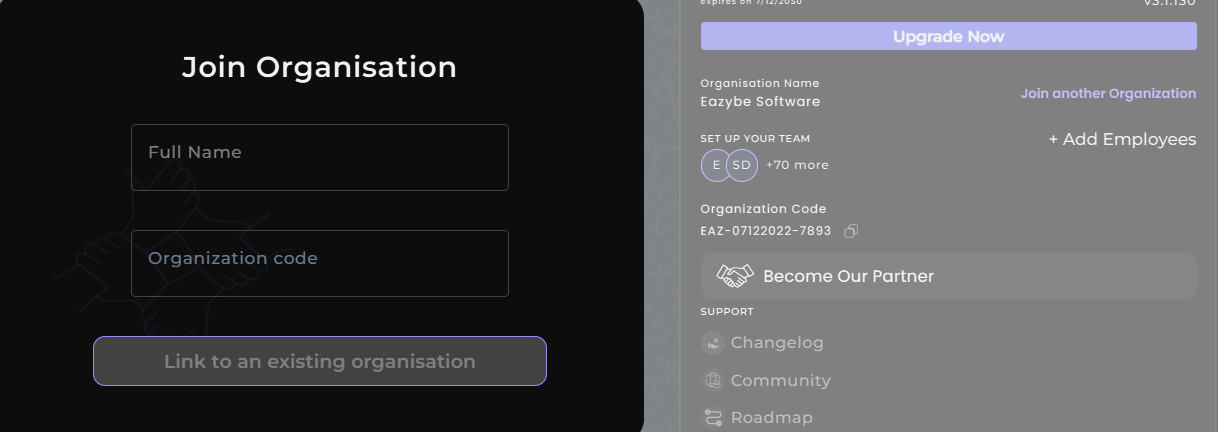 Click **Join another Organization** from your account settings.
Enter the organization code provided by the target organization's administrator.
**Share Your Organization Code**
Your employees can join your organization by using your unique Organization code. Simply copy the code from your account settings and share it with your team members.
Click **Join another Organization** from your account settings.
Enter the organization code provided by the target organization's administrator.
**Share Your Organization Code**
Your employees can join your organization by using your unique Organization code. Simply copy the code from your account settings and share it with your team members.