> ## Documentation Index
> Fetch the complete documentation index at: https://help.eazybe.com/llms.txt
> Use this file to discover all available pages before exploring further.
# View Broadcast Analytics
> Review campaign details, recipient delivery activity, and message failure reasons.
Open a campaign's analytics to see its message, source, delivery totals, and the latest status for each recipient. You can filter, search, and export the delivery activity.
The campaign names, phone numbers, dates, and delivery totals in these screenshots are examples. Your analytics page shows data from the selected campaign.
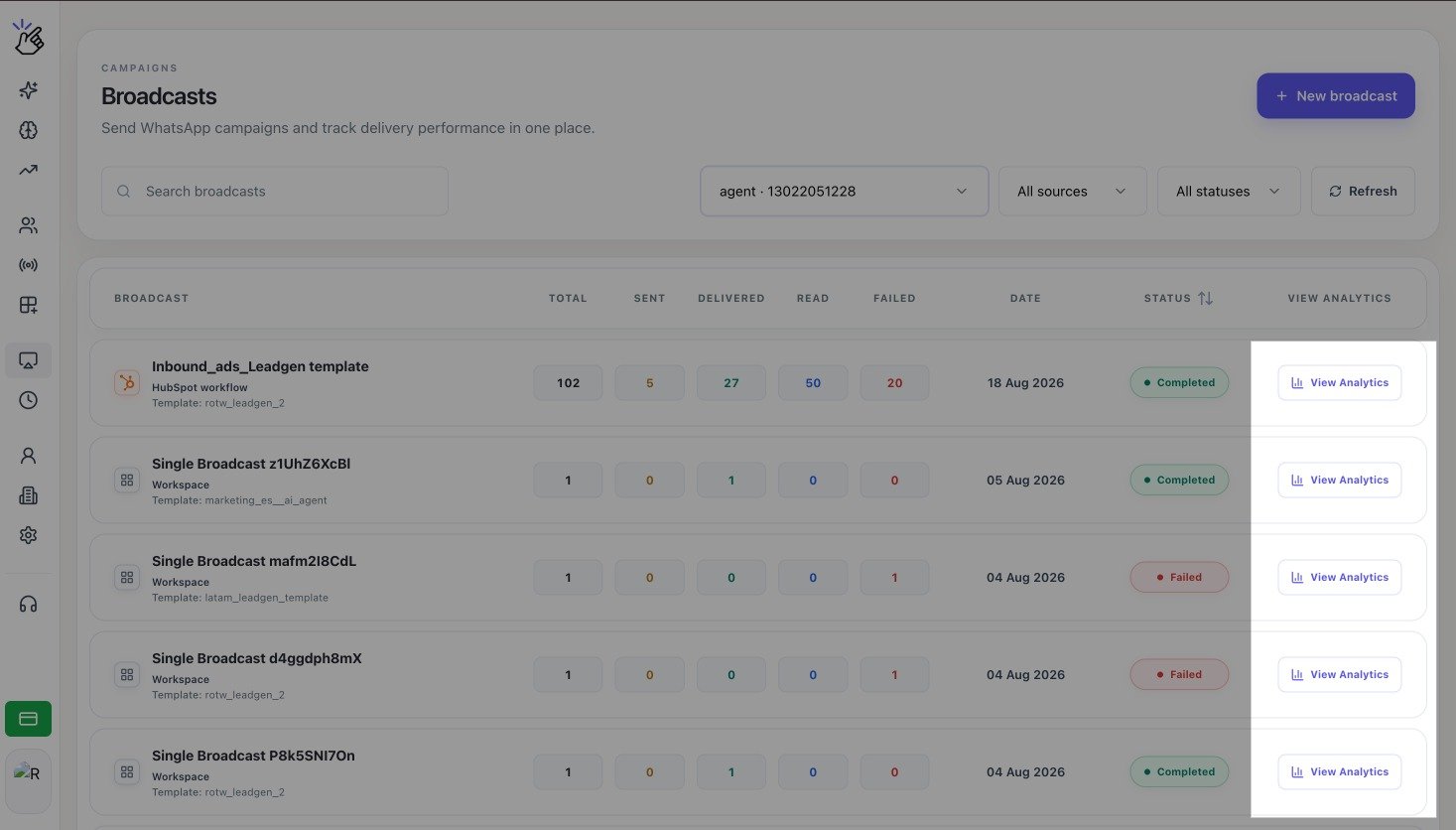
On **Broadcasts**, find the campaign and select **View Analytics**. Eazybe opens the detailed report for that campaign.
 At the top of the report, confirm the broadcast name and status, **WABA number**, **Sent on** date, **Total contact**, and **Broadcast source**. The message card shows the template preview.
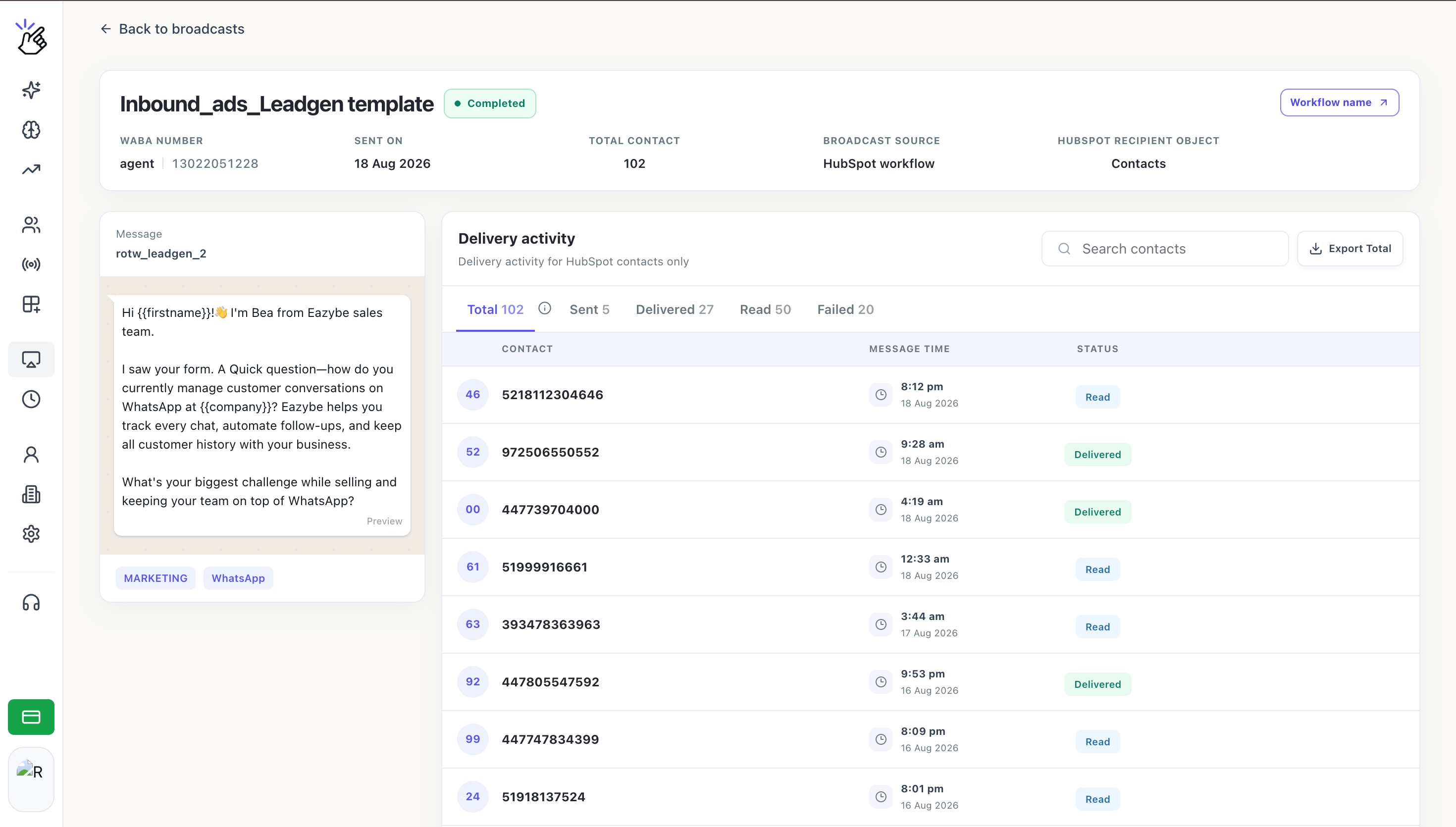 Some source-specific details appear only when they apply. For example, a HubSpot workflow broadcast can show the recipient object and a link to the workflow.
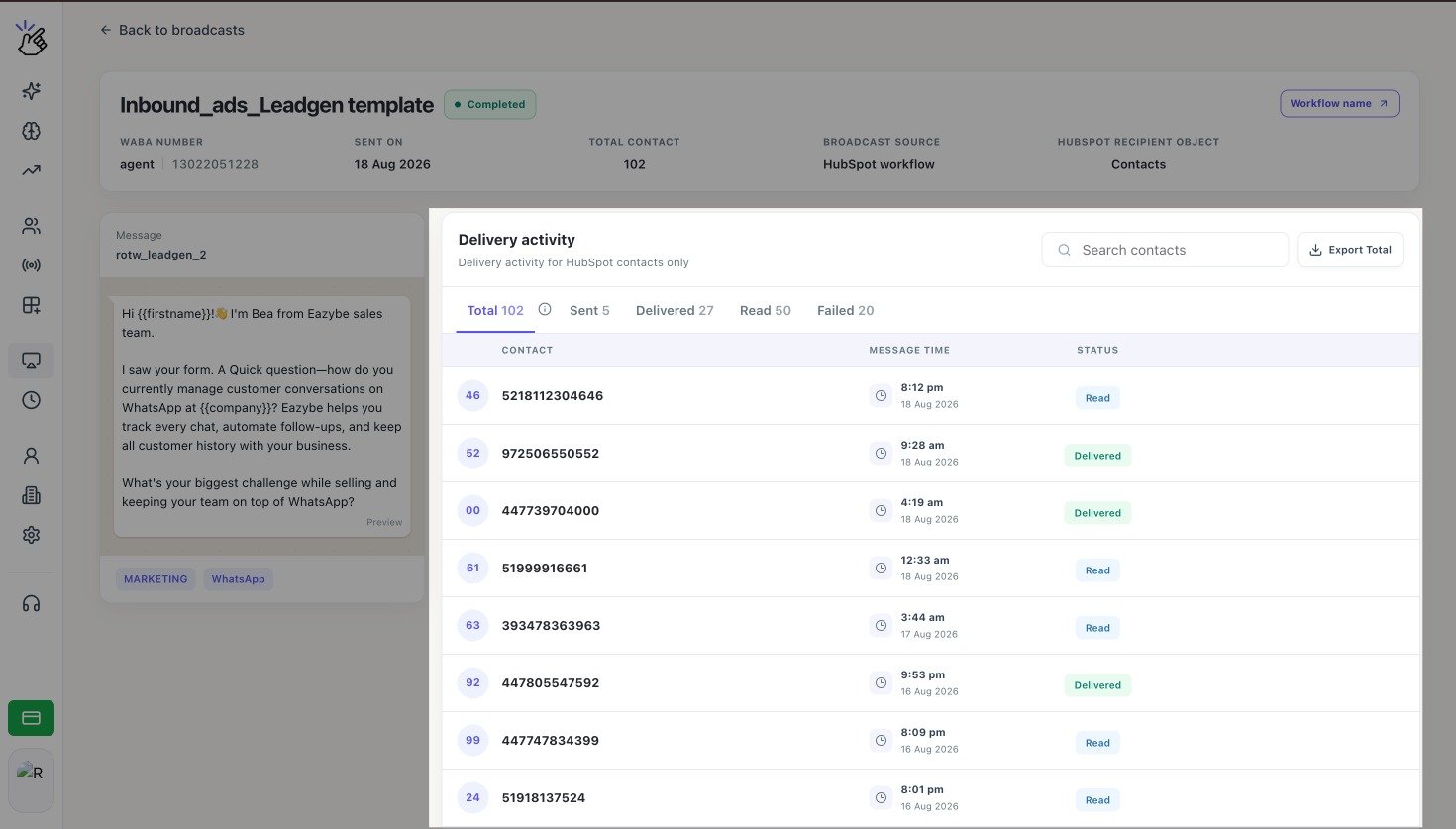
In **Delivery activity**, select **Total**, **Sent**, **Delivered**, **Read**, or **Failed**. Each row shows the contact, **Message time**, and latest **Status**. Failed rows include a failure reason when one is available.
Some source-specific details appear only when they apply. For example, a HubSpot workflow broadcast can show the recipient object and a link to the workflow.
In **Delivery activity**, select **Total**, **Sent**, **Delivered**, **Read**, or **Failed**. Each row shows the contact, **Message time**, and latest **Status**. Failed rows include a failure reason when one is available.
 Use **Search contacts** to find a phone number. Select **Export** to download the delivery group that is currently open, such as **Export Total** or the failed group.
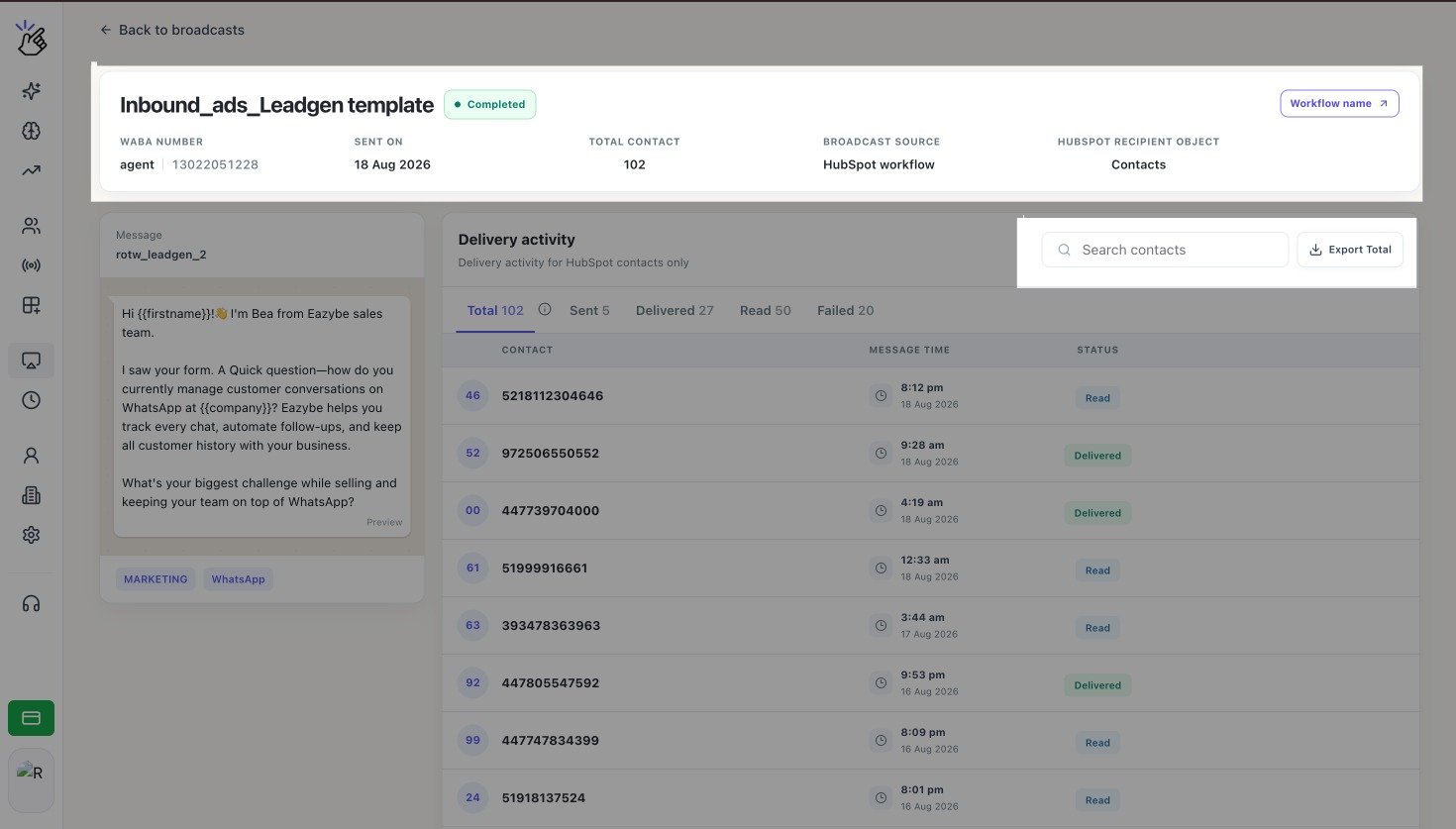 Open **Failed** and export that group when you need to correct contact data or share failure details with your team.
Choose 10, 25, or 50 rows per page to move through the recipients. Select **Back to broadcasts** when you are finished.
Open **Failed** and export that group when you need to correct contact data or share failure details with your team.
Choose 10, 25, or 50 rows per page to move through the recipients. Select **Back to broadcasts** when you are finished.