> ## Documentation Index
> Fetch the complete documentation index at: https://help.eazybe.com/llms.txt
> Use this file to discover all available pages before exploring further.
# Upload Contacts for a Broadcast
> Prepare a CSV or Excel contact list and select the recipients for a WhatsApp broadcast.
Use **Upload a list** when your recipients are stored in a CSV or Excel file. This page explains the required phone format, how to upload the file, and how to choose the contacts who will receive the campaign.
## Prepare the File
Eazybe accepts `.csv`, `.xls`, and `.xlsx` files. In the upload panel, select **Sample CSV** or **Sample Excel** to download the matching structure.
Keep **Country Code** and **Phone** in separate columns.
| Name | Country Code | Phone |
| ----- | ------------ | ---------- |
| Aisha | 91 | 9876543210 |
Put the full international number in the **Phone** column.
| Name | Phone |
| ----- | ------------ |
| Aisha | 919876543210 |
Include the country code and remove spaces and special characters from phone values. Use the downloadable sample when spreadsheet software changes long phone numbers.
If the selected template contains numbered variables such as `{{1}}`, add one column with the exact variable name for each variable:
| Name | Phone | \{\{1}} | \{\{2}} |
| ----- | ------------ | ------- | ------- |
| Aisha | 919876543210 | Aisha | Premium |
Every selected contact must have a value for every required variable.
## Upload and Select Contacts
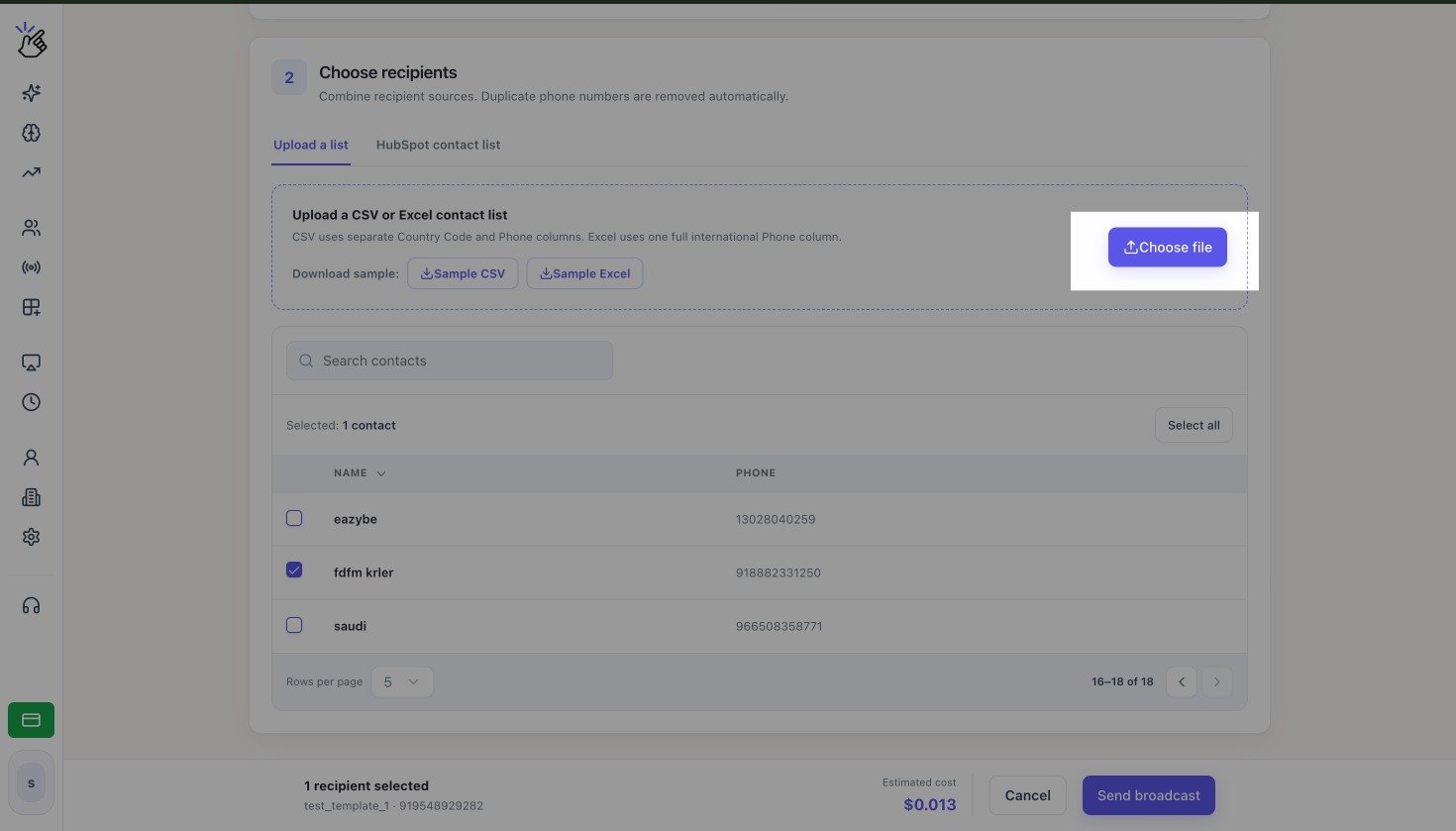
In **Choose recipients**, open **Upload a list** and select **Choose file**. Choose the prepared CSV or Excel file from your device.
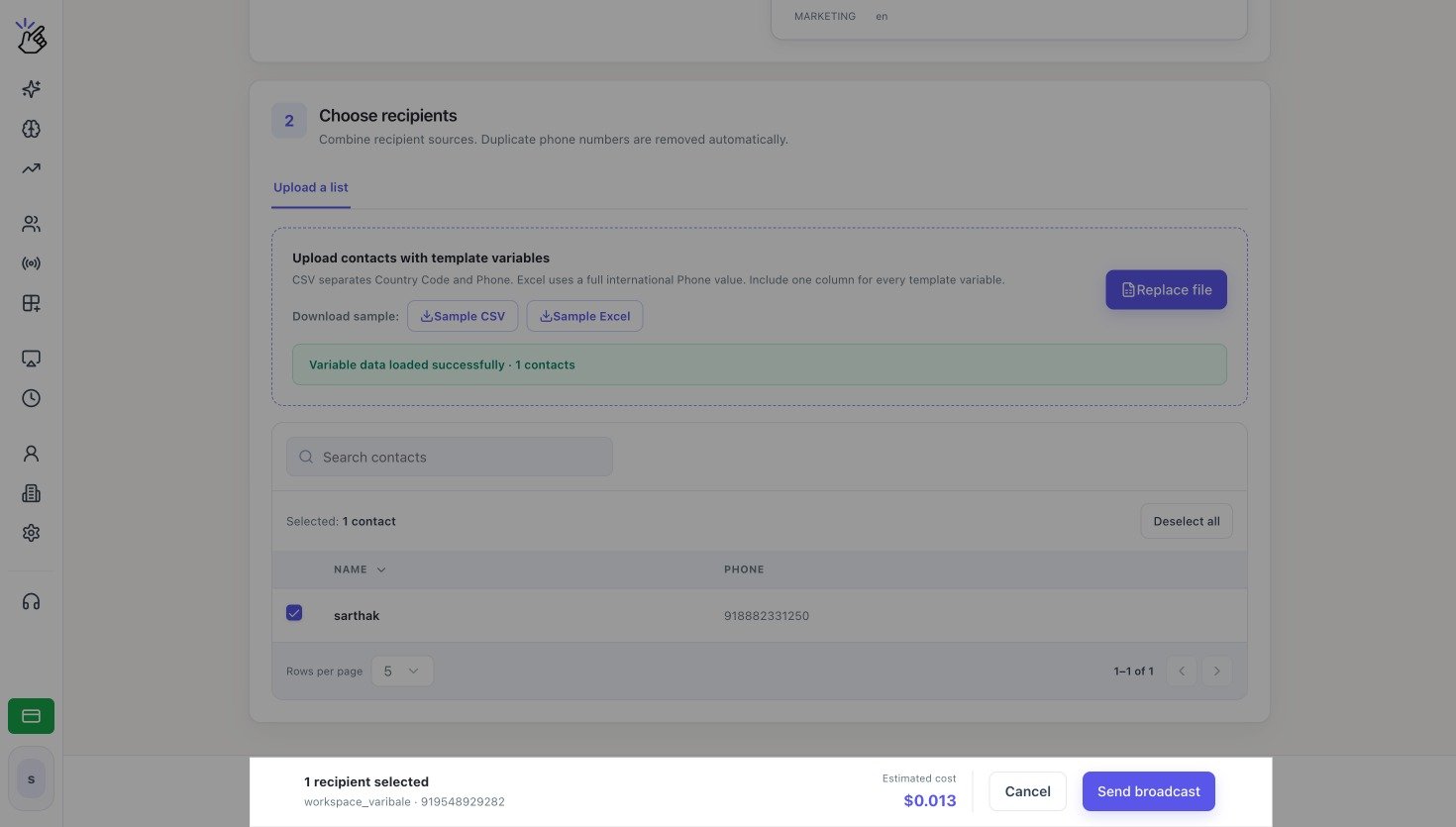
 After a successful variable-template upload, the panel shows **Variable data loaded successfully**. Select **Replace file** if you need to upload a corrected list.
Review the imported rows. Select individual contacts or select **Select all**. Use **Search contacts** when you need to find a specific row.
After a successful variable-template upload, the panel shows **Variable data loaded successfully**. Select **Replace file** if you need to upload a corrected list.
Review the imported rows. Select individual contacts or select **Select all**. Use **Search contacts** when you need to find a specific row.
 Eazybe normalizes phone numbers and removes duplicate numbers automatically. Empty or invalid phone values are not valid recipients.
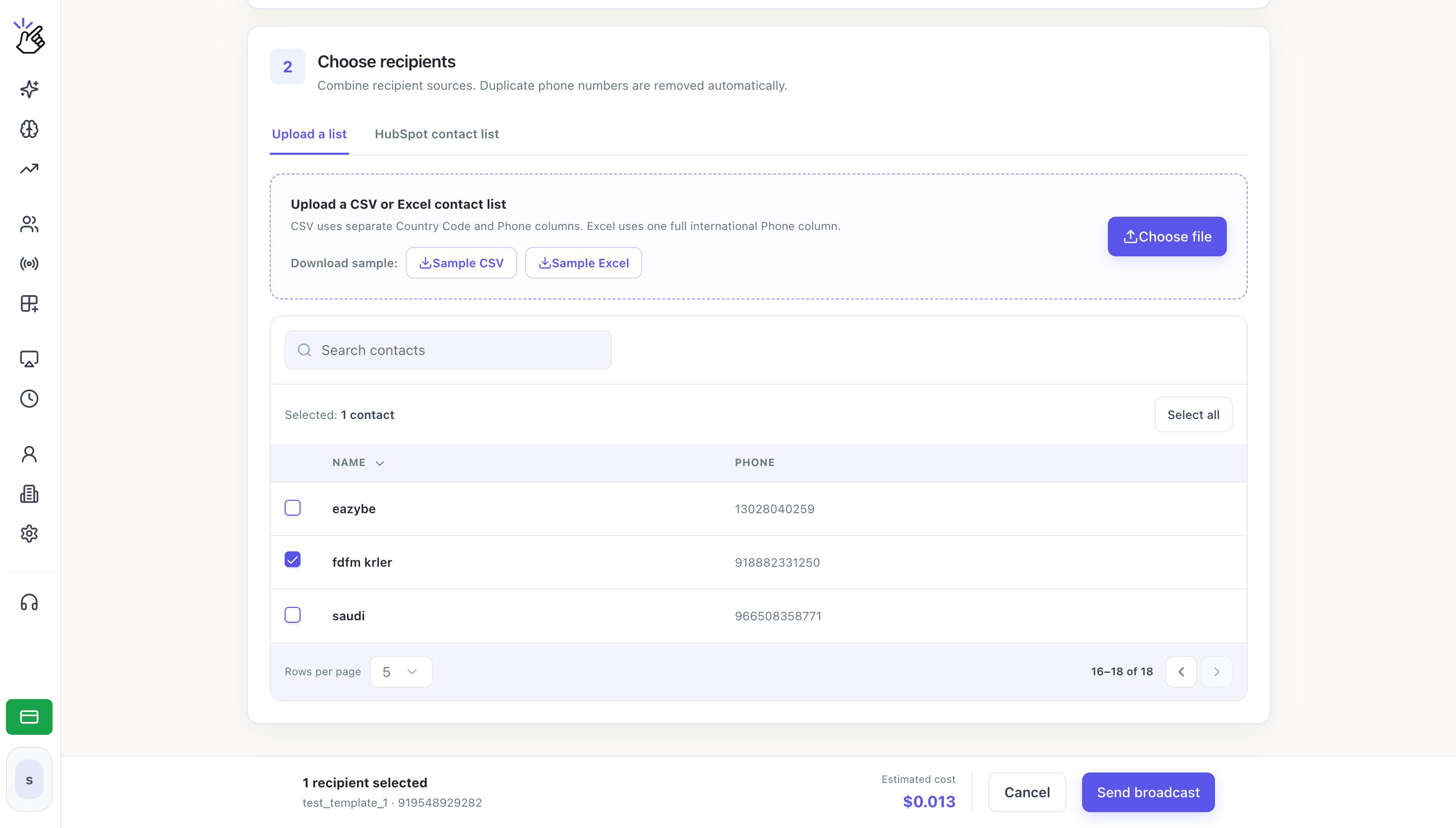
Check the selected recipient count and **Estimated cost** in the footer. Select **Send broadcast** only after the contact count matches the group you intend to message.
Eazybe normalizes phone numbers and removes duplicate numbers automatically. Empty or invalid phone values are not valid recipients.
Check the selected recipient count and **Estimated cost** in the footer. Select **Send broadcast** only after the contact count matches the group you intend to message.
 Only selected rows receive the broadcast. Sending uses wallet balance and cannot be recalled from this page.
Learn how numbered columns are used in [Template Variables and Personalization](/en/broadcasts/template-variables).
Only selected rows receive the broadcast. Sending uses wallet balance and cannot be recalled from this page.
Learn how numbered columns are used in [Template Variables and Personalization](/en/broadcasts/template-variables).