> ## Documentation Index
> Fetch the complete documentation index at: https://help.eazybe.com/llms.txt
> Use this file to discover all available pages before exploring further.
# Template Variables and Personalization
> Provide a value for every template variable in uploaded files or HubSpot contact lists.
Variables let one approved WhatsApp template use different values for each recipient. Before sending, make sure every selected contact has a value for every variable shown in the template.
For example, `Hello {{1}}, your appointment is on {{2}}.` needs two values for each contact.
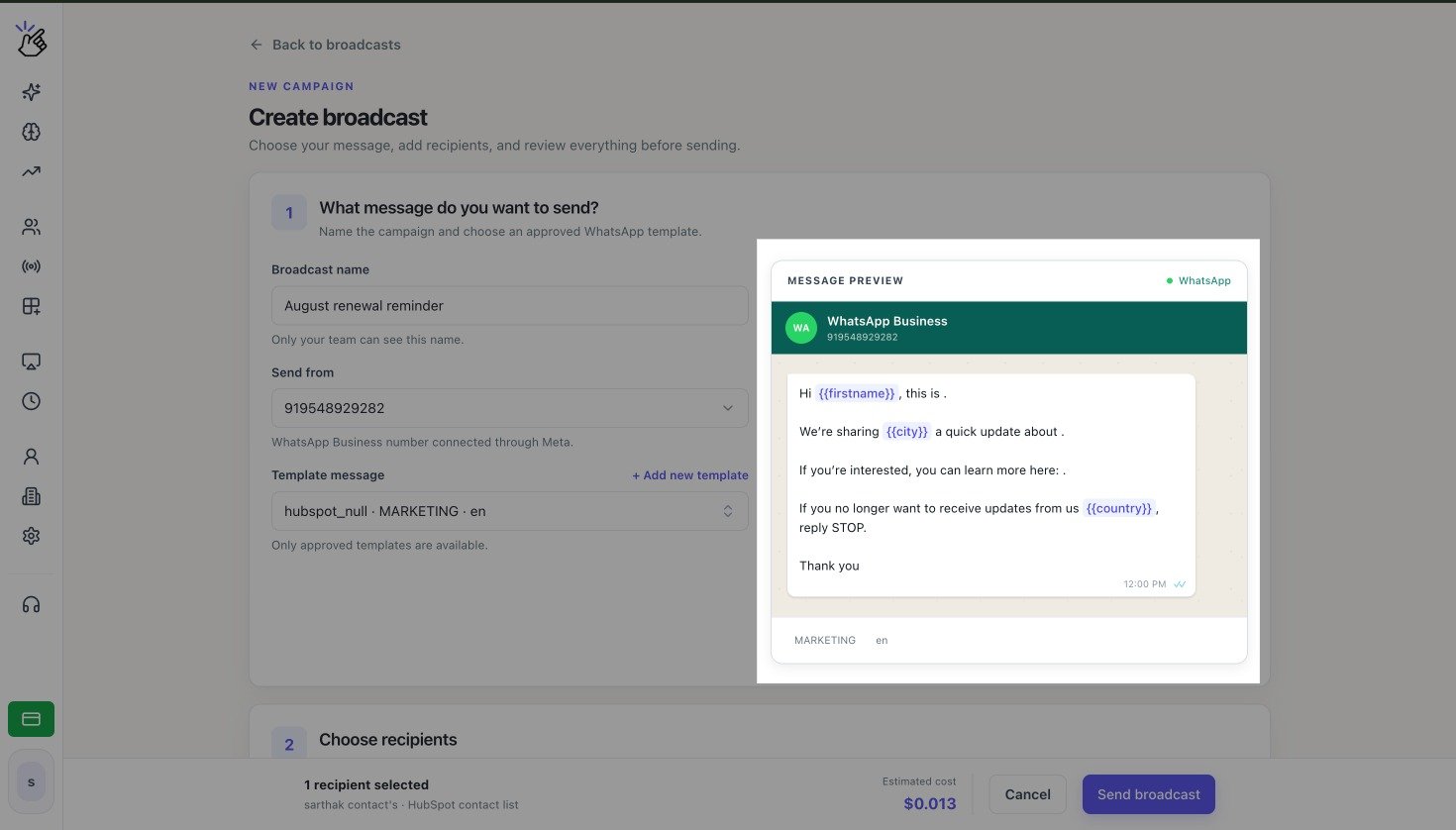 The names and message content in the screenshot are examples. Check the **Message preview** for the variables in your selected template.
## Use Variables in an Uploaded File
Select the **Template message** and review the **Message preview**. Numbered variables appear as `{{1}}`, `{{2}}`, and so on.
In the CSV or Excel file, add a column whose header matches each numbered variable exactly. Fill every variable cell for every recipient.
The names and message content in the screenshot are examples. Check the **Message preview** for the variables in your selected template.
## Use Variables in an Uploaded File
Select the **Template message** and review the **Message preview**. Numbered variables appear as `{{1}}`, `{{2}}`, and so on.
In the CSV or Excel file, add a column whose header matches each numbered variable exactly. Fill every variable cell for every recipient.
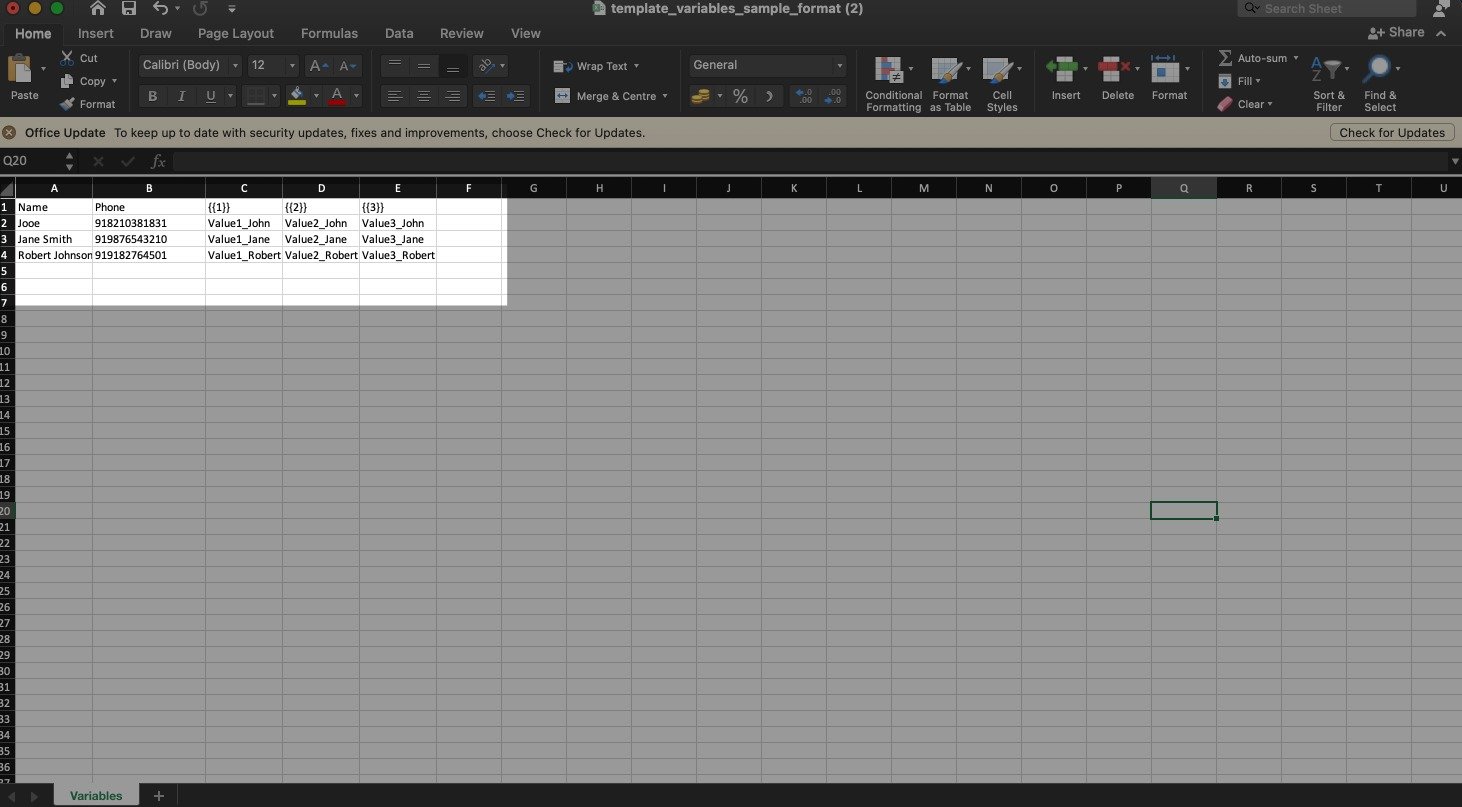 | Name | Phone | \{\{1}} | \{\{2}} |
| ----- | ------------ | ------- | --------- |
| Aisha | 919876543210 | Aisha | 20 August |
Select **Sample CSV** or **Sample Excel** in **Upload a list** when you need a file with the expected structure.
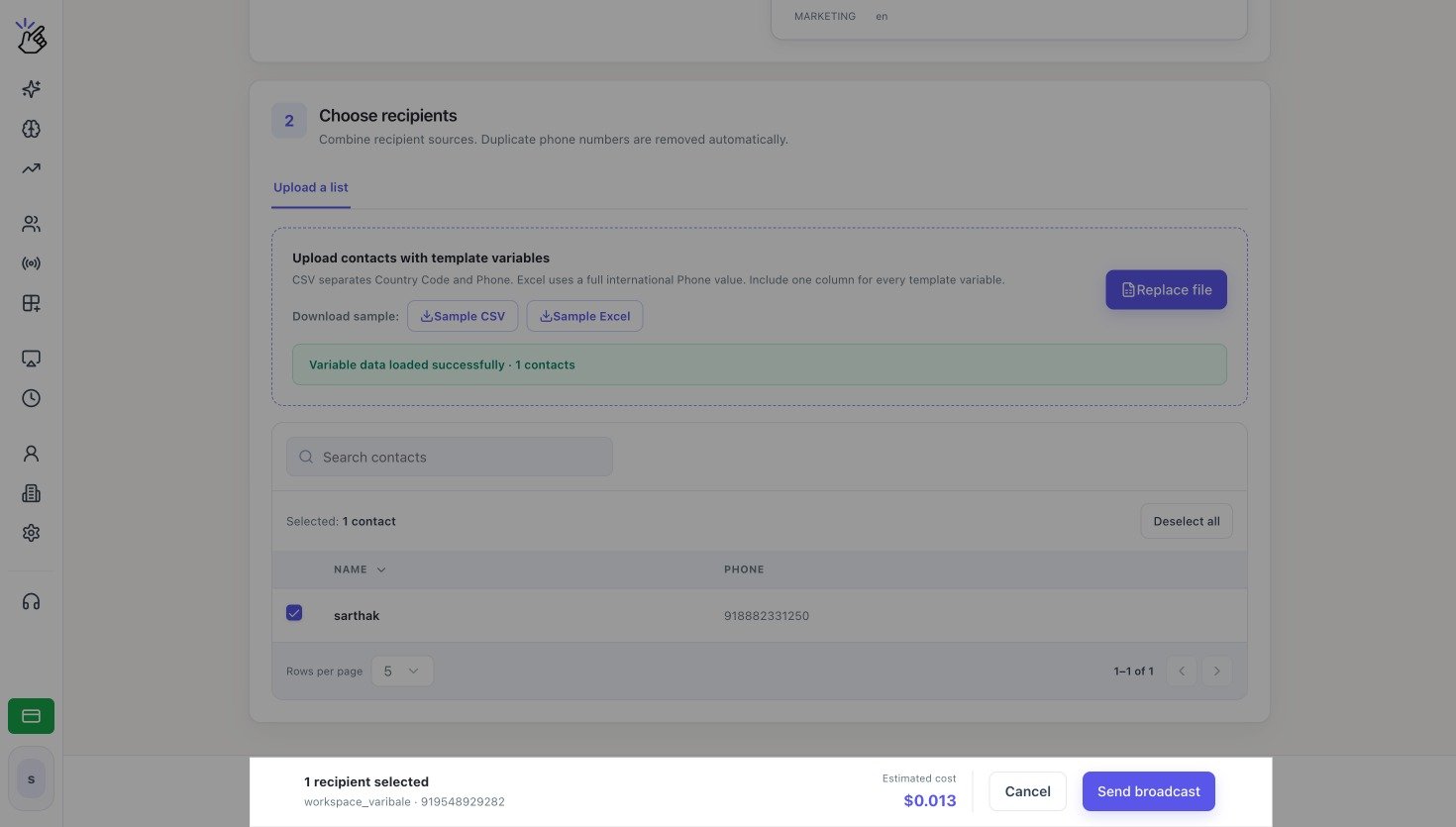
Select **Choose file** and upload the prepared file. Eazybe displays **Variable data loaded successfully** when it can read the variable data.
| Name | Phone | \{\{1}} | \{\{2}} |
| ----- | ------------ | ------- | --------- |
| Aisha | 919876543210 | Aisha | 20 August |
Select **Sample CSV** or **Sample Excel** in **Upload a list** when you need a file with the expected structure.
Select **Choose file** and upload the prepared file. Eazybe displays **Variable data loaded successfully** when it can read the variable data.
 ## Use Variables with a HubSpot List
How Eazybe fills variables depends on the selected template type:
| Template type | How personalization works |
| ------------------------------- | --------------------------------------------------------------------------------------------------------------- |
| **HubSpot property template** | Eazybe uses the HubSpot property mappings already saved with the template. No additional mapping panel appears. |
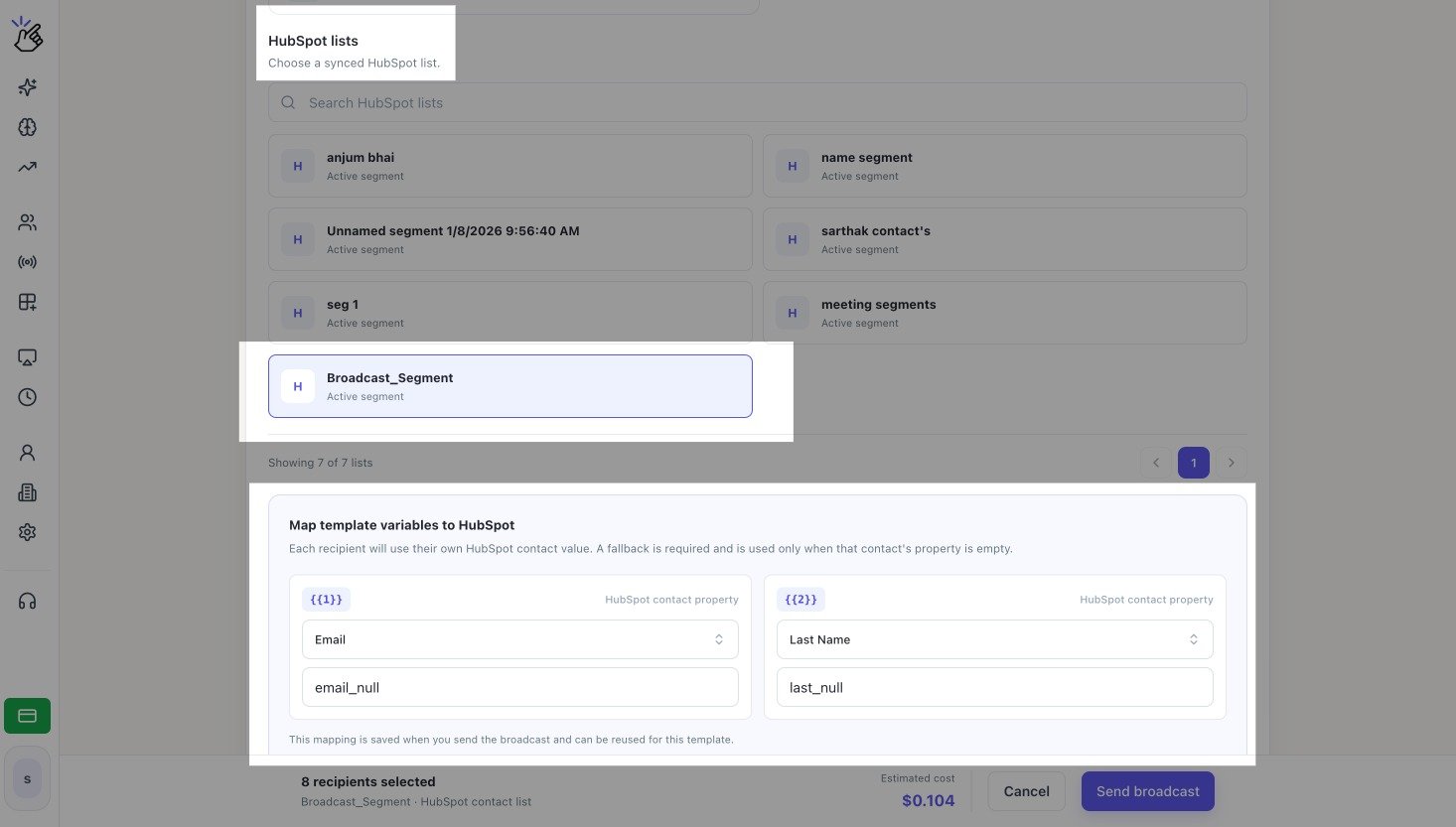
| **Workspace variable template** | Map every numbered variable to a HubSpot contact property and enter a fallback value. |
| **Zoho variable template** | Map every numbered variable to a HubSpot contact property and enter a fallback value. |
The fallback value is used when the mapped HubSpot property is empty for a contact. These mappings apply to the current HubSpot list broadcast and do not change the original template.
## Use Variables with a HubSpot List
How Eazybe fills variables depends on the selected template type:
| Template type | How personalization works |
| ------------------------------- | --------------------------------------------------------------------------------------------------------------- |
| **HubSpot property template** | Eazybe uses the HubSpot property mappings already saved with the template. No additional mapping panel appears. |
| **Workspace variable template** | Map every numbered variable to a HubSpot contact property and enter a fallback value. |
| **Zoho variable template** | Map every numbered variable to a HubSpot contact property and enter a fallback value. |
The fallback value is used when the mapped HubSpot property is empty for a contact. These mappings apply to the current HubSpot list broadcast and do not change the original template.
 Every template variable must receive a value. Meta error `#132000` means the number of supplied parameters does not match the approved template.