> ## Documentation Index
> Fetch the complete documentation index at: https://help.eazybe.com/llms.txt
> Use this file to discover all available pages before exploring further.
# Broadcast to a HubSpot Contact List
> Select a synced HubSpot list, personalize its template, and send a WhatsApp broadcast.
Use **HubSpot contact list** to send a broadcast to contacts in one synced HubSpot list. You can search the available lists, select one, and use HubSpot contact properties for template personalization.
**HubSpot contact list** appears only when HubSpot is connected to the current Eazybe workspace.
## Requirements
* HubSpot is connected to Eazybe.
* The connection includes the `crm.lists.read` permission.
* The selected list contains contacts with valid WhatsApp phone numbers.
If list access is missing, reconnect HubSpot and grant the requested permission.
## Select a HubSpot List
On the **Create broadcast** page, go to **Choose recipients** and select **HubSpot contact list**. Eazybe displays the synced lists and the **Search HubSpot lists** field.
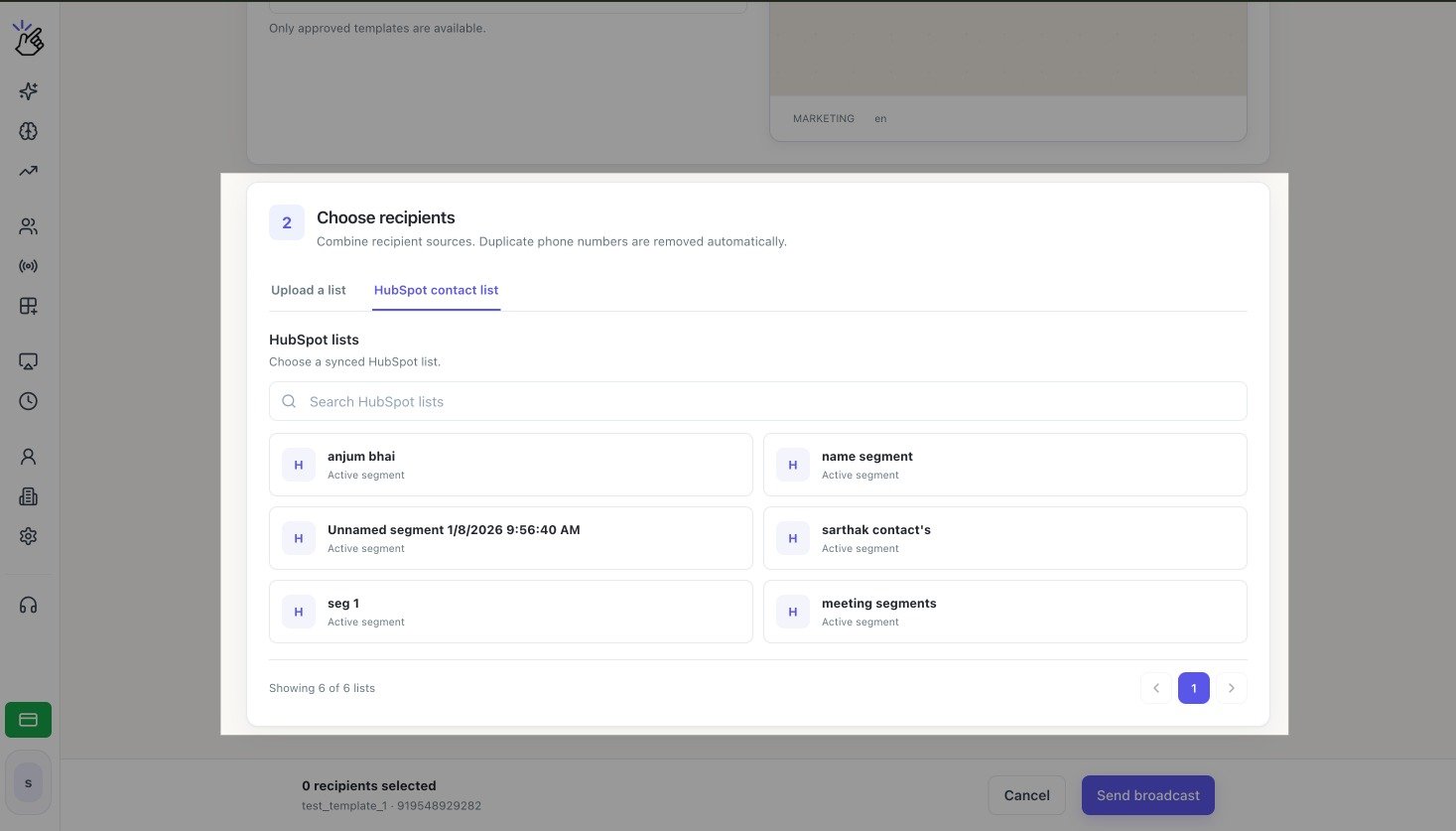 If a recently created or edited list is missing, wait for HubSpot to finish updating it, refresh the Eazybe page, and reopen this tab.
Search by list name or move through the available pages, then select the list card. The selected list appears above the search field and its card is highlighted. Selecting another card replaces the current selection.
If a recently created or edited list is missing, wait for HubSpot to finish updating it, refresh the Eazybe page, and reopen this tab.
Search by list name or move through the available pages, then select the list card. The selected list appears above the search field and its card is highlighted. Selecting another card replaces the current selection.
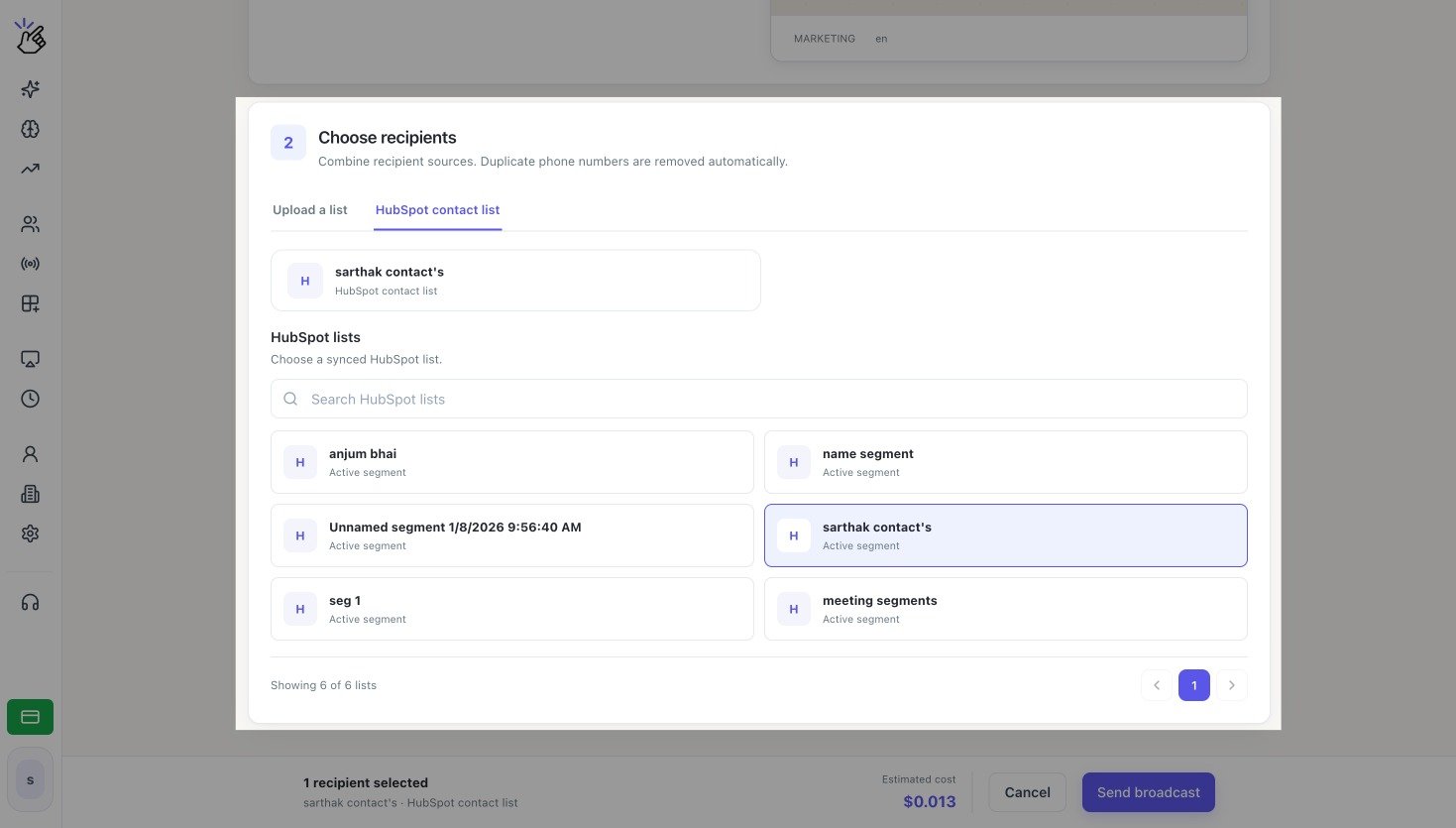 Eazybe checks the HubSpot `mobilephone` property first and then `phone`. Contacts without a valid value in either property are excluded from sending.
Wait for Eazybe to validate the list and calculate the selected recipient count and **Estimated cost**. Confirm the count before selecting **Send broadcast**.
Sending uses wallet balance. Active HubSpot lists can change as contacts enter or leave the list, so verify the recipient count shown in Eazybe before sending.
## Understand HubSpot List Types
A HubSpot segment, previously called a list, is a saved group of contacts.
| Label in Eazybe | How membership works |
| ------------------ | ------------------------------------------------------------------------------------------- |
| **Active segment** | HubSpot automatically adds or removes contacts when they match or stop matching the filters |
| **Static segment** | Membership stays fixed until contacts are added or removed manually |
Create a HubSpot Segment
}
>
Prepare a contact segment in HubSpot before selecting it in Eazybe.
## Personalize the Template
| Template type | What Eazybe uses |
| ------------------------------- | --------------------------------------------------------------------- |
| **HubSpot property template** | The HubSpot property mappings saved with the template |
| **Workspace variable template** | The HubSpot properties and fallback values you map for this broadcast |
| **Zoho variable template** | The HubSpot properties and fallback values you map for this broadcast |
Mappings created for this HubSpot list broadcast do not change the original template type. See [Template Variables and Personalization](/en/broadcasts/template-variables).
Eazybe checks the HubSpot `mobilephone` property first and then `phone`. Contacts without a valid value in either property are excluded from sending.
Wait for Eazybe to validate the list and calculate the selected recipient count and **Estimated cost**. Confirm the count before selecting **Send broadcast**.
Sending uses wallet balance. Active HubSpot lists can change as contacts enter or leave the list, so verify the recipient count shown in Eazybe before sending.
## Understand HubSpot List Types
A HubSpot segment, previously called a list, is a saved group of contacts.
| Label in Eazybe | How membership works |
| ------------------ | ------------------------------------------------------------------------------------------- |
| **Active segment** | HubSpot automatically adds or removes contacts when they match or stop matching the filters |
| **Static segment** | Membership stays fixed until contacts are added or removed manually |
Create a HubSpot Segment
}
>
Prepare a contact segment in HubSpot before selecting it in Eazybe.
## Personalize the Template
| Template type | What Eazybe uses |
| ------------------------------- | --------------------------------------------------------------------- |
| **HubSpot property template** | The HubSpot property mappings saved with the template |
| **Workspace variable template** | The HubSpot properties and fallback values you map for this broadcast |
| **Zoho variable template** | The HubSpot properties and fallback values you map for this broadcast |
Mappings created for this HubSpot list broadcast do not change the original template type. See [Template Variables and Personalization](/en/broadcasts/template-variables).