> ## Documentation Index
> Fetch the complete documentation index at: https://help.eazybe.com/llms.txt
> Use this file to discover all available pages before exploring further.
# Filter Broadcasts and Templates
> Find campaign results for a sender number, select templates or a category, and review performance by campaign or template.
Use the filters on **Broadcasts** to narrow your campaign results. Switch to **Template** when you want a summary for each template. Selections update the report automatically; there is no separate Apply button.
These screenshots show a local workspace used for this guide. Campaign names, templates, dates, and totals will differ in your workspace.
Open **Broadcasts** and select **Broadcast**. In the first dropdown below the view controls, choose the WhatsApp Business number whose campaigns you want to review. Wait for its data to load.
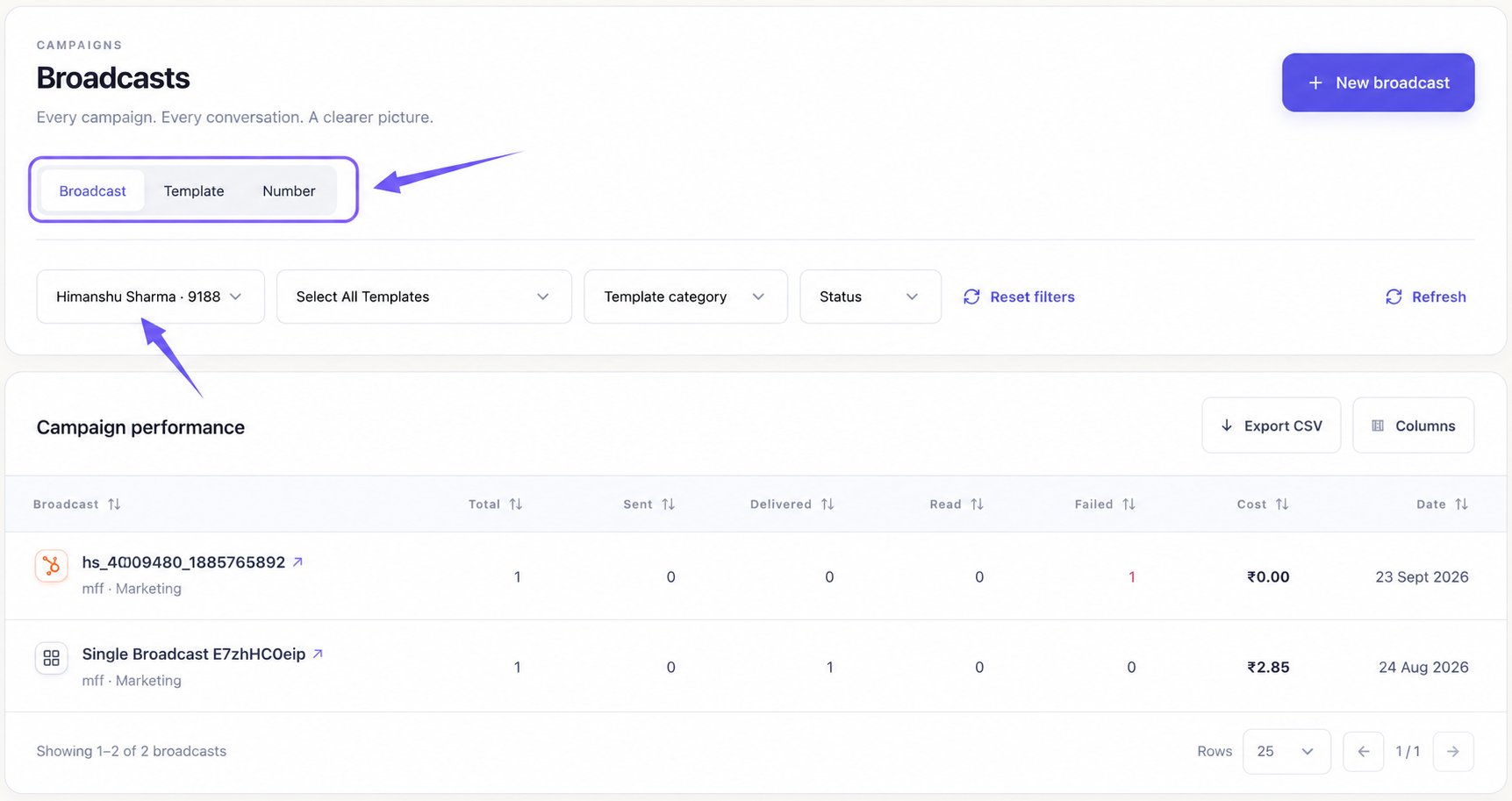 **Broadcast** and **Template** use one sender number at a time. Changing that number clears your template and category selection. To compare several senders, use [Number view](/en/broadcasts/compare-numbers-by-date).
Open **Select All Templates** and check the templates you want. You can select more than one. The control shows the selected template name or a count such as **2 templates selected**.
**Broadcast** and **Template** use one sender number at a time. Changing that number clears your template and category selection. To compare several senders, use [Number view](/en/broadcasts/compare-numbers-by-date).
Open **Select All Templates** and check the templates you want. You can select more than one. The control shows the selected template name or a count such as **2 templates selected**.
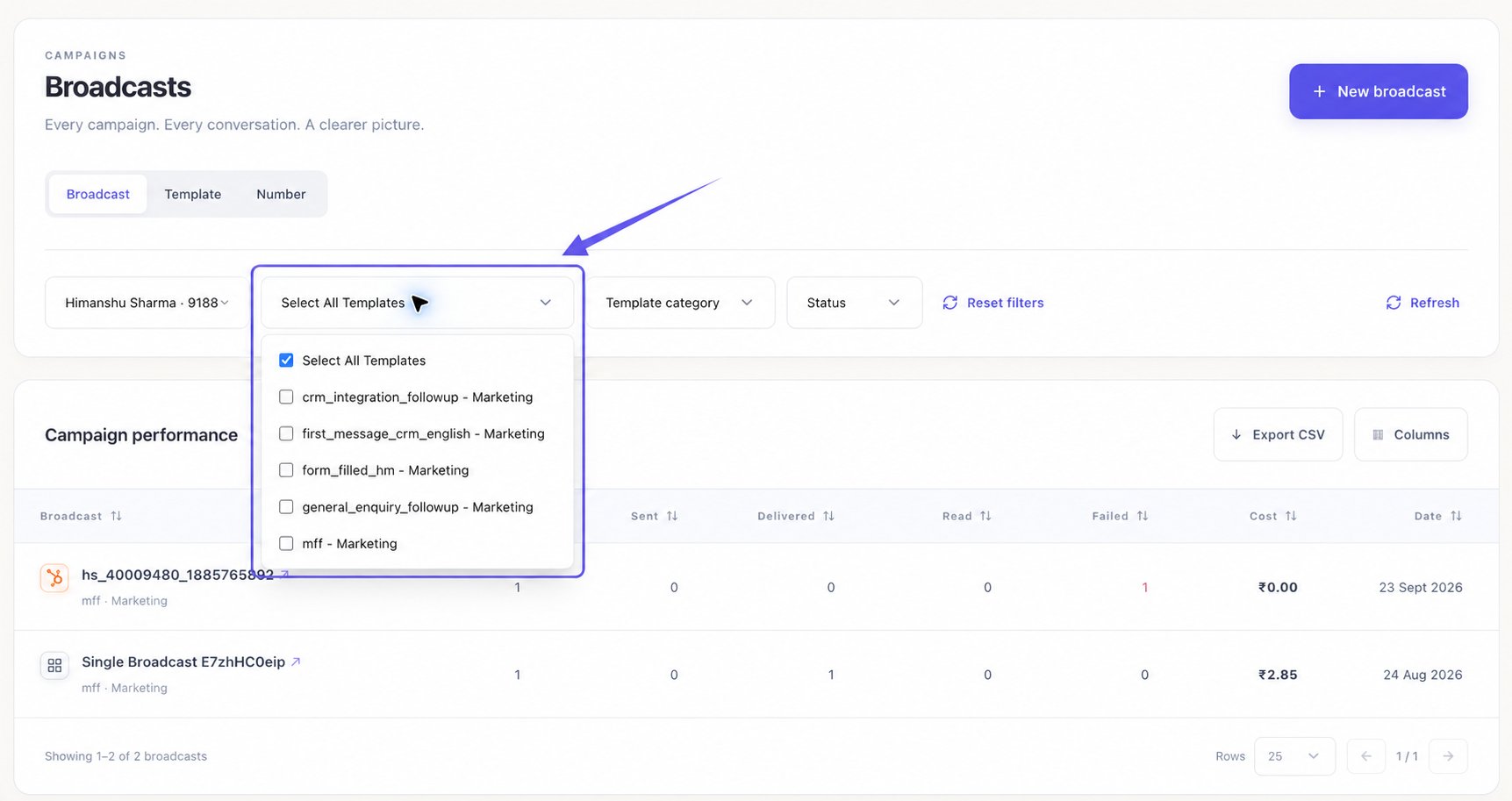 Uncheck a template to remove it from your selection. Choose **Select All Templates** to remove the template restriction. If you uncheck the last individually selected template, the picker returns to **Select All Templates** and shows all templates again.
Scroll inside the picker if the list is long, then click outside it to close it. Selecting several templates includes results for any of those templates.
This picker lists approved templates for the selected number. If you see **No templates found**, check the sender number and whether it has approved templates.
As an alternative to choosing templates individually, open **Template category** and select **Marketing** or **Utility**. This replaces the individual selection with the approved templates in that category.
Uncheck a template to remove it from your selection. Choose **Select All Templates** to remove the template restriction. If you uncheck the last individually selected template, the picker returns to **Select All Templates** and shows all templates again.
Scroll inside the picker if the list is long, then click outside it to close it. Selecting several templates includes results for any of those templates.
This picker lists approved templates for the selected number. If you see **No templates found**, check the sender number and whether it has approved templates.
As an alternative to choosing templates individually, open **Template category** and select **Marketing** or **Utility**. This replaces the individual selection with the approved templates in that category.
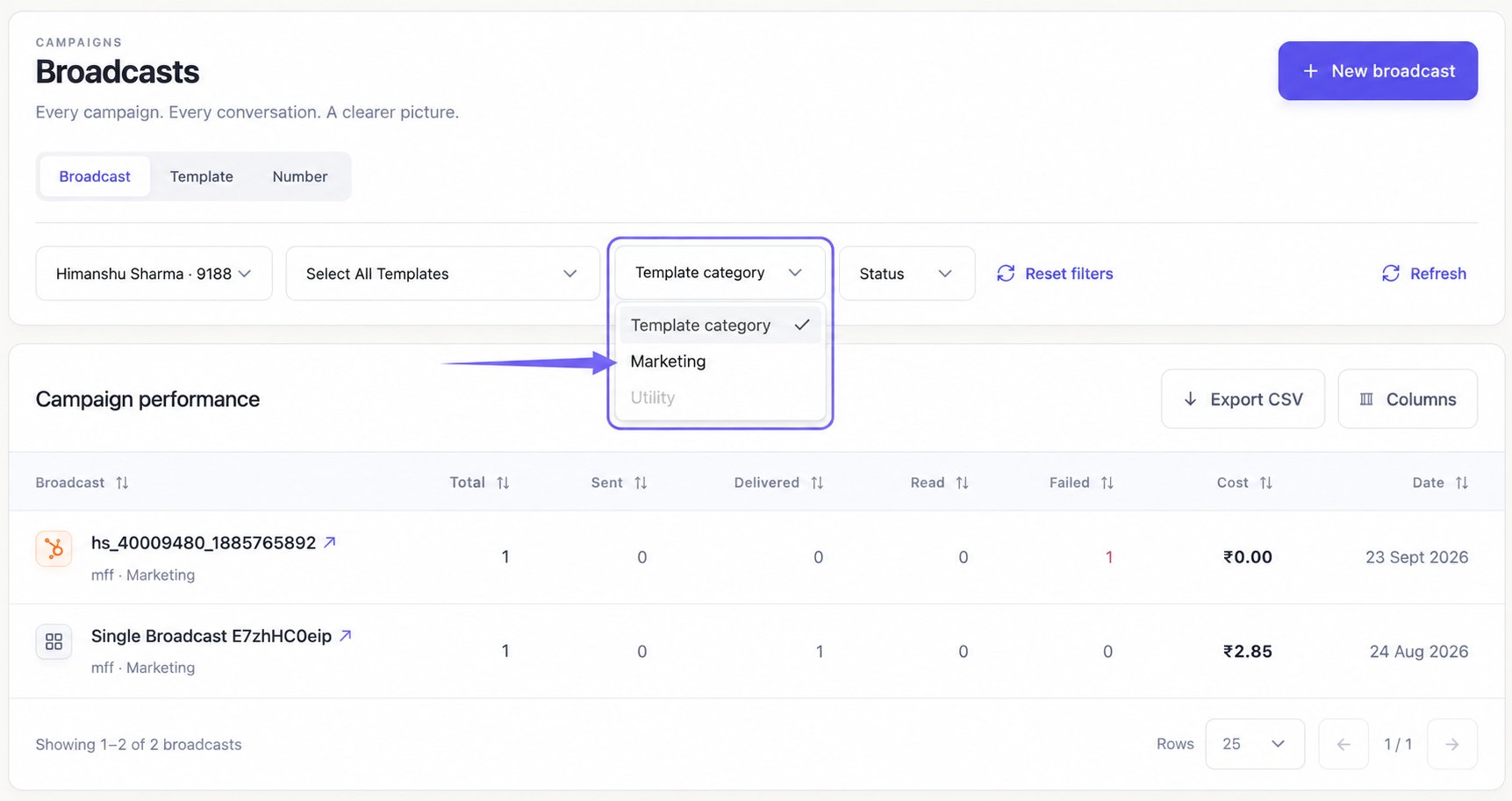 A category is disabled when the selected number has no approved templates in it. Hover over the disabled choice to see the explanation. Choosing individual templates afterward resets the category control to **Template category**. Choosing **Template category** from this menu clears the category and template selection.
In **Broadcast** view, open **Status** and choose **Completed**, **Failed**, or **In-Progress**. Choose **Status** again to remove this restriction.
A category is disabled when the selected number has no approved templates in it. Hover over the disabled choice to see the explanation. Choosing individual templates afterward resets the category control to **Template category**. Choosing **Template category** from this menu clears the category and template selection.
In **Broadcast** view, open **Status** and choose **Completed**, **Failed**, or **In-Progress**. Choose **Status** again to remove this restriction.
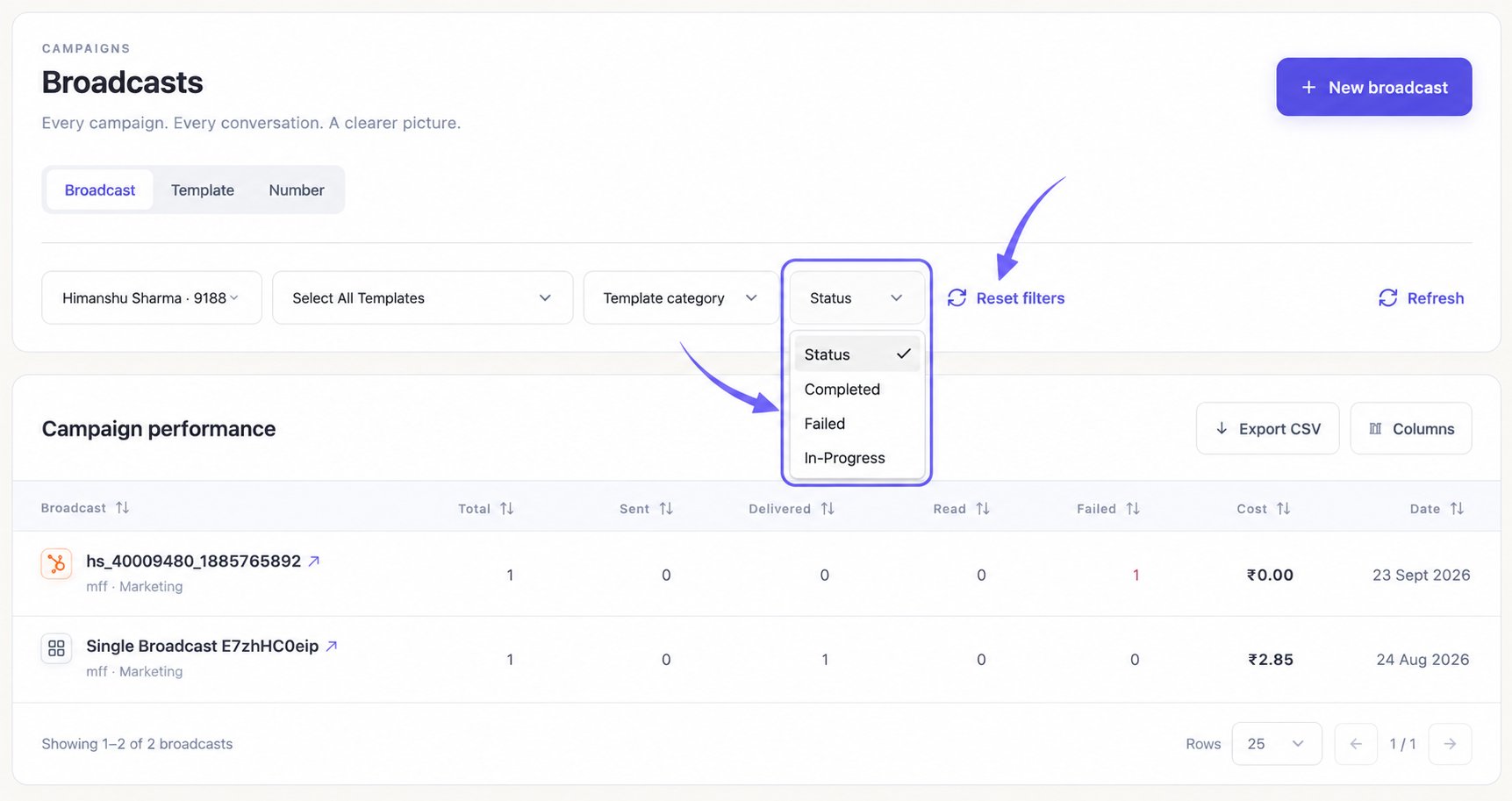 To start over, click outside the menu and select **Reset filters**. In **Broadcast** view, this clears the template, category, and status filters and refreshes the data for the current sender.
**Status** filters campaign rows. It does not filter the aggregate totals in **Template** view, even though the control remains visible there. A campaign's status is also separate from the **Sent**, **Delivered**, **Read**, and **Failed** message counts.
The status filter checks the campaign rows loaded for the current page. An empty page does not prove there are no matching campaigns elsewhere; check other pages or clear **Status** to broaden the view.
Select **Template** to see one row per template. Your sender and template selection carry over. Review **Broadcasts**, **Total**, **Sent**, **Delivered**, **Read**, **Failed**, and **Cost** for each template.
To start over, click outside the menu and select **Reset filters**. In **Broadcast** view, this clears the template, category, and status filters and refreshes the data for the current sender.
**Status** filters campaign rows. It does not filter the aggregate totals in **Template** view, even though the control remains visible there. A campaign's status is also separate from the **Sent**, **Delivered**, **Read**, and **Failed** message counts.
The status filter checks the campaign rows loaded for the current page. An empty page does not prove there are no matching campaigns elsewhere; check other pages or clear **Status** to broaden the view.
Select **Template** to see one row per template. Your sender and template selection carry over. Review **Broadcasts**, **Total**, **Sent**, **Delivered**, **Read**, **Failed**, and **Cost** for each template.
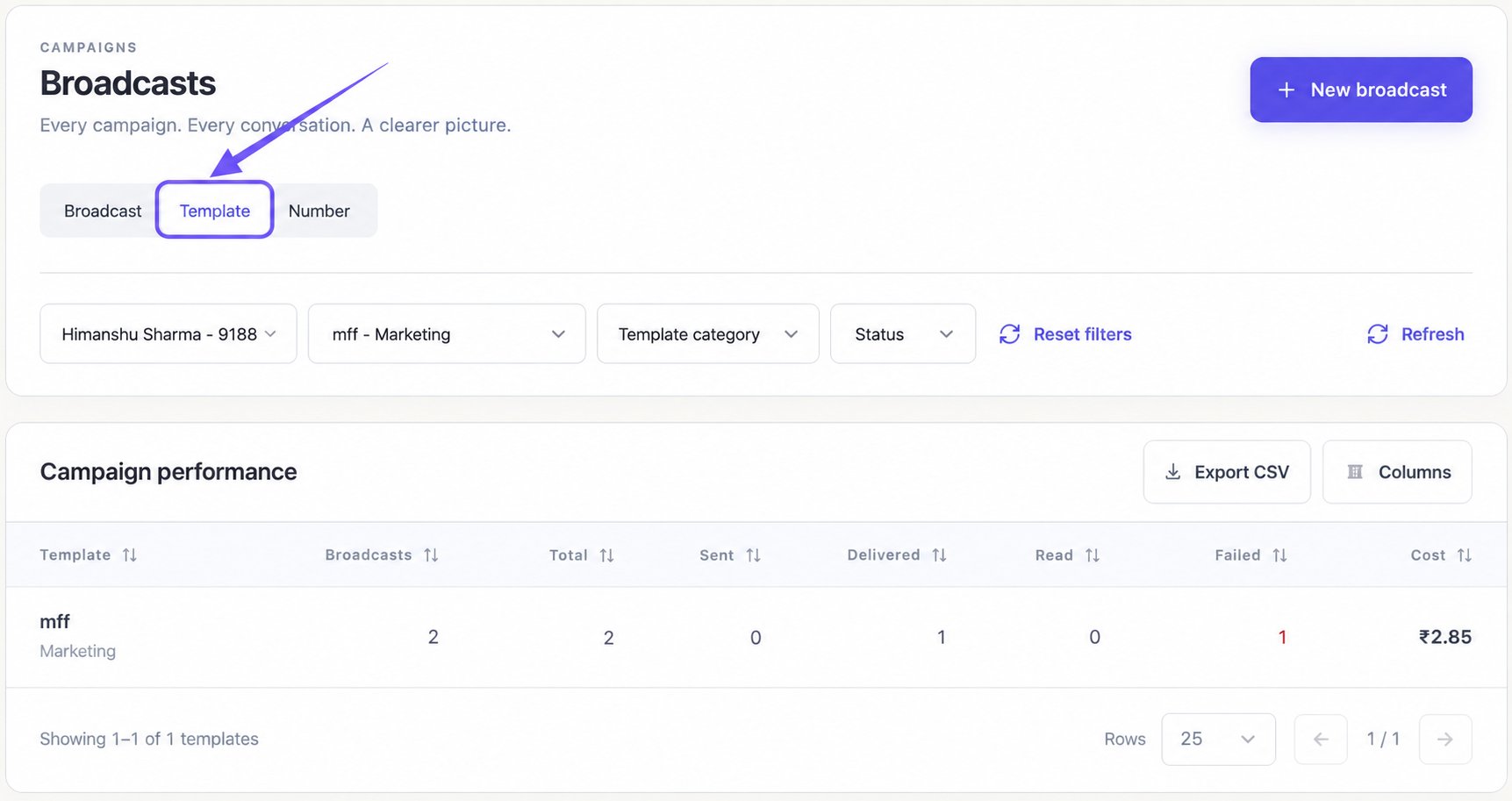 The template rows are summaries; they do not open a recipient list. Select **Broadcast** again when you want individual campaign rows. Select a campaign name with the **↗** icon to open its detailed analytics.
## Choose a View for Your Question
| What you want to find | What to select |
| ------------------------------------------------- | -------------------------------------------------------------------------------- |
| Campaigns that used a particular template | **Broadcast**, the sender number, then that template in **Select All Templates** |
| Results across several templates | **Template**, the sender number, then the templates to compare |
| All Marketing or Utility templates for one sender | **Template**, the sender number, then **Template category** |
| Failed campaigns for the selected sender | **Broadcast**, then **Failed** in **Status** |
| Individual recipients whose message failed | Open the campaign name, then select **Failed** in **Delivery activity** |
When you select specific templates or a category in **Broadcast** view, the report builds campaign rows from a page of matching message records. A campaign can therefore show only the matching records on that page, and the footer count may be larger than the number of campaign rows. Clear the template filter to return to the standard campaign list, or open a campaign to inspect its recipient details.
## Why Are There No Results?
If the table says **No analytics found**, choose another template or sender number, or use **Reset filters** to broaden the report. An approved template can exist without any broadcast analytics yet.
If the page reports that it could not load analytics, select **Retry** in the error message or **Refresh**. If switching a number fails, the previous number remains active; check the selected sender before interpreting the results.
Once the results are ready, [choose the columns and export your report](/en/broadcasts/customize-and-export-reports).
The template rows are summaries; they do not open a recipient list. Select **Broadcast** again when you want individual campaign rows. Select a campaign name with the **↗** icon to open its detailed analytics.
## Choose a View for Your Question
| What you want to find | What to select |
| ------------------------------------------------- | -------------------------------------------------------------------------------- |
| Campaigns that used a particular template | **Broadcast**, the sender number, then that template in **Select All Templates** |
| Results across several templates | **Template**, the sender number, then the templates to compare |
| All Marketing or Utility templates for one sender | **Template**, the sender number, then **Template category** |
| Failed campaigns for the selected sender | **Broadcast**, then **Failed** in **Status** |
| Individual recipients whose message failed | Open the campaign name, then select **Failed** in **Delivery activity** |
When you select specific templates or a category in **Broadcast** view, the report builds campaign rows from a page of matching message records. A campaign can therefore show only the matching records on that page, and the footer count may be larger than the number of campaign rows. Clear the template filter to return to the standard campaign list, or open a campaign to inspect its recipient details.
## Why Are There No Results?
If the table says **No analytics found**, choose another template or sender number, or use **Reset filters** to broaden the report. An approved template can exist without any broadcast analytics yet.
If the page reports that it could not load analytics, select **Retry** in the error message or **Refresh**. If switching a number fails, the previous number remains active; check the selected sender before interpreting the results.
Once the results are ready, [choose the columns and export your report](/en/broadcasts/customize-and-export-reports).