> ## Documentation Index
> Fetch the complete documentation index at: https://help.eazybe.com/llms.txt
> Use this file to discover all available pages before exploring further.
# Review Estimated Cost and Send
> Understand recipient validation, the broadcast estimate, and the checks performed before sending.
The footer on the **Create broadcast** page shows the selected recipient count and estimated cost. Review both values before you submit the campaign.
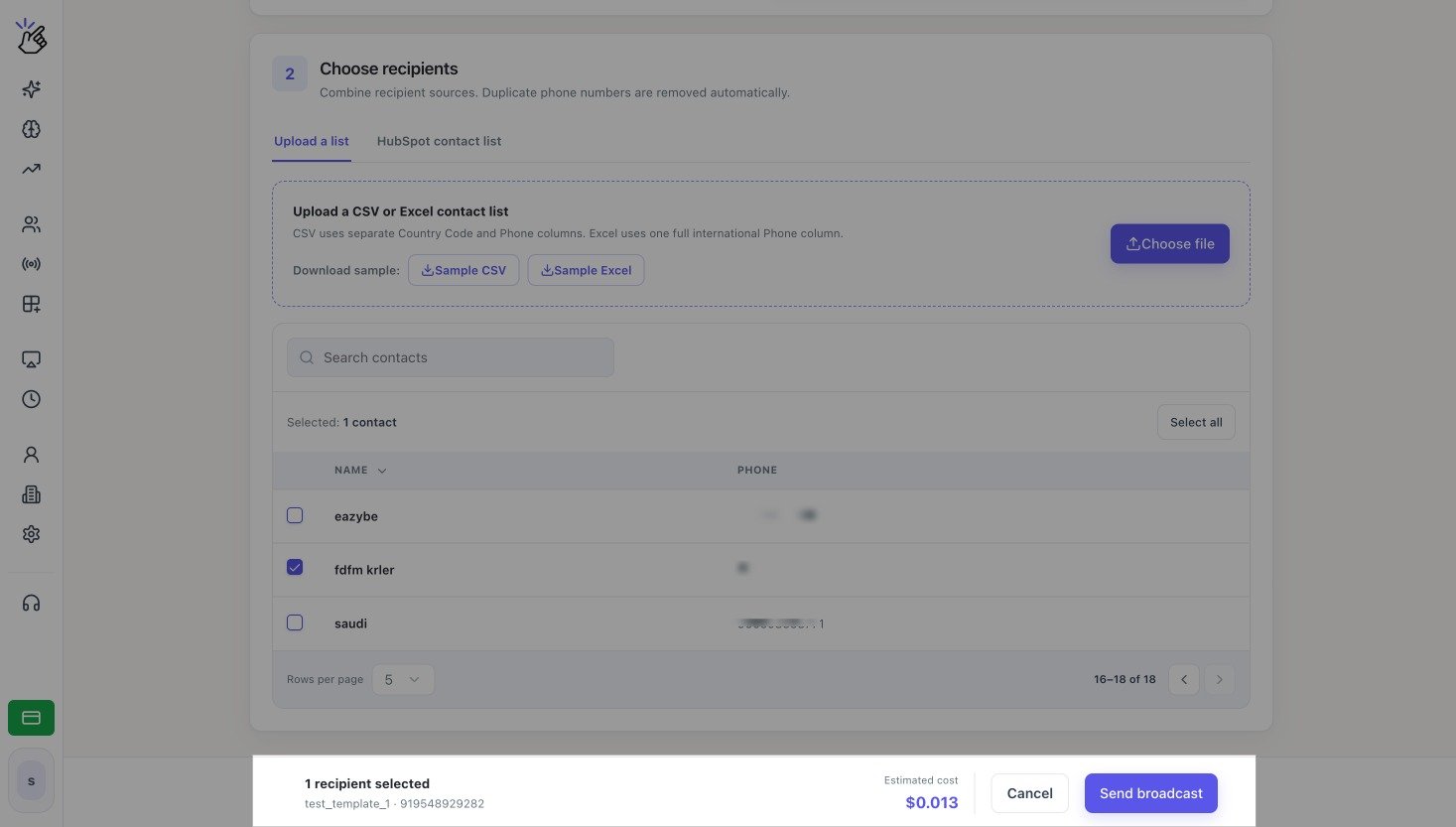 The recipient count and price in the screenshot are examples. Your estimate depends on your selected contacts and template.
## When the Estimate Appears
Eazybe calculates the estimate after you have selected:
* A WhatsApp Business number in **Send from**
* An approved **Template message**
* At least one valid recipient
* A value or mapping for every required template variable
While the request is processing, the footer displays **Calculating...**. When the calculation finishes, it shows the valid recipient count and **Estimated cost**.
The displayed amount is an estimate. The final charge can depend on the template category, the recipient's country, and WhatsApp pricing.
## HubSpot Estimate Fallback
Eazybe normally validates the contacts in the selected HubSpot list. If HubSpot temporarily rate-limits that validation, Eazybe can show an approximate estimate based on:
`Segment size × unit price`
The interface identifies the amount as approximate when exact contact validation is unavailable.
## Send the Broadcast
Confirm the recipient count, template, sending number, and **Estimated cost**. If the count is wrong, return to the contact table and change the selection.
Select **Send broadcast**. Wait for Eazybe to finish submitting the request before you leave or refresh the page.
The recipient count and price in the screenshot are examples. Your estimate depends on your selected contacts and template.
## When the Estimate Appears
Eazybe calculates the estimate after you have selected:
* A WhatsApp Business number in **Send from**
* An approved **Template message**
* At least one valid recipient
* A value or mapping for every required template variable
While the request is processing, the footer displays **Calculating...**. When the calculation finishes, it shows the valid recipient count and **Estimated cost**.
The displayed amount is an estimate. The final charge can depend on the template category, the recipient's country, and WhatsApp pricing.
## HubSpot Estimate Fallback
Eazybe normally validates the contacts in the selected HubSpot list. If HubSpot temporarily rate-limits that validation, Eazybe can show an approximate estimate based on:
`Segment size × unit price`
The interface identifies the amount as approximate when exact contact validation is unavailable.
## Send the Broadcast
Confirm the recipient count, template, sending number, and **Estimated cost**. If the count is wrong, return to the contact table and change the selection.
Select **Send broadcast**. Wait for Eazybe to finish submitting the request before you leave or refresh the page.
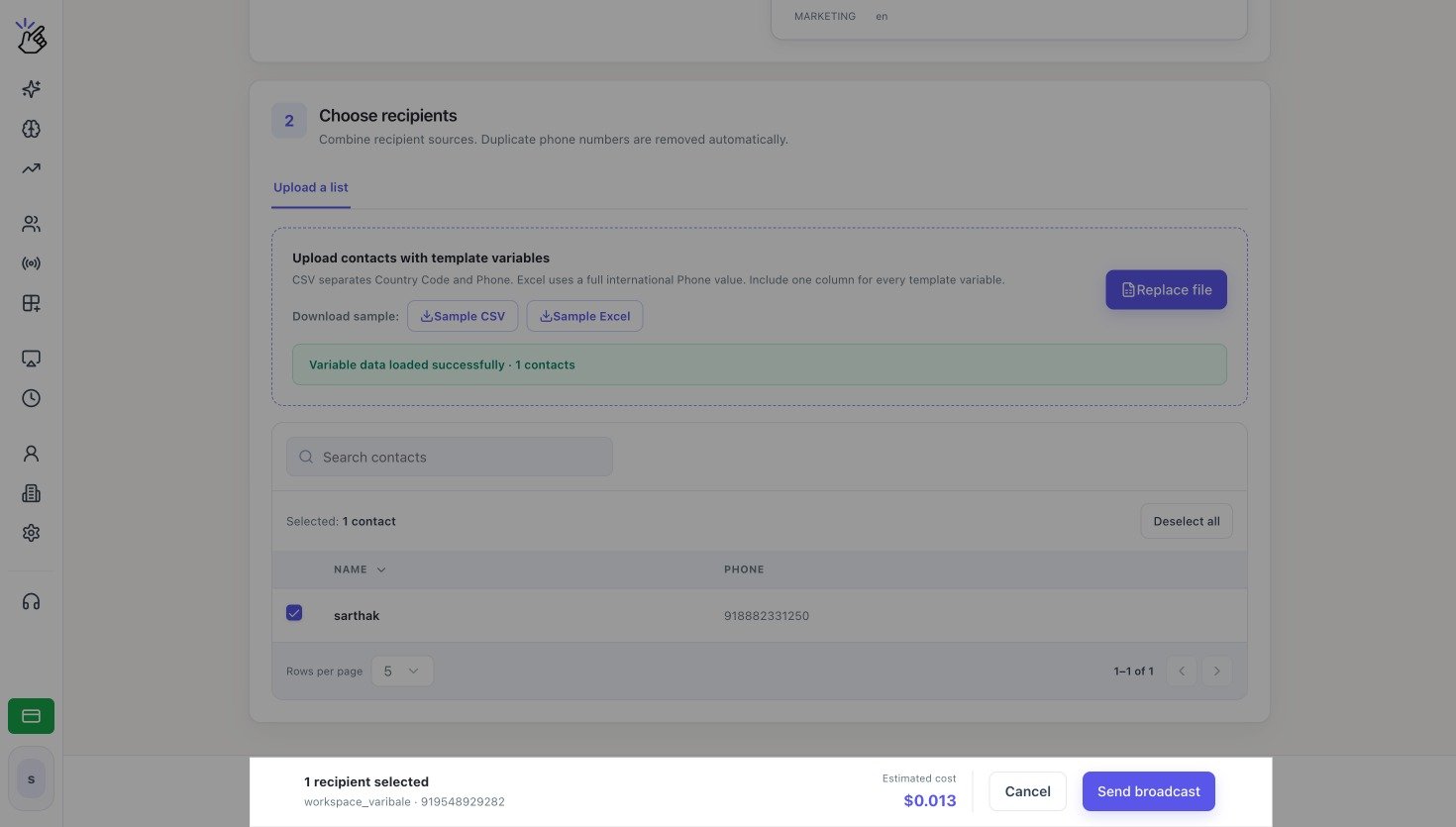 Sending uses wallet balance. A submitted campaign cannot be recalled from this page.
If **Send broadcast** is unavailable, confirm that the broadcast has a name, number, approved template, valid recipient, complete variable values, and enough wallet balance.
Sending uses wallet balance. A submitted campaign cannot be recalled from this page.
If **Send broadcast** is unavailable, confirm that the broadcast has a name, number, approved template, valid recipient, complete variable values, and enough wallet balance.