> ## Documentation Index
> Fetch the complete documentation index at: https://help.eazybe.com/llms.txt
> Use this file to discover all available pages before exploring further.
# Customize and Export Reports
> Choose the columns in your broadcast report, sort its results, and download the visible fields as a CSV.
After choosing your **Broadcast**, **Template**, or **Number** view and filters, use **Columns** to focus the report. Sort the results and select **Export CSV** to download them.
These screenshots show a local workspace used for this guide. Campaign names, dates, and totals will differ in your workspace.
In **Campaign performance**, open **Columns**. Check the fields you want to show and uncheck the ones you want to hide. Scroll inside the menu to reach options farther down, then click outside it to close it.
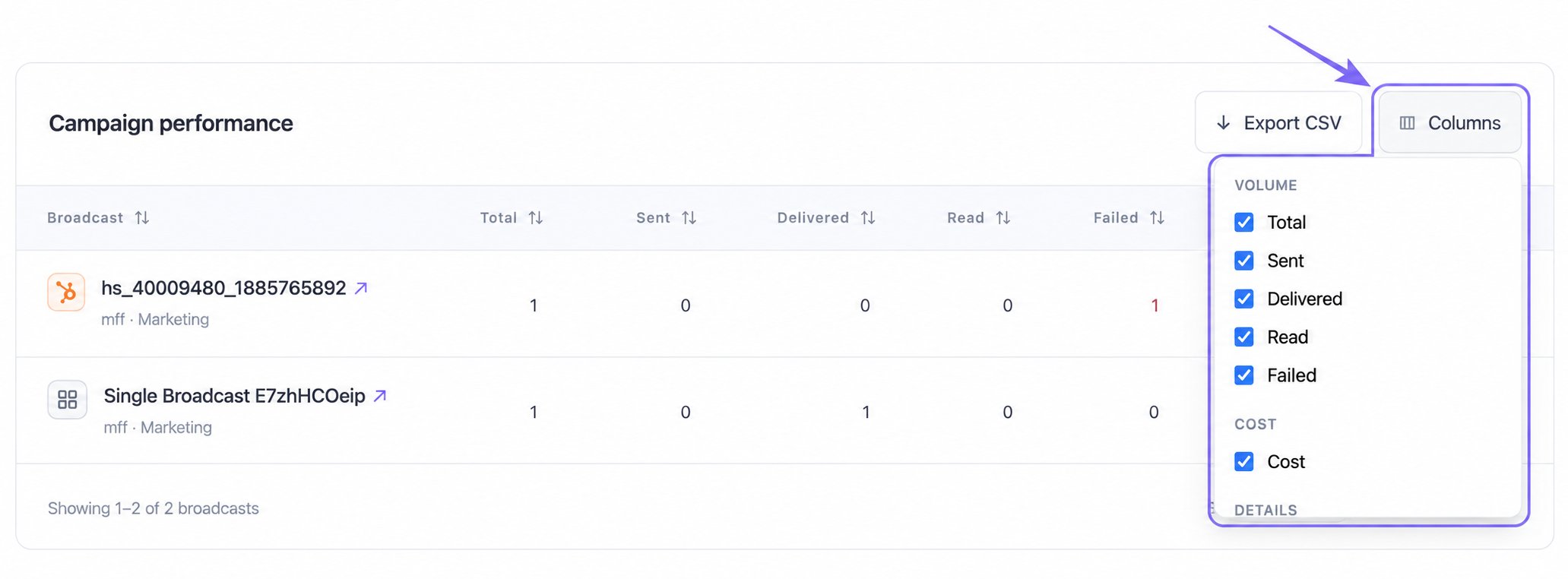 **Broadcast** view includes **Total**, **Sent**, **Delivered**, **Read**, **Failed**, **Cost**, **Date**, and **Status**. **Template** and **Number** views include **Broadcasts**, **Total**, **Sent**, **Delivered**, **Read**, **Failed**, and **Cost**.
The first identifying column always stays visible, and at least one additional column must remain selected. Column choices are shared across the three views wherever the same field is available. They are remembered in this browser when browser storage is available; they are not a saved report shared with your team. **Reset filters** does not restore hidden columns; use **Columns** to show them again.
Select a column heading to sort it in ascending order (**↑**): smaller numbers or earlier dates first, or names alphabetically. Select it again for descending order (**↓**): larger numbers, later dates, or reverse alphabetical order. The screenshot shows **Failed** sorted from highest to lowest, with only **Total**, **Failed**, and **Cost** selected alongside the campaign name.
**Broadcast** view includes **Total**, **Sent**, **Delivered**, **Read**, **Failed**, **Cost**, **Date**, and **Status**. **Template** and **Number** views include **Broadcasts**, **Total**, **Sent**, **Delivered**, **Read**, **Failed**, and **Cost**.
The first identifying column always stays visible, and at least one additional column must remain selected. Column choices are shared across the three views wherever the same field is available. They are remembered in this browser when browser storage is available; they are not a saved report shared with your team. **Reset filters** does not restore hidden columns; use **Columns** to show them again.
Select a column heading to sort it in ascending order (**↑**): smaller numbers or earlier dates first, or names alphabetically. Select it again for descending order (**↓**): larger numbers, later dates, or reverse alphabetical order. The screenshot shows **Failed** sorted from highest to lowest, with only **Total**, **Failed**, and **Cost** selected alongside the campaign name.
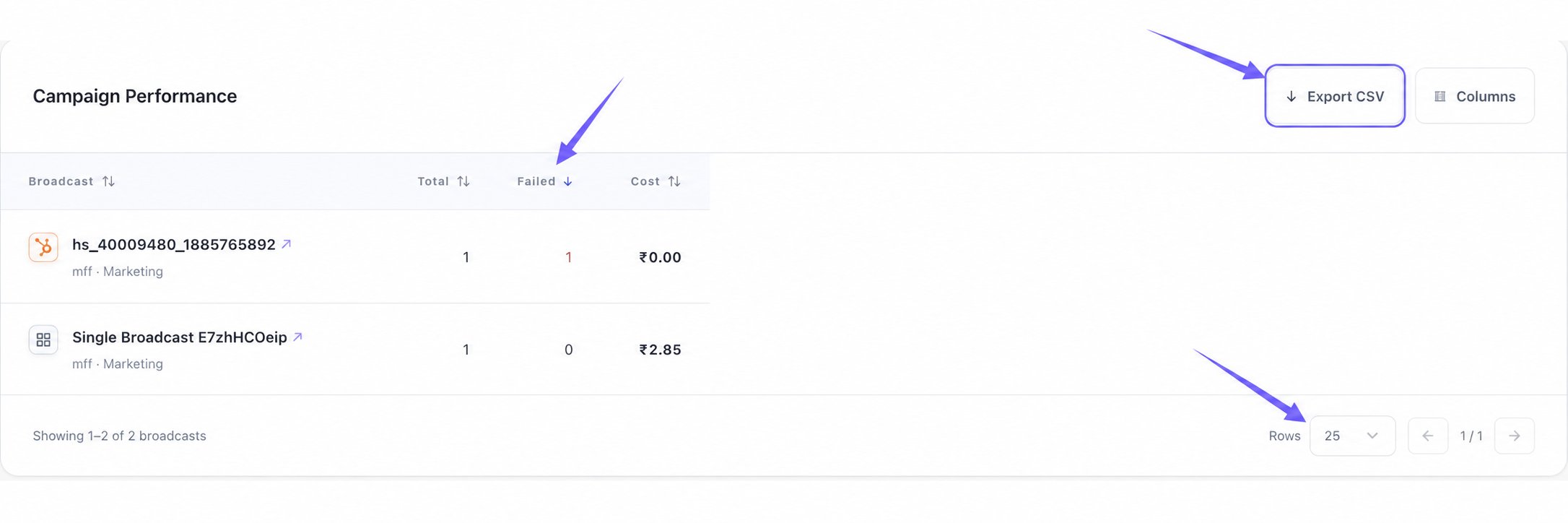 Use **Rows** to choose **10**, **25**, or **50** rows per page, then use the left and right page arrows. Changing **Rows** returns that view to page 1. The left arrow is disabled on the first page and the right arrow on the last page. The footer shows your row range and page position.
If the table is wider than the screen, scroll horizontally to reach the remaining columns. Switching views clears sorting, and hiding the column you sorted by also clears that sort.
In **Broadcast** view, sorting orders the currently loaded campaign rows. In **Template** and **Number** views, sorting applies to the loaded summary before it is split into pages.
Select **Export CSV** above the table. The download uses the current grouping, selected columns, and sort order. The first identifying column is always included. The file name starts with `broadcast-analytics-`, followed by the view and export date, and ends in `.csv`.
In **Number** view, the first exported column contains the sender's displayed name, or its phone number when no name is available. The phone-number line shown underneath a sender's name is not exported as a separate column.
| View | Rows included in the CSV |
| ------------- | ------------------------------------------------------------------------------------------------------------- |
| **Broadcast** | The currently loaded campaign rows after filtering and sorting; this is not a download of every campaign page |
| **Template** | All rows in the currently loaded template summary, including rows on other summary pages |
| **Number** | All rows in the currently loaded number summary for your selected numbers and date range |
Hidden columns are omitted from the export. Before using the CSV as a complete report, check the selected view, filters, columns, and the row scope above. For additional campaign pages in **Broadcast** view, open and export each page you need.
## Which Export Do You Need?
| What you need | Export to use |
| -------------------------------------------------------- | ----------------------------------------------------------------------------------------------------------------------------------- |
| Campaign, template, or number totals with chosen columns | **Export CSV** on the **Broadcasts** page |
| Individual recipient statuses or failure reasons | Open a campaign and use **Export Total**, **Export Failed**, or another delivery-group export; this downloads an Excel `.xlsx` file |
The summary CSV contains the table's selected columns. It does not include the message preview, recipient phone list, or individual failure reasons. See [View Broadcast Analytics](/en/broadcasts/view-analytics) for those details.
## Why Is Export CSV Disabled?
There are no rows available to export. Check your [template and campaign filters](/en/broadcasts/filter-broadcasts-and-templates) or your [number and date selection](/en/broadcasts/compare-numbers-by-date), then wait for the report to load. If loading fails, select **Refresh** and check that the error has cleared before exporting.
Use **Rows** to choose **10**, **25**, or **50** rows per page, then use the left and right page arrows. Changing **Rows** returns that view to page 1. The left arrow is disabled on the first page and the right arrow on the last page. The footer shows your row range and page position.
If the table is wider than the screen, scroll horizontally to reach the remaining columns. Switching views clears sorting, and hiding the column you sorted by also clears that sort.
In **Broadcast** view, sorting orders the currently loaded campaign rows. In **Template** and **Number** views, sorting applies to the loaded summary before it is split into pages.
Select **Export CSV** above the table. The download uses the current grouping, selected columns, and sort order. The first identifying column is always included. The file name starts with `broadcast-analytics-`, followed by the view and export date, and ends in `.csv`.
In **Number** view, the first exported column contains the sender's displayed name, or its phone number when no name is available. The phone-number line shown underneath a sender's name is not exported as a separate column.
| View | Rows included in the CSV |
| ------------- | ------------------------------------------------------------------------------------------------------------- |
| **Broadcast** | The currently loaded campaign rows after filtering and sorting; this is not a download of every campaign page |
| **Template** | All rows in the currently loaded template summary, including rows on other summary pages |
| **Number** | All rows in the currently loaded number summary for your selected numbers and date range |
Hidden columns are omitted from the export. Before using the CSV as a complete report, check the selected view, filters, columns, and the row scope above. For additional campaign pages in **Broadcast** view, open and export each page you need.
## Which Export Do You Need?
| What you need | Export to use |
| -------------------------------------------------------- | ----------------------------------------------------------------------------------------------------------------------------------- |
| Campaign, template, or number totals with chosen columns | **Export CSV** on the **Broadcasts** page |
| Individual recipient statuses or failure reasons | Open a campaign and use **Export Total**, **Export Failed**, or another delivery-group export; this downloads an Excel `.xlsx` file |
The summary CSV contains the table's selected columns. It does not include the message preview, recipient phone list, or individual failure reasons. See [View Broadcast Analytics](/en/broadcasts/view-analytics) for those details.
## Why Is Export CSV Disabled?
There are no rows available to export. Check your [template and campaign filters](/en/broadcasts/filter-broadcasts-and-templates) or your [number and date selection](/en/broadcasts/compare-numbers-by-date), then wait for the report to load. If loading fails, select **Refresh** and check that the error has cleared before exporting.