> ## Documentation Index
> Fetch the complete documentation index at: https://help.eazybe.com/llms.txt
> Use this file to discover all available pages before exploring further.
# Compare Numbers by Date
> Compare broadcast performance across sender numbers and narrow the summary to a preset or custom date range.
Use **Number** view on **Broadcasts** to compare sender-level totals. Choose the numbers to include, then set the period you want to review.
These screenshots show a local workspace used for this guide. Full phone numbers are covered with solid redaction bars. Your names, dates, and totals will differ.
On **Broadcasts**, select **Number**. Open the number dropdown and check each sender you want to include. Choose **Select All Numbers** to include every number listed; when all are selected, the option becomes **Unselect All Numbers**.
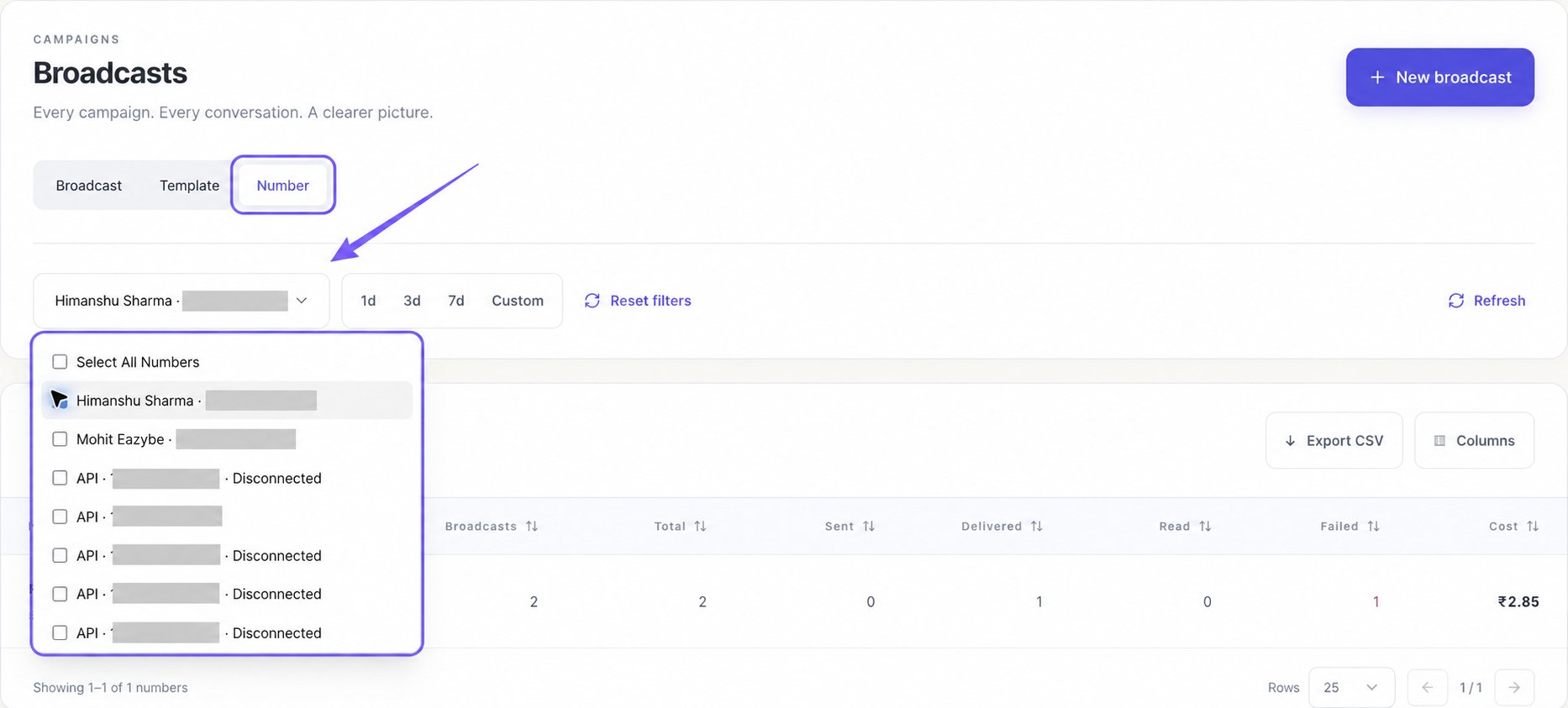 Uncheck a sender to remove it, or choose **Unselect All Numbers** to clear the selection. Scroll inside the menu to see more entries. The control shows the sender's name when one is selected, a count when several are selected, and **Select numbers** when none are selected.
Click outside the menu to close it. The table shows a summary for each returned number, including its **Broadcasts** count, message totals, and **Cost**. This view lists up to **100** distinct sender numbers; **Select All Numbers** selects the entries available in this list.
**Select numbers** means no numbers are selected. Select at least one to load a report. A **Disconnected** label describes that number's connection status; selecting it here does not reconnect it.
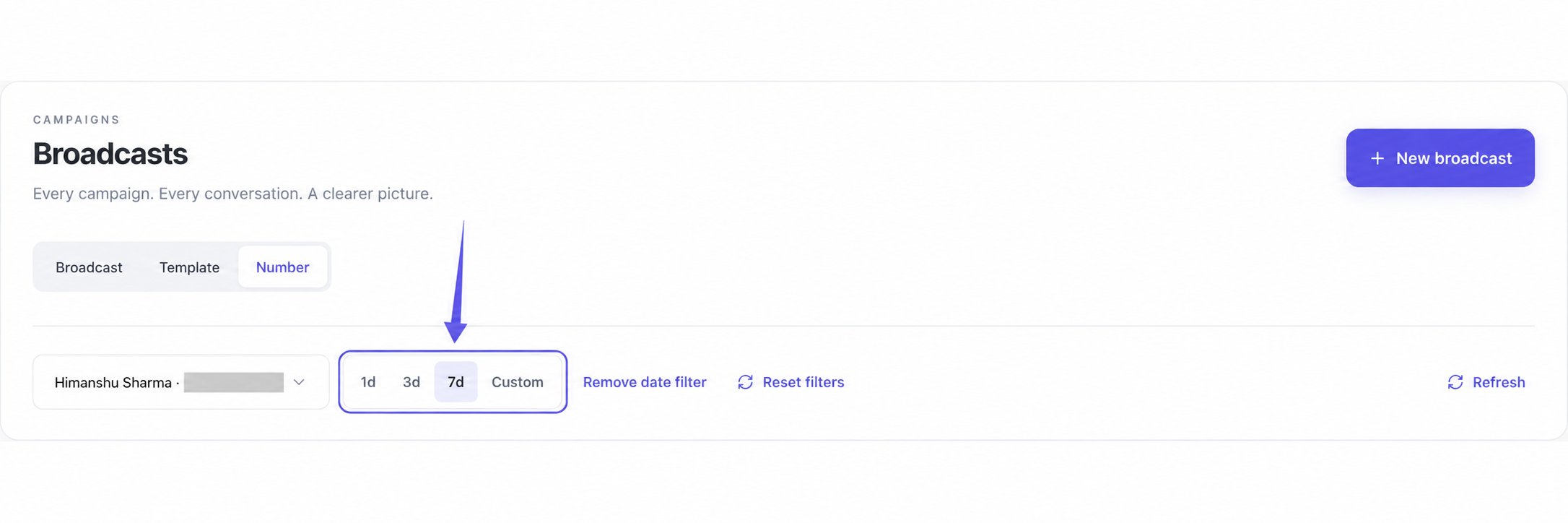
Select **1d**, **3d**, or **7d**. The selected preset is highlighted, and the number summaries reload for that period.
Uncheck a sender to remove it, or choose **Unselect All Numbers** to clear the selection. Scroll inside the menu to see more entries. The control shows the sender's name when one is selected, a count when several are selected, and **Select numbers** when none are selected.
Click outside the menu to close it. The table shows a summary for each returned number, including its **Broadcasts** count, message totals, and **Cost**. This view lists up to **100** distinct sender numbers; **Select All Numbers** selects the entries available in this list.
**Select numbers** means no numbers are selected. Select at least one to load a report. A **Disconnected** label describes that number's connection status; selecting it here does not reconnect it.
Select **1d**, **3d**, or **7d**. The selected preset is highlighted, and the number summaries reload for that period.
 | Preset | Dates included |
| ------ | -------------------------------- |
| **1d** | Today |
| **3d** | Today and the previous two dates |
| **7d** | Today and the previous six dates |
The presets use UTC calendar dates. Around midnight, “today” in UTC can differ from the date in your local time zone. For example, selecting **7d** on 26 September sets 20–26 September.
Date filters are available only in **Number** view. With no date filter selected, the report does not restrict results to a chosen date range.
Select **Custom** to reveal two date fields. They start with your current range, or today when no range is set. Set the start date in the left field and the end date in the right field, using the calendar controls or typing the dates. Keep the start date on or before the end date. The summaries reload as you change the range; there is no Apply button. Follow the date format displayed by your browser.
| Preset | Dates included |
| ------ | -------------------------------- |
| **1d** | Today |
| **3d** | Today and the previous two dates |
| **7d** | Today and the previous six dates |
The presets use UTC calendar dates. Around midnight, “today” in UTC can differ from the date in your local time zone. For example, selecting **7d** on 26 September sets 20–26 September.
Date filters are available only in **Number** view. With no date filter selected, the report does not restrict results to a chosen date range.
Select **Custom** to reveal two date fields. They start with your current range, or today when no range is set. Set the start date in the left field and the end date in the right field, using the calendar controls or typing the dates. Keep the start date on or before the end date. The summaries reload as you change the range; there is no Apply button. Follow the date format displayed by your browser.
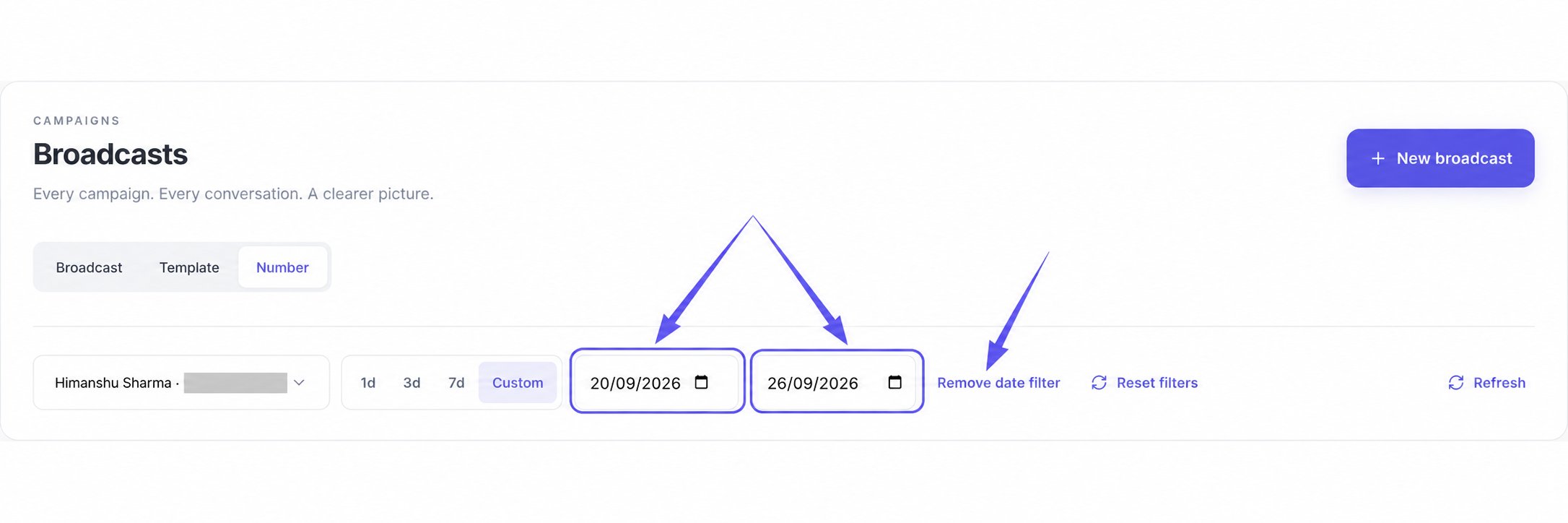 Choose **Remove date filter** to clear the date restriction while keeping your number selection.
In **Number** view, **Reset filters** selects all listed numbers, removes the date restriction, and refreshes the report. Use **Remove date filter** when you want to keep a smaller group of senders selected.
## Keep Your Comparison in Context
The date range applies to every selected number. Template, category, and campaign-status filters are hidden in this view and do not narrow the number summaries. Returning to **Broadcast** or **Template** restores those views' controls.
Choose **Columns** to show the metrics you need and select a column heading to sort them. Number rows are summary rows; to inspect an individual campaign, return to **Broadcast** and choose its sender number.
## Why Is the Table Empty?
Check that at least one number is selected. If **No analytics found** remains, remove or widen the date range, then try another sender. If a loading error says the last successful data is still shown, select **Retry** in the error message or **Refresh** before relying on the displayed totals.
To share the comparison, [customize the columns and export a CSV](/en/broadcasts/customize-and-export-reports).
Choose **Remove date filter** to clear the date restriction while keeping your number selection.
In **Number** view, **Reset filters** selects all listed numbers, removes the date restriction, and refreshes the report. Use **Remove date filter** when you want to keep a smaller group of senders selected.
## Keep Your Comparison in Context
The date range applies to every selected number. Template, category, and campaign-status filters are hidden in this view and do not narrow the number summaries. Returning to **Broadcast** or **Template** restores those views' controls.
Choose **Columns** to show the metrics you need and select a column heading to sort them. Number rows are summary rows; to inspect an individual campaign, return to **Broadcast** and choose its sender number.
## Why Is the Table Empty?
Check that at least one number is selected. If **No analytics found** remains, remove or widen the date range, then try another sender. If a loading error says the last successful data is still shown, select **Retry** in the error message or **Refresh** before relying on the displayed totals.
To share the comparison, [customize the columns and export a CSV](/en/broadcasts/customize-and-export-reports).