> ## Documentation Index
> Fetch the complete documentation index at: https://help.eazybe.com/llms.txt
> Use this file to discover all available pages before exploring further.
# Use the Broadcast Home
> Find campaigns, apply filters, understand delivery totals, and open campaign analytics.
The Broadcasts page lists campaigns from the current workspace and their latest delivery totals. Use it to find a campaign, check its status, or open recipient-level analytics.
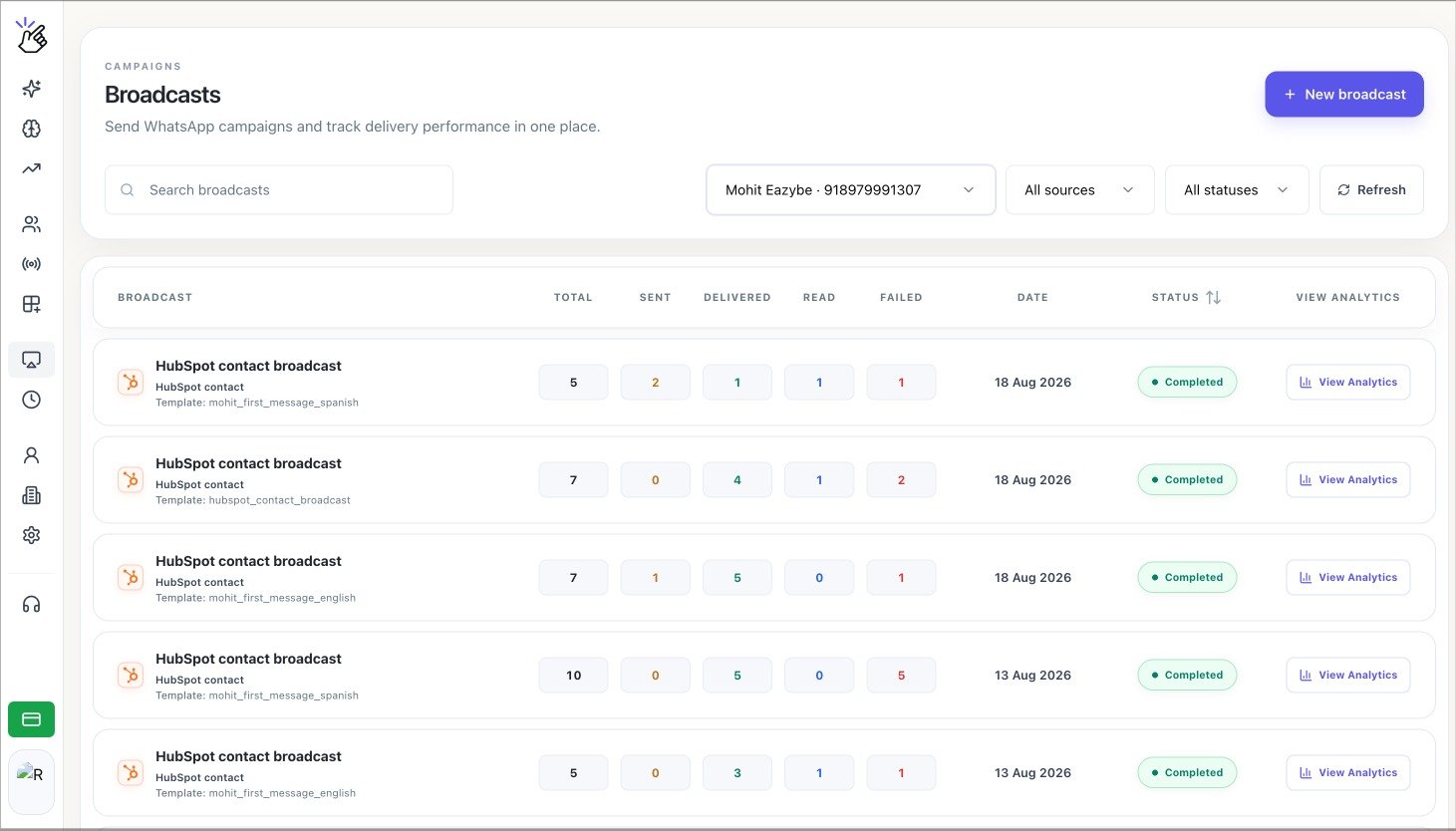 The campaigns, dates, phone numbers, and delivery totals in the screenshot are examples. Your workspace shows its own campaign data.
## Find a Broadcast
Use **Search broadcasts** to find a campaign by name. Select a WhatsApp Business number, **All sources**, or **All statuses** to narrow the list.
The campaigns, dates, phone numbers, and delivery totals in the screenshot are examples. Your workspace shows its own campaign data.
## Find a Broadcast
Use **Search broadcasts** to find a campaign by name. Select a WhatsApp Business number, **All sources**, or **All statuses** to narrow the list.
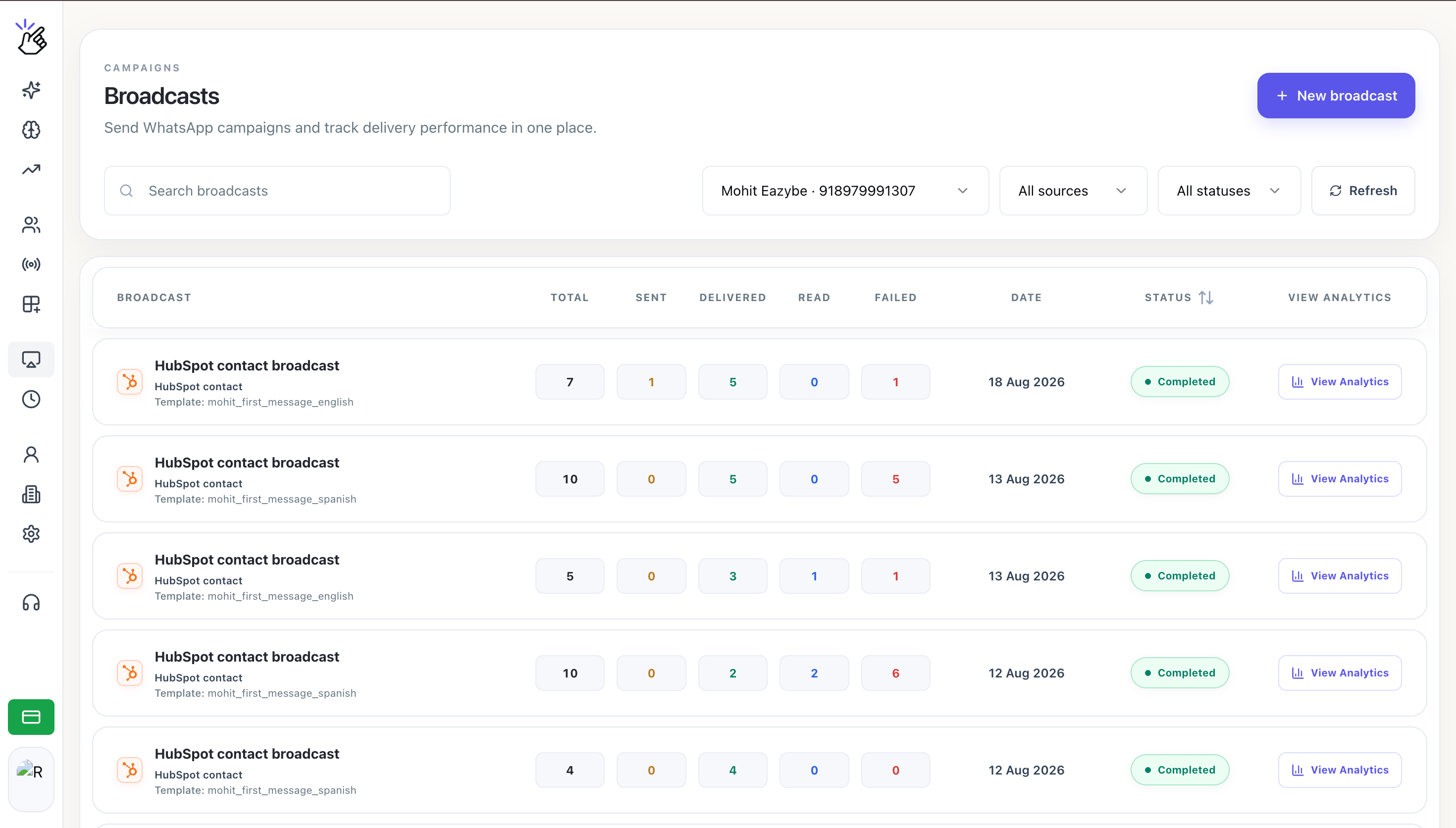 Select **Refresh** when a recent campaign is still processing or its delivery totals have changed.
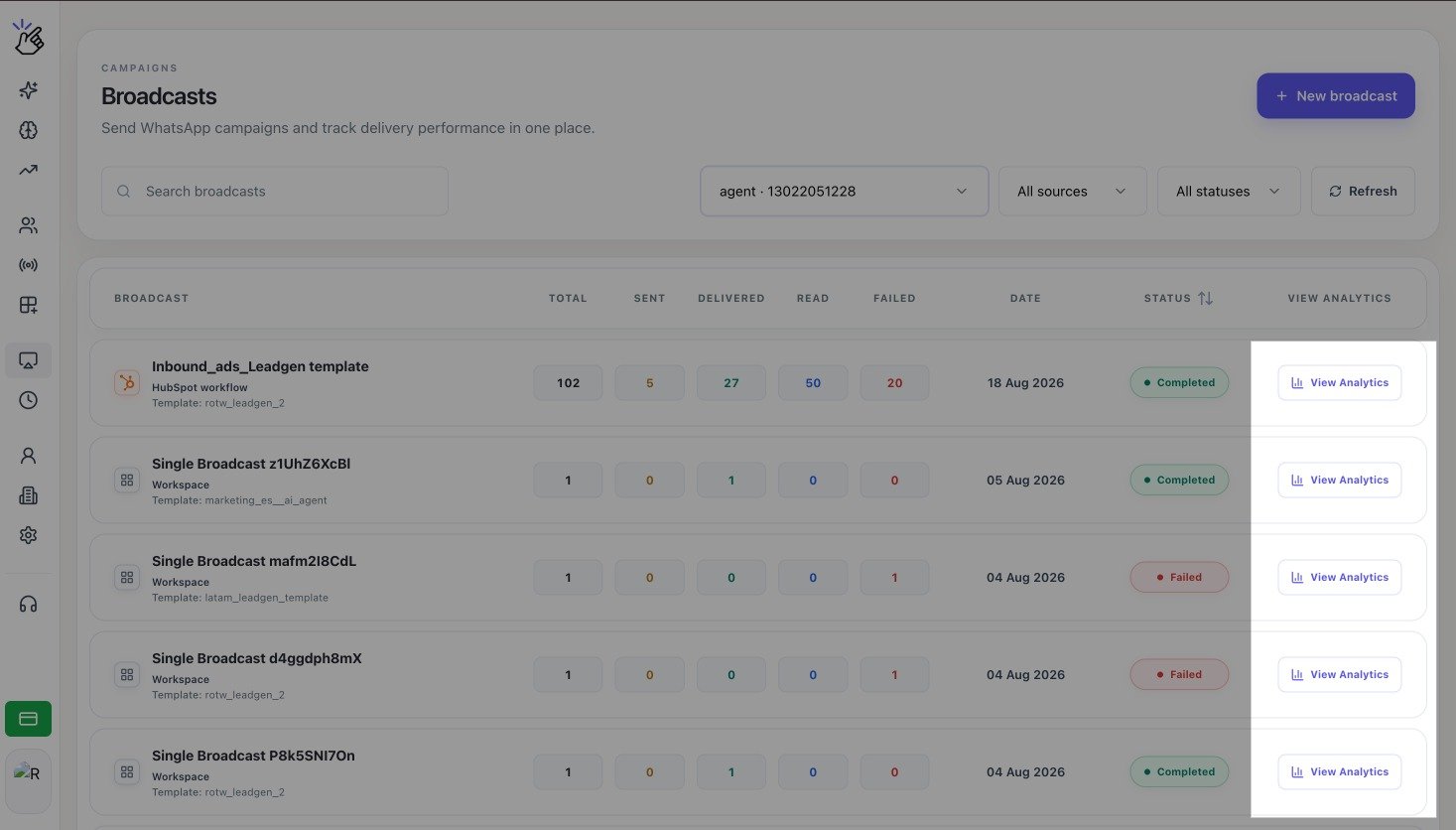
Find the campaign row and select **View Analytics**. Eazybe opens the campaign summary and its **Delivery activity** table.
Select **Refresh** when a recent campaign is still processing or its delivery totals have changed.
Find the campaign row and select **View Analytics**. Eazybe opens the campaign summary and its **Delivery activity** table.
 ## Understand the Campaign Row
| Column | What it shows |
| ------------------ | ----------------------------------------------------------------- |
| **Broadcast** | Campaign name, source, and template |
| **Total** | All recipients currently represented by the delivery statuses |
| **Sent** | Messages accepted for sending but not yet delivered |
| **Delivered** | Messages delivered but not yet marked as read |
| **Read** | Messages marked as read by recipients |
| **Failed** | Messages that could not be delivered |
| **Date** | Date the campaign was sent |
| **Status** | The campaign's current state, such as **Completed** or **Failed** |
| **View Analytics** | Opens recipient-level campaign details |
## Understand the Broadcast Source
The source below the campaign name tells you where the broadcast originated. Sources can include:
* **Workspace**
* **HubSpot segment**
* **HubSpot workflow**
* **HubSpot contact**
* **Zoho**
* **Salesforce**
## Move Through Older Campaigns
Choose 25, 50, or 100 rows per page, then use the page controls to move through the campaign history.
## Understand the Campaign Row
| Column | What it shows |
| ------------------ | ----------------------------------------------------------------- |
| **Broadcast** | Campaign name, source, and template |
| **Total** | All recipients currently represented by the delivery statuses |
| **Sent** | Messages accepted for sending but not yet delivered |
| **Delivered** | Messages delivered but not yet marked as read |
| **Read** | Messages marked as read by recipients |
| **Failed** | Messages that could not be delivered |
| **Date** | Date the campaign was sent |
| **Status** | The campaign's current state, such as **Completed** or **Failed** |
| **View Analytics** | Opens recipient-level campaign details |
## Understand the Broadcast Source
The source below the campaign name tells you where the broadcast originated. Sources can include:
* **Workspace**
* **HubSpot segment**
* **HubSpot workflow**
* **HubSpot contact**
* **Zoho**
* **Salesforce**
## Move Through Older Campaigns
Choose 25, 50, or 100 rows per page, then use the page controls to move through the campaign history.