> ## Documentation Index
> Fetch the complete documentation index at: https://help.eazybe.com/llms.txt
> Use this file to discover all available pages before exploring further.
# Add Credits to Your Wallet
> Add Eazybe wallet credits with a secure one-time payment.
Use **Add credits** when you want to make one wallet purchase without changing auto-payment settings. You can select a quick amount or enter a custom amount before continuing to checkout.
Open **Settings → Billing → Credits** and find **Add credits**. Select a quick amount or enter a custom amount. Check the **New balance** calculation, then select **Complete purchase**.
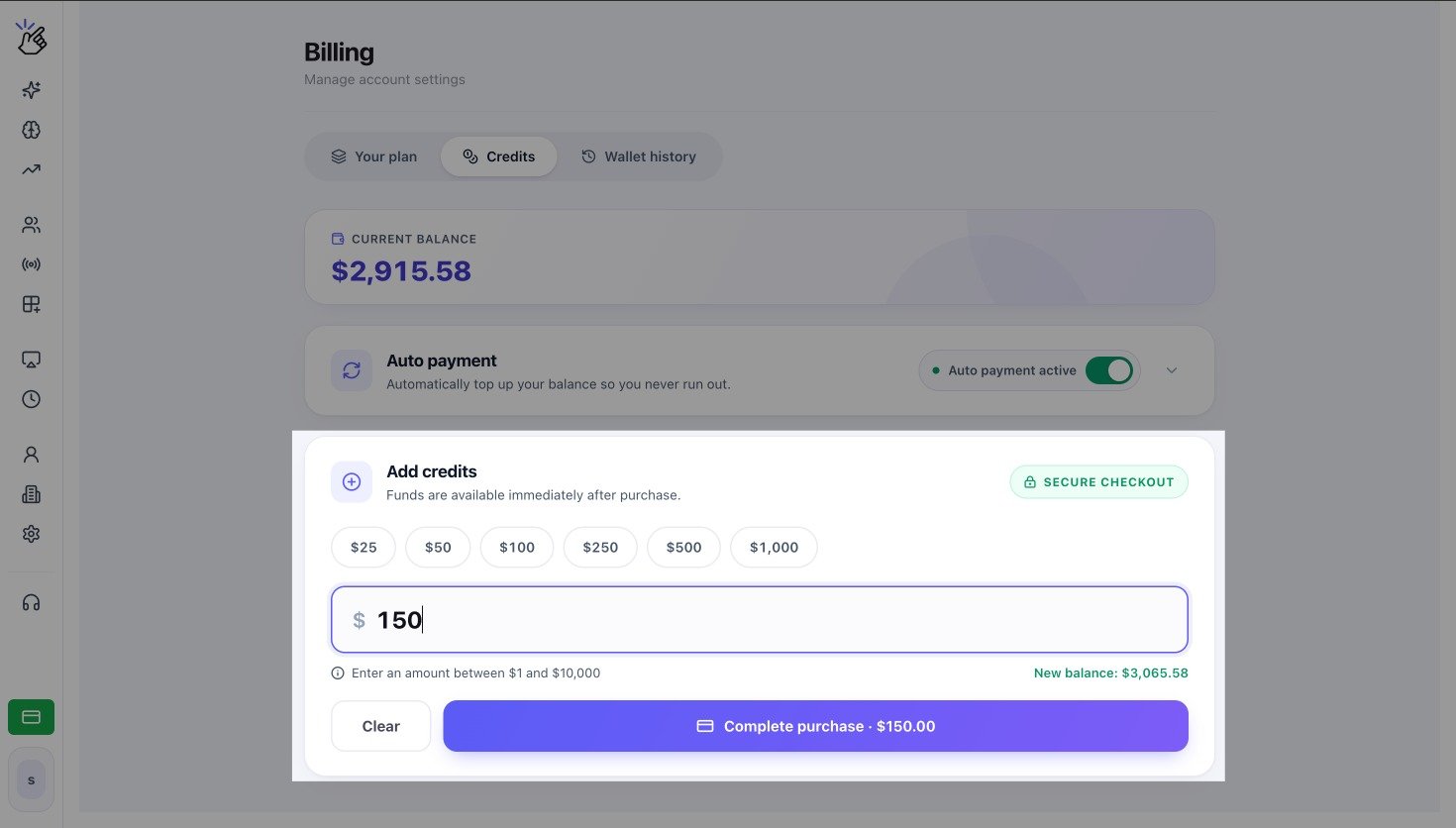 The screenshot shows example USD values. Confirm the currency and amount shown in your workspace before continuing. Selecting **Complete purchase** starts a payment flow.
## Complete Checkout
Review the amount and tax shown by the secure checkout, choose the available payment method, and complete the payment. Return to **Credits** and confirm that **Current balance** has increased.
Enter an amount from INR 50 to INR 50,000. Add or confirm GST details when requested, review the GST breakdown, and complete payment through Razorpay.
The screenshot shows example USD values. Confirm the currency and amount shown in your workspace before continuing. Selecting **Complete purchase** starts a payment flow.
## Complete Checkout
Review the amount and tax shown by the secure checkout, choose the available payment method, and complete the payment. Return to **Credits** and confirm that **Current balance** has increased.
Enter an amount from INR 50 to INR 50,000. Add or confirm GST details when requested, review the GST breakdown, and complete payment through Razorpay.
 Enter an amount from USD 1 to USD 10,000, then complete payment through Stripe.
 Follow the amount range and checkout provider shown on your screen.
Manually adding credit does not enable auto payment or change the saved card, threshold, or recharge amount.
## If the Balance Does Not Update
1. Check whether checkout shows the payment as successful, pending, or failed.
2. Return to **Credits** and refresh the page once.
3. Open **Wallet history** and find the matching transaction.
4. If a successful payment is still missing, contact Eazybe Support with the workspace name, amount, currency, payment reference, and payment time.
Do not repeat a payment while the original transaction is pending. A second checkout can create a duplicate charge.
Follow the amount range and checkout provider shown on your screen.
Manually adding credit does not enable auto payment or change the saved card, threshold, or recharge amount.
## If the Balance Does Not Update
1. Check whether checkout shows the payment as successful, pending, or failed.
2. Return to **Credits** and refresh the page once.
3. Open **Wallet history** and find the matching transaction.
4. If a successful payment is still missing, contact Eazybe Support with the workspace name, amount, currency, payment reference, and payment time.
Do not repeat a payment while the original transaction is pending. A second checkout can create a duplicate charge.