> ## Documentation Index
> Fetch the complete documentation index at: https://help.eazybe.com/llms.txt
> Use this file to discover all available pages before exploring further.
# Billing Overview
> Manage your Eazybe plan, wallet credits, automatic payments, tax details, and transaction history.
Use **Settings → Billing** to manage the plan and payment settings for your Eazybe workspace. This section explains which tab to open for each billing task and what you should confirm before making a purchase.
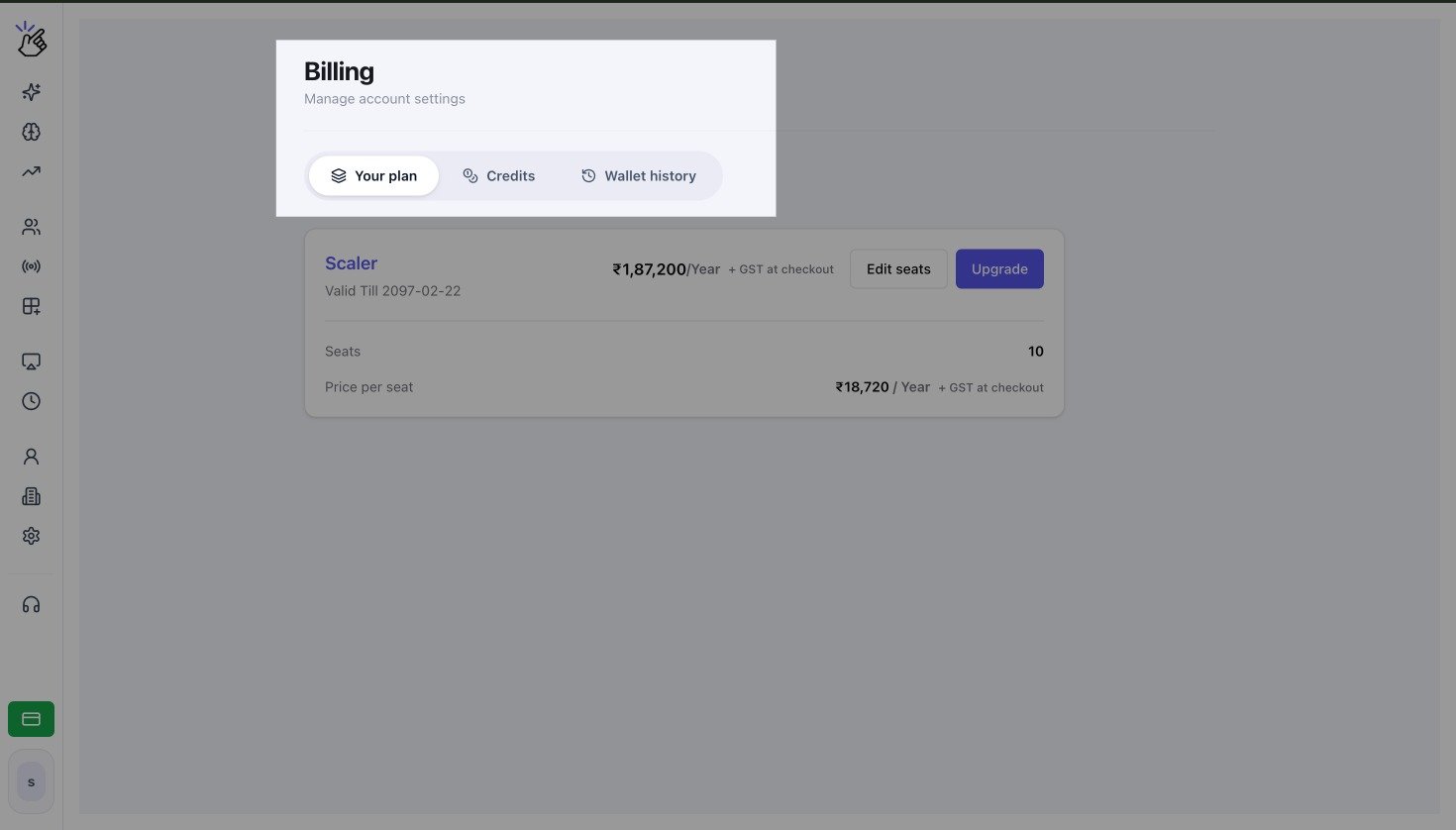
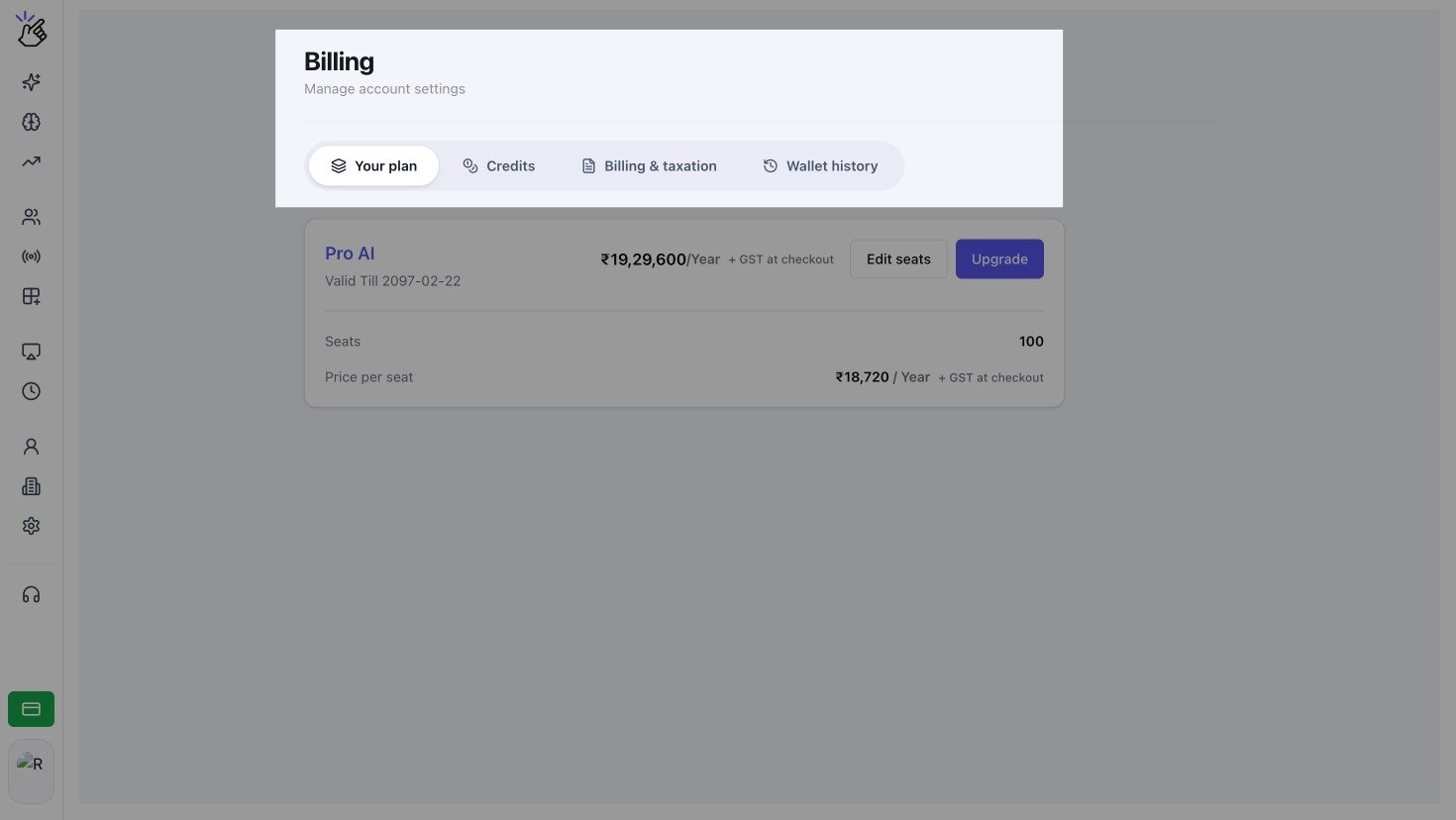 The plan, price, renewal date, and seat count in the screenshots are examples. Your Billing page shows the settings and values for your workspace.
## Choose a Billing Task
Review your current plan, billing period, seats, and available subscription actions.
Learn what the wallet balance is used for and how to prevent interrupted paid messaging.
Make a one-time wallet purchase with a quick amount or custom amount.
Automatically add credits when an eligible wallet reaches your chosen threshold.
Verify GST information for eligible INR purchases and future tax invoices.
Find credit and debit transactions, payment status, balances, and invoices.
## Access and Currency
* Billing tabs and actions depend on your workspace permissions, country, wallet currency, and Eazybe services.
* **Your plan** and **Wallet history** are available to eligible workspace admins.
* Auto payment is currently available for USD wallets.
* INR purchases can include GST and may use a different checkout flow from other currencies.
If a tab or action described in this section is not visible, confirm that you are in the correct workspace and ask a workspace admin to check your access.
Review the currency, amount, tax, billing period, and payment method before confirming a purchase. Billing actions can charge a saved card or send you to a secure checkout.
The plan, price, renewal date, and seat count in the screenshots are examples. Your Billing page shows the settings and values for your workspace.
## Choose a Billing Task
Review your current plan, billing period, seats, and available subscription actions.
Learn what the wallet balance is used for and how to prevent interrupted paid messaging.
Make a one-time wallet purchase with a quick amount or custom amount.
Automatically add credits when an eligible wallet reaches your chosen threshold.
Verify GST information for eligible INR purchases and future tax invoices.
Find credit and debit transactions, payment status, balances, and invoices.
## Access and Currency
* Billing tabs and actions depend on your workspace permissions, country, wallet currency, and Eazybe services.
* **Your plan** and **Wallet history** are available to eligible workspace admins.
* Auto payment is currently available for USD wallets.
* INR purchases can include GST and may use a different checkout flow from other currencies.
If a tab or action described in this section is not visible, confirm that you are in the correct workspace and ask a workspace admin to check your access.
Review the currency, amount, tax, billing period, and payment method before confirming a purchase. Billing actions can charge a saved card or send you to a secure checkout.