> ## Documentation Index
> Fetch the complete documentation index at: https://help.eazybe.com/llms.txt
> Use this file to discover all available pages before exploring further.
# Overview
> Understand how Eazybe wallet credits work and how to keep paid WhatsApp activity funded.
Eazybe credits are funds stored in the workspace wallet and used for eligible paid WhatsApp API activity. From **Settings → Billing → Credits**, you can check the current balance, make a one-time purchase, or manage auto payment when it is available.
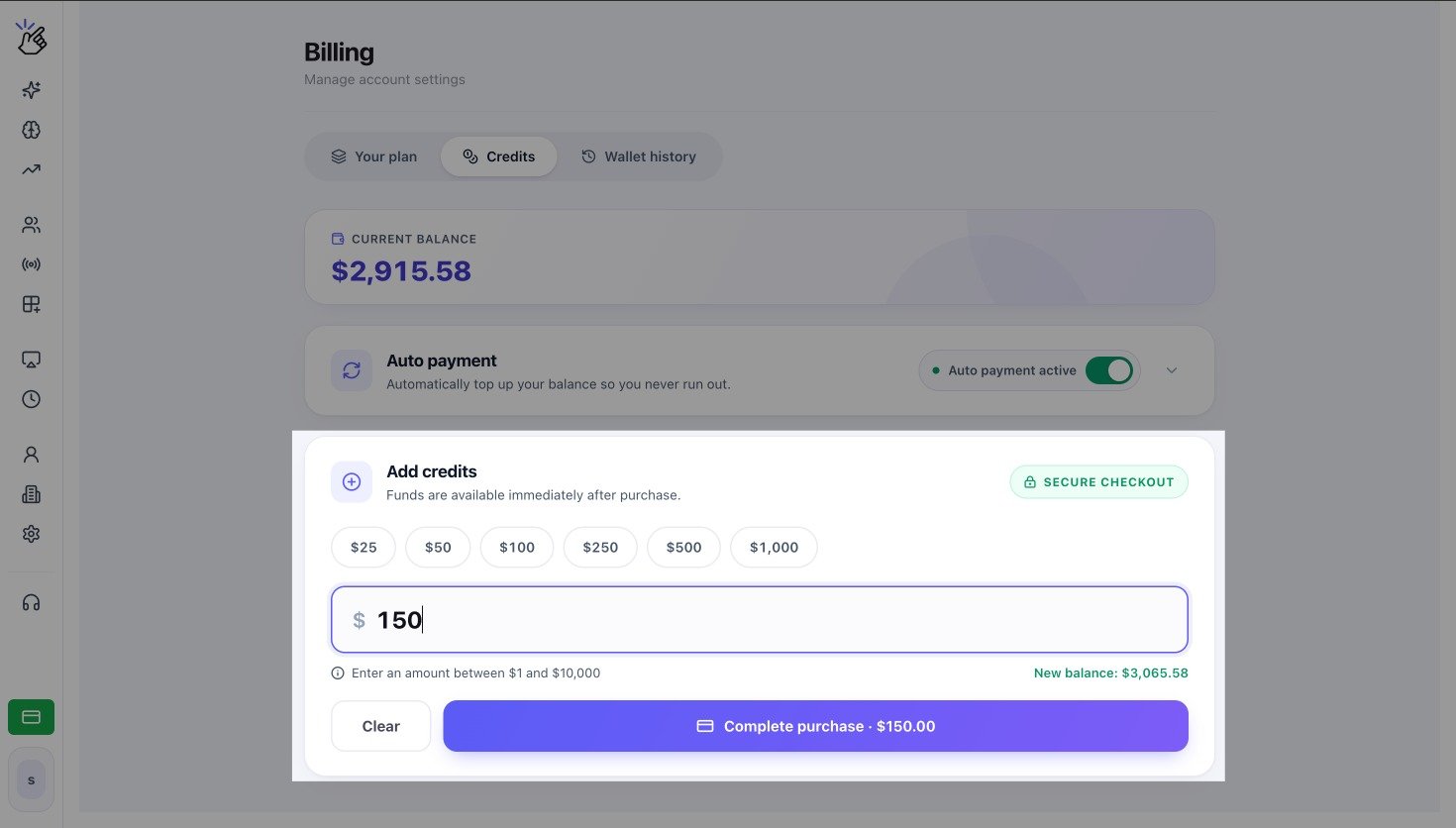 The USD balance, auto-payment status, and purchase amount in the screenshot are examples. Your workspace can use a different balance, currency, and set of payment options.
## What the Credits Tab Shows
| Area | What it tells you |
| ------------------- | ------------------------------------------------------------------------------------------------ |
| **Current balance** | The wallet funds currently available to the workspace |
| **Auto payment** | Whether automatic top-ups are active and, when expanded, the saved threshold and recharge amount |
| **Add credits** | Quick amounts, a custom amount field, the expected new balance, and **Complete purchase** |
The USD balance, auto-payment status, and purchase amount in the screenshot are examples. Your workspace can use a different balance, currency, and set of payment options.
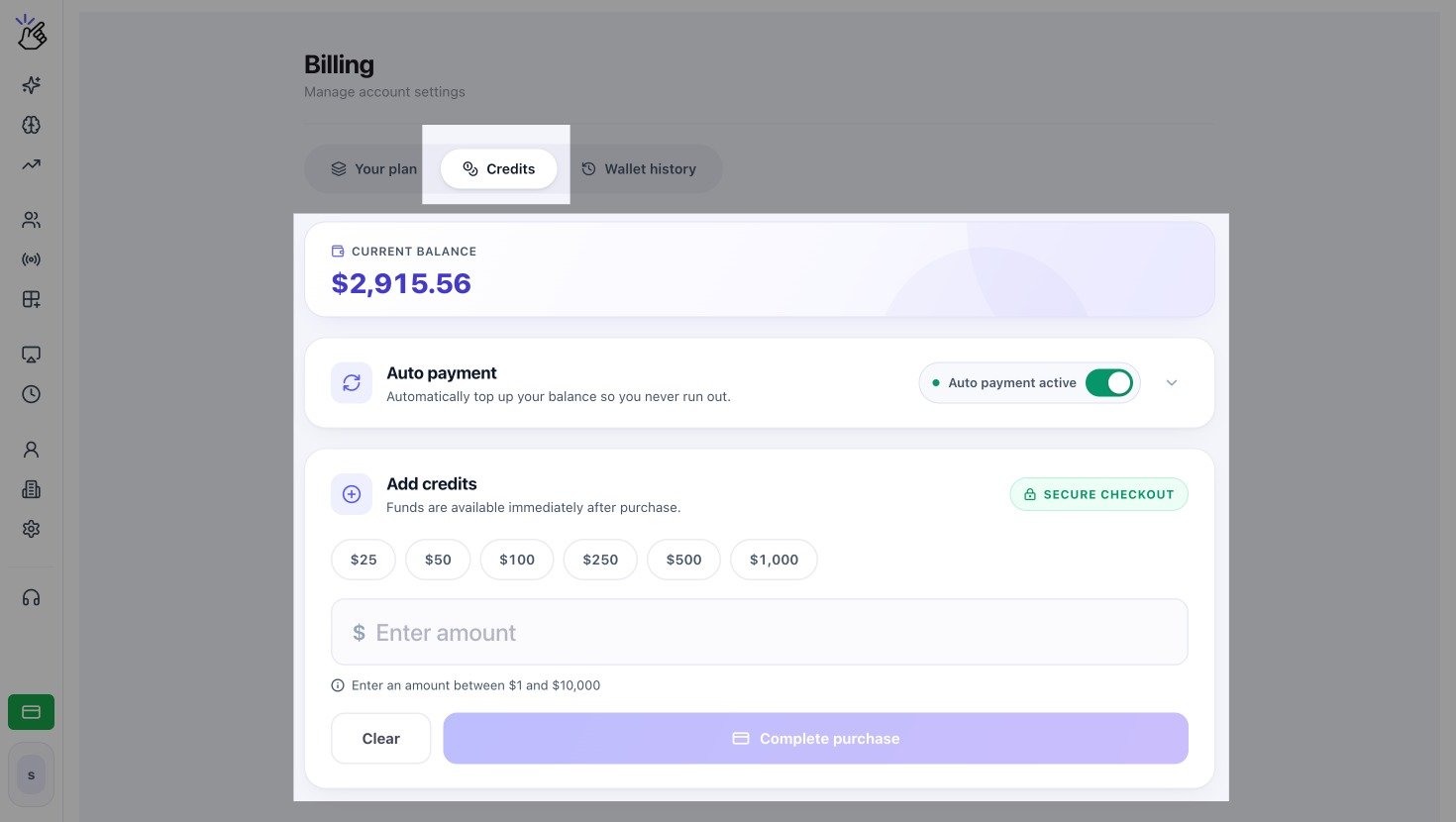
## What the Credits Tab Shows
| Area | What it tells you |
| ------------------- | ------------------------------------------------------------------------------------------------ |
| **Current balance** | The wallet funds currently available to the workspace |
| **Auto payment** | Whether automatic top-ups are active and, when expanded, the saved threshold and recharge amount |
| **Add credits** | Quick amounts, a custom amount field, the expected new balance, and **Complete purchase** |
 ## Choose How to Add Credits
Add credits once without changing auto-payment settings.
Automatically add credits when an eligible USD wallet reaches its threshold.
A one-time credit purchase and an automatic top-up both add funds to the same workspace wallet. Auto payment does not replace your Eazybe subscription payment.
## If the Balance Runs Out
Paid broadcasts, templates, or automations can stop when the wallet no longer has enough funds for the activity. Add credits or resolve a failed auto payment, then retry the affected action after the balance updates.
Access to **Credits** depends on your workspace permissions and eligible Eazybe services. Ask a workspace admin if the tab is not visible.
## Choose How to Add Credits
Add credits once without changing auto-payment settings.
Automatically add credits when an eligible USD wallet reaches its threshold.
A one-time credit purchase and an automatic top-up both add funds to the same workspace wallet. Auto payment does not replace your Eazybe subscription payment.
## If the Balance Runs Out
Paid broadcasts, templates, or automations can stop when the wallet no longer has enough funds for the activity. Add credits or resolve a failed auto payment, then retry the affected action after the balance updates.
Access to **Credits** depends on your workspace permissions and eligible Eazybe services. Ask a workspace admin if the tab is not visible.