> ## Documentation Index
> Fetch the complete documentation index at: https://help.eazybe.com/llms.txt
> Use this file to discover all available pages before exploring further.
# Set Up Auto Payment
> Automatically add credits when an eligible Eazybe wallet reaches a low-balance threshold.
Auto payment charges a saved card and adds credits when the workspace wallet reaches your chosen threshold. Use it to reduce interruptions to eligible paid WhatsApp activity.
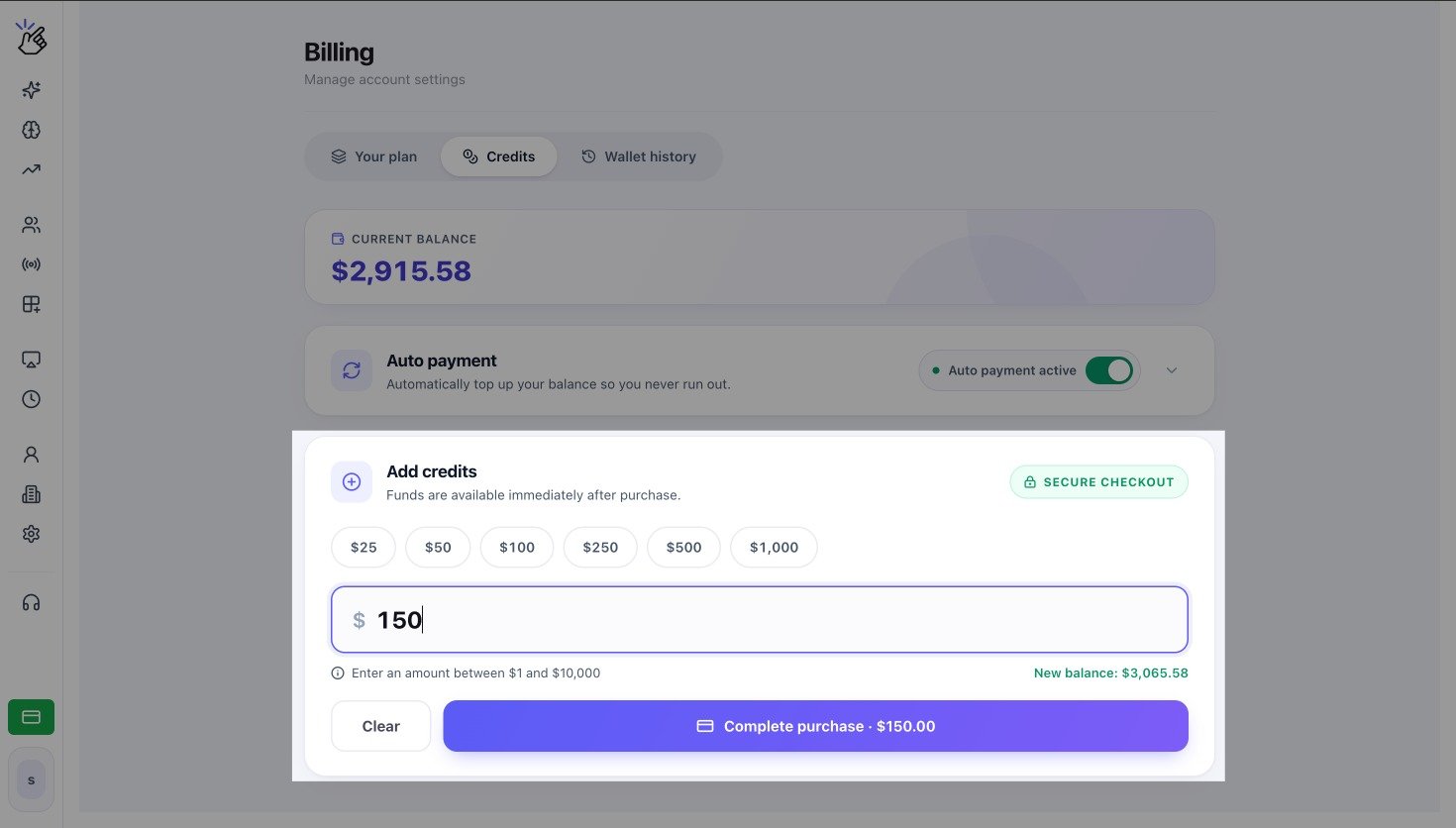 The balance, status, and purchase amounts in the screenshot are examples. Auto payment is currently available for USD wallets, and your workspace can show different values.
## Turn On Auto Payment
1. Open **Settings → Billing → Credits**.
2. Expand **Auto payment** if the panel is collapsed.
3. Turn on the **Auto payment** toggle.
4. Confirm **Top up when below** and **Amount to add**.
5. Confirm that the status changes to **Auto payment active**.
If this is the first setup, Eazybe uses the eligible card already saved for the workspace subscription.
Turning on auto payment authorizes future charges to the saved card. If Eazybe cannot find a usable subscription card, auto payment is not enabled. Update the subscription payment method or contact Eazybe Support, then try again.
## Choose the Amounts
* **Top up when below** is the wallet balance that triggers auto payment.
* **Amount to add** is charged to the saved card and added to the wallet after a successful payment.
* The threshold must be lower than the amount to add.
For a USD wallet, the threshold must be at least USD 1, the amount to add must be at least USD 5, and each value can be up to USD 10,000.
Example: if **Top up when below** is USD 5 and **Amount to add** is USD 50, Eazybe starts an automatic payment when the balance reaches USD 5 or less. A successful payment adds USD 50.
The example explains the trigger; it is not a recommended setting. Choose amounts that match your expected messaging usage and budget.
## Change the Amounts
1. Select an amount field or its pencil icon.
2. Update **Top up when below** and **Amount to add**.
3. Select **Save changes**.
4. Recheck the summary shown in the panel.
## Change the Payment Card
1. Select **Change card** beside the saved card.
2. Enter the new card details on the secure Stripe page and complete the setup.
3. Return to **Credits** and confirm that the card brand and last four digits have updated.
Eazybe displays only the saved card brand and last four digits in the workspace.
## Turn Auto Payment Off or On Again
* To stop future automatic top-ups, turn off the toggle and confirm **Disable auto payment**.
* Disabling keeps the saved configuration so you can turn it on again later.
* Check the status text to confirm whether auto payment is active.
Turning auto payment off does not add credits or cancel a payment that has already started. Check **Wallet history** when a payment was triggered near the time you disabled it.
## Emails and Notifications
Auto-payment activity is sent to the workspace account email and can also create an in-app notification.
| Event | What you receive |
| ------------------ | ------------------------------------------------------------------------------ |
| Payment started | Amount and transaction ID |
| Payment successful | Amount, transaction ID, and updated balance when available |
| Payment failed | Failure reason, retry timing, and instructions for updating the payment method |
| Repeated failures | Auto payment is disabled after three failed attempts and a final email is sent |
The balance, status, and purchase amounts in the screenshot are examples. Auto payment is currently available for USD wallets, and your workspace can show different values.
## Turn On Auto Payment
1. Open **Settings → Billing → Credits**.
2. Expand **Auto payment** if the panel is collapsed.
3. Turn on the **Auto payment** toggle.
4. Confirm **Top up when below** and **Amount to add**.
5. Confirm that the status changes to **Auto payment active**.
If this is the first setup, Eazybe uses the eligible card already saved for the workspace subscription.
Turning on auto payment authorizes future charges to the saved card. If Eazybe cannot find a usable subscription card, auto payment is not enabled. Update the subscription payment method or contact Eazybe Support, then try again.
## Choose the Amounts
* **Top up when below** is the wallet balance that triggers auto payment.
* **Amount to add** is charged to the saved card and added to the wallet after a successful payment.
* The threshold must be lower than the amount to add.
For a USD wallet, the threshold must be at least USD 1, the amount to add must be at least USD 5, and each value can be up to USD 10,000.
Example: if **Top up when below** is USD 5 and **Amount to add** is USD 50, Eazybe starts an automatic payment when the balance reaches USD 5 or less. A successful payment adds USD 50.
The example explains the trigger; it is not a recommended setting. Choose amounts that match your expected messaging usage and budget.
## Change the Amounts
1. Select an amount field or its pencil icon.
2. Update **Top up when below** and **Amount to add**.
3. Select **Save changes**.
4. Recheck the summary shown in the panel.
## Change the Payment Card
1. Select **Change card** beside the saved card.
2. Enter the new card details on the secure Stripe page and complete the setup.
3. Return to **Credits** and confirm that the card brand and last four digits have updated.
Eazybe displays only the saved card brand and last four digits in the workspace.
## Turn Auto Payment Off or On Again
* To stop future automatic top-ups, turn off the toggle and confirm **Disable auto payment**.
* Disabling keeps the saved configuration so you can turn it on again later.
* Check the status text to confirm whether auto payment is active.
Turning auto payment off does not add credits or cancel a payment that has already started. Check **Wallet history** when a payment was triggered near the time you disabled it.
## Emails and Notifications
Auto-payment activity is sent to the workspace account email and can also create an in-app notification.
| Event | What you receive |
| ------------------ | ------------------------------------------------------------------------------ |
| Payment started | Amount and transaction ID |
| Payment successful | Amount, transaction ID, and updated balance when available |
| Payment failed | Failure reason, retry timing, and instructions for updating the payment method |
| Repeated failures | Auto payment is disabled after three failed attempts and a final email is sent |