> ## Documentation Index
> Fetch the complete documentation index at: https://help.eazybe.com/llms.txt
> Use this file to discover all available pages before exploring further.
# AI Insights on a Chat
> View the AI sales brief BEA Radar writes beside every WhatsApp conversation — summary, intent, urgency, objection, and the exact next action.
## The AI Sales Brief
On every chat — on any number type, and in 1:1 and group conversations alike — BEA Radar automatically fills in a ready-to-act brief:
| Property | What it captures |
| :-------------- | :--------------------------------------------------------------------------- |
| **AI Summary** | A plain-language recap of the whole conversation — no scrolling |
| **Intent** | What the person wants (e.g. *Wants a demo*, *Ready to buy*, *Just browsing*) |
| **Urgency** | How time-sensitive the conversation is |
| **Objection** | What's holding the deal back, if anything |
| **Next Action** | The exact next step the rep should take |
No setup, no rules, no tagging — the brief is written the moment the chat comes in, and updates as the conversation continues.
The brief is written for **Personal WhatsApp**, **WhatsApp Business App**, and **WhatsApp Business API (WABA)** numbers alike, and group chats get the same treatment as direct ones.
## Viewing AI Insights
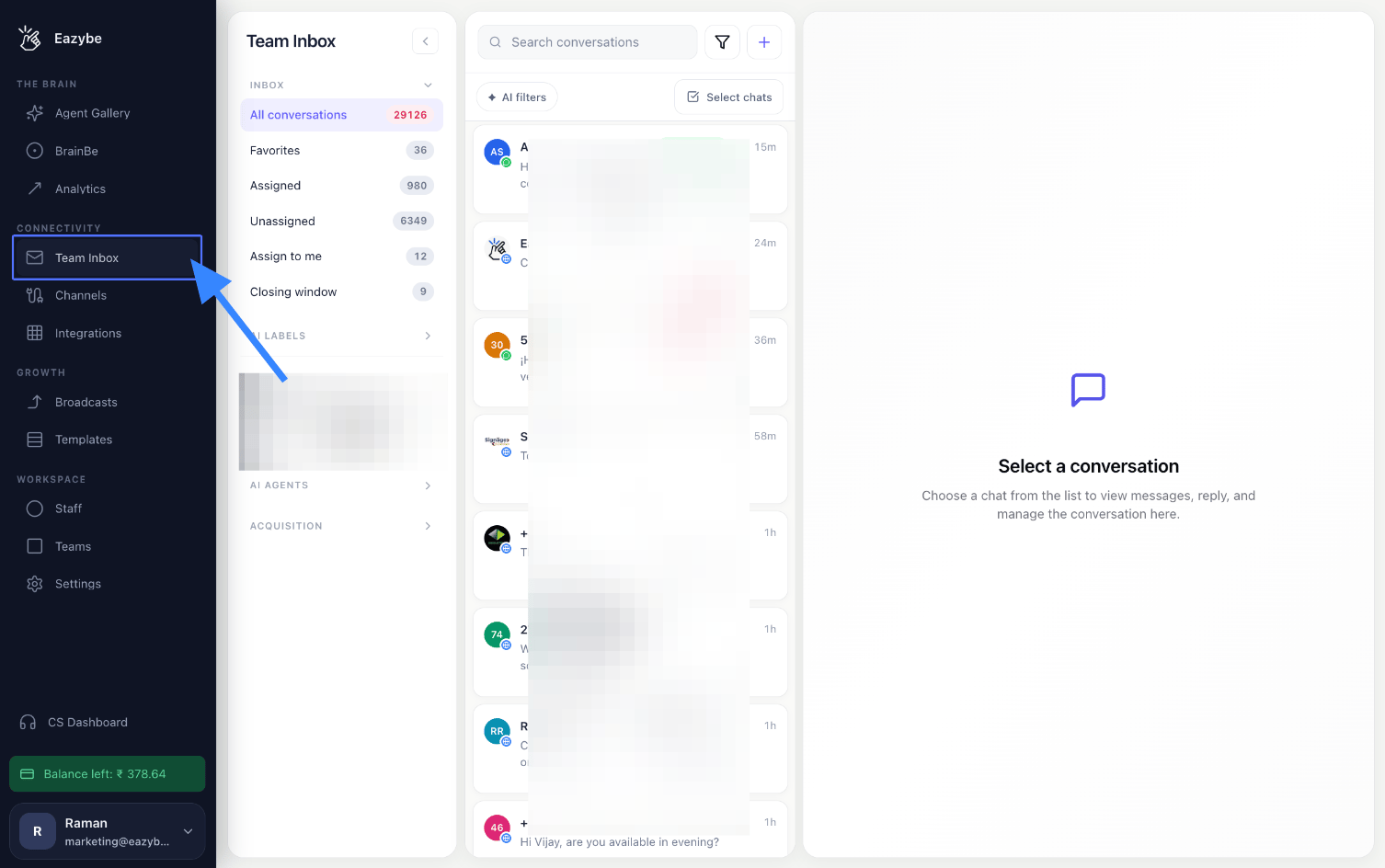
Click on **"Team Inbox"** in the navigation menu.
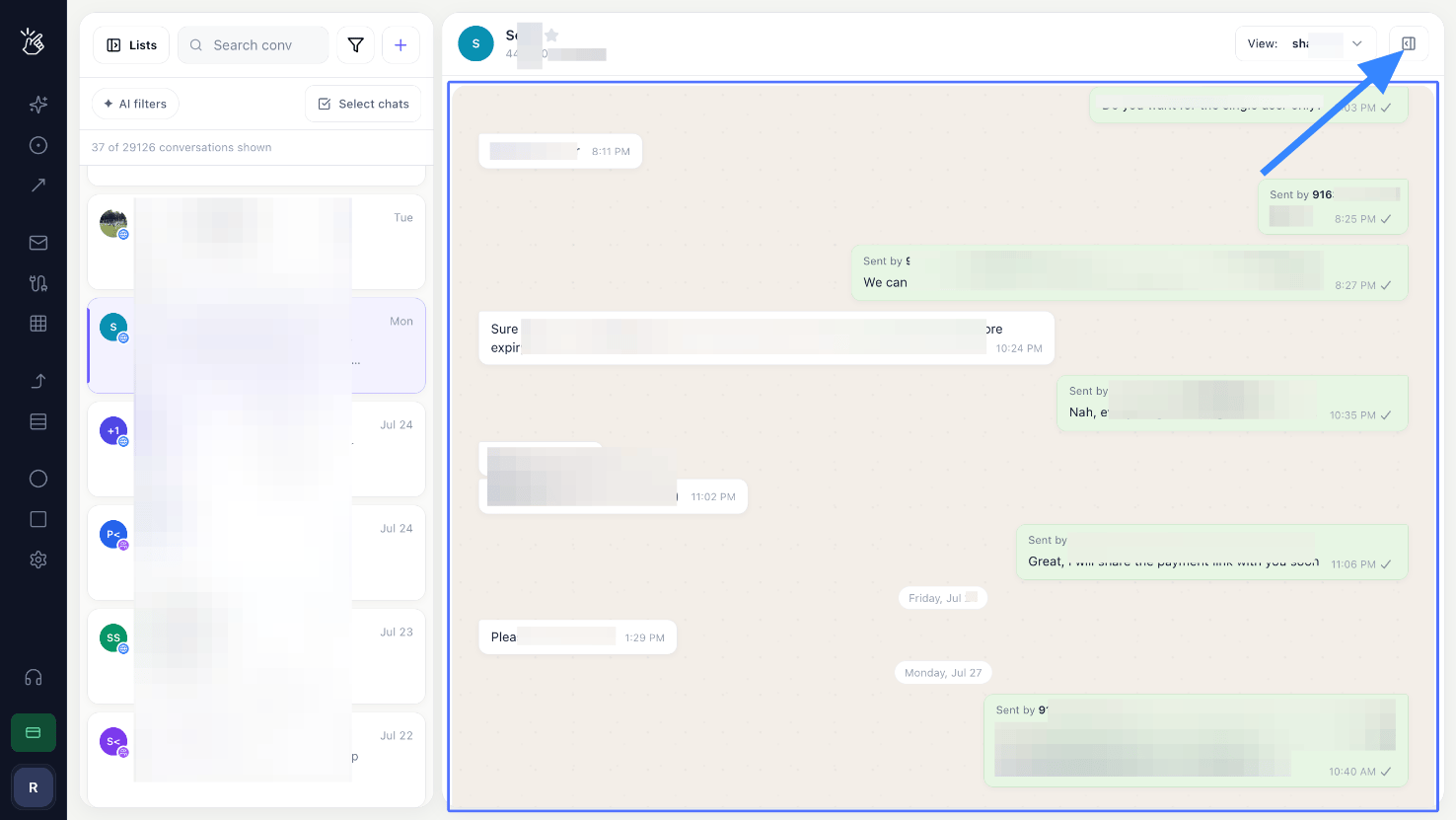
 Open any chat, then open the **User Profile** panel on the right.
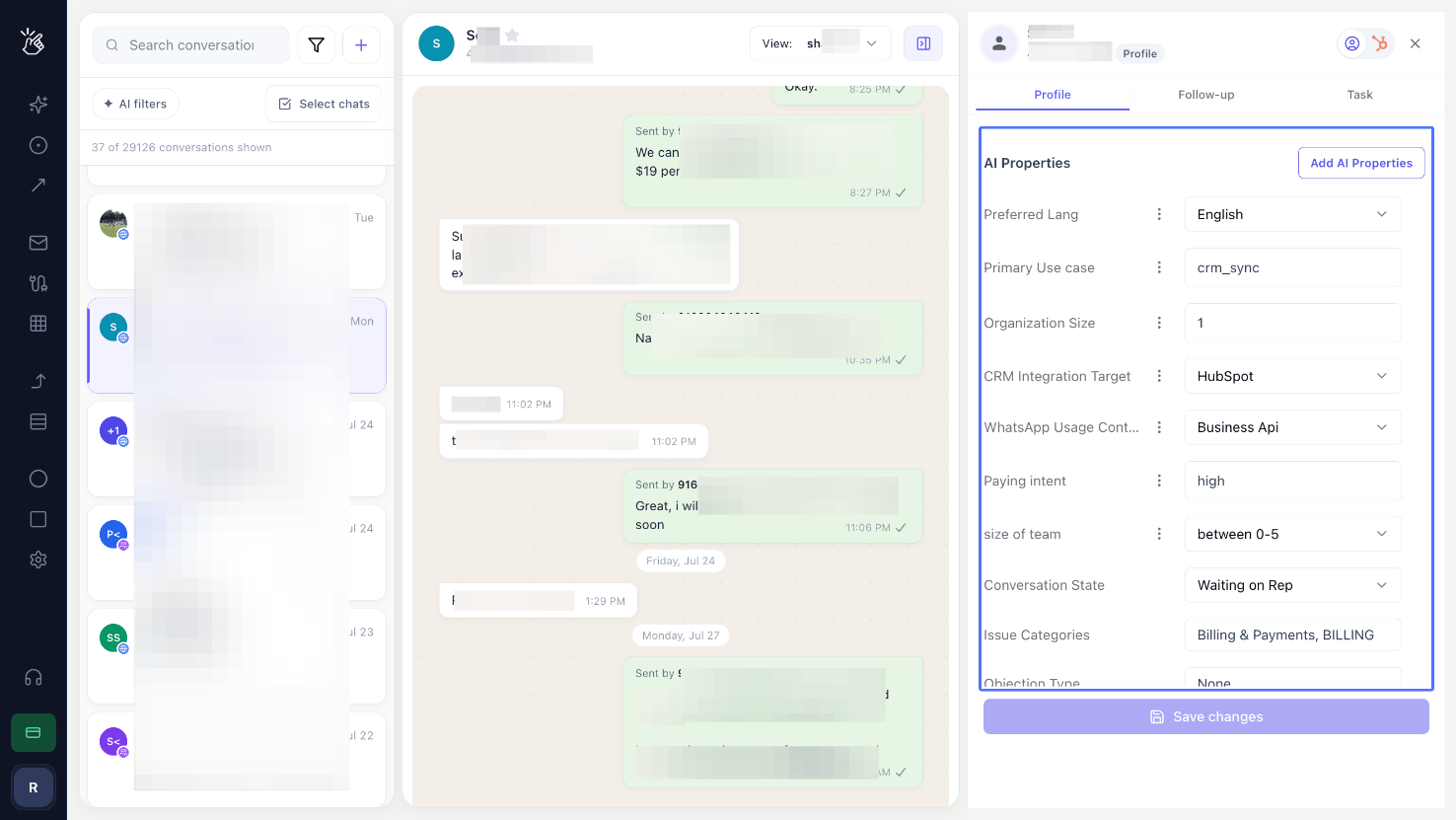
 Here are your **AI Properties** — automatically created based on what your business tracks.
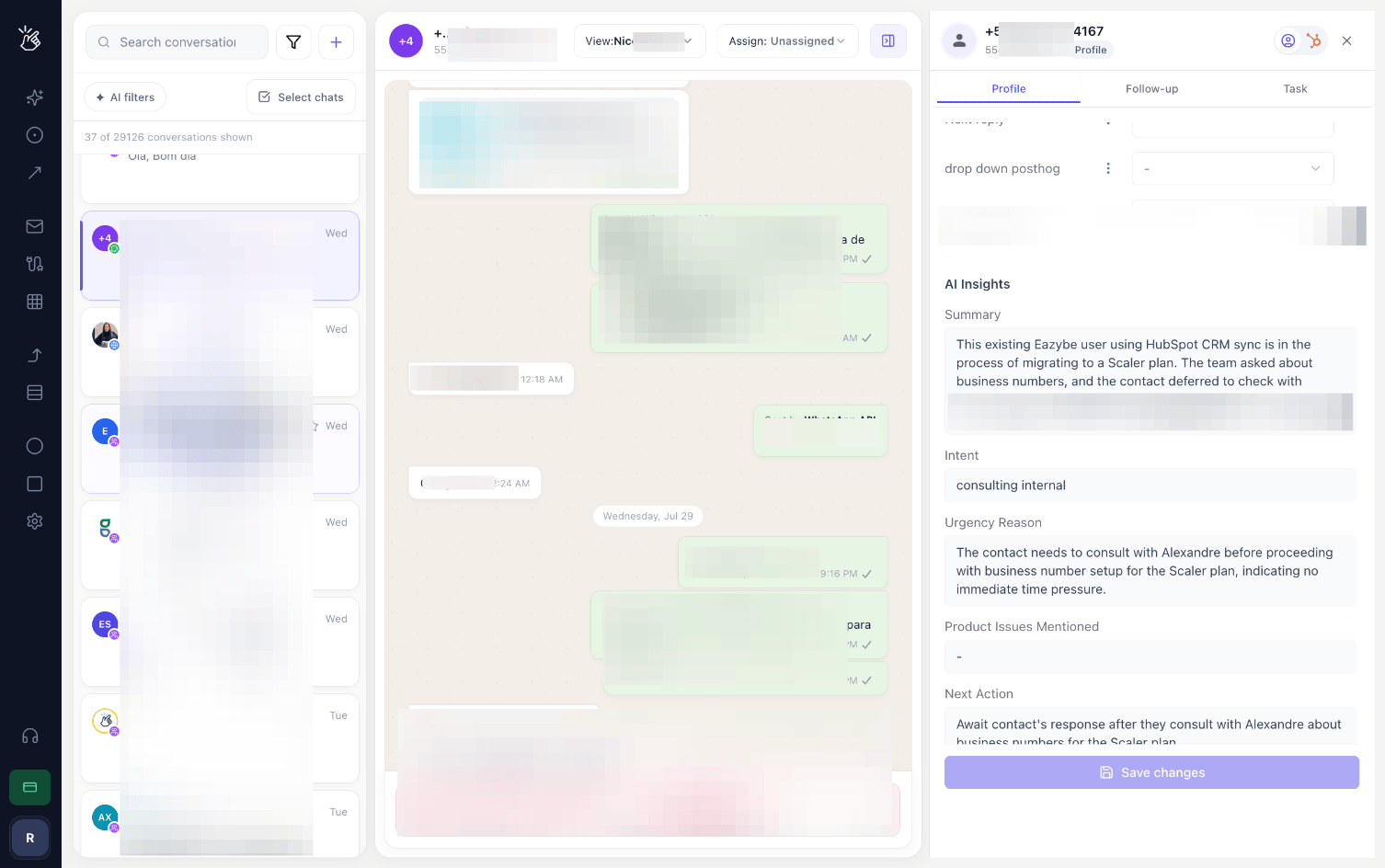
 View your **AI Insights** — Summary, Intent, Urgency Reason, Next Action, and more — all analysed by BEA Radar.
 The brief refreshes as the conversation continues, so reopening a chat later always shows the current state — not what it looked like when the chat first arrived.
## Next Steps
Customise, add, and configure the fields the AI fills in
Filter your whole inbox by any AI property
The brief refreshes as the conversation continues, so reopening a chat later always shows the current state — not what it looked like when the chat first arrived.
## Next Steps
Customise, add, and configure the fields the AI fills in
Filter your whole inbox by any AI property