> ## Documentation Index
> Fetch the complete documentation index at: https://help.eazybe.com/llms.txt
> Use this file to discover all available pages before exploring further.
# AI Filters
> Search and filter your entire Team Inbox by any BEA Radar AI property — default or custom — and combine filters to surface exactly the chats that matter.
## What AI Filters Do
Search and filter your **entire inbox** by any AI property — default or custom.
* *"Show every hot lead with no objection left."*
* *"Every chat with high urgency waiting on a reply."*
* *"All deals interested in the Team Plan."*
Instead of scrolling hundreds of conversations, the right ones surface in one click.
## Filtering Your Inbox
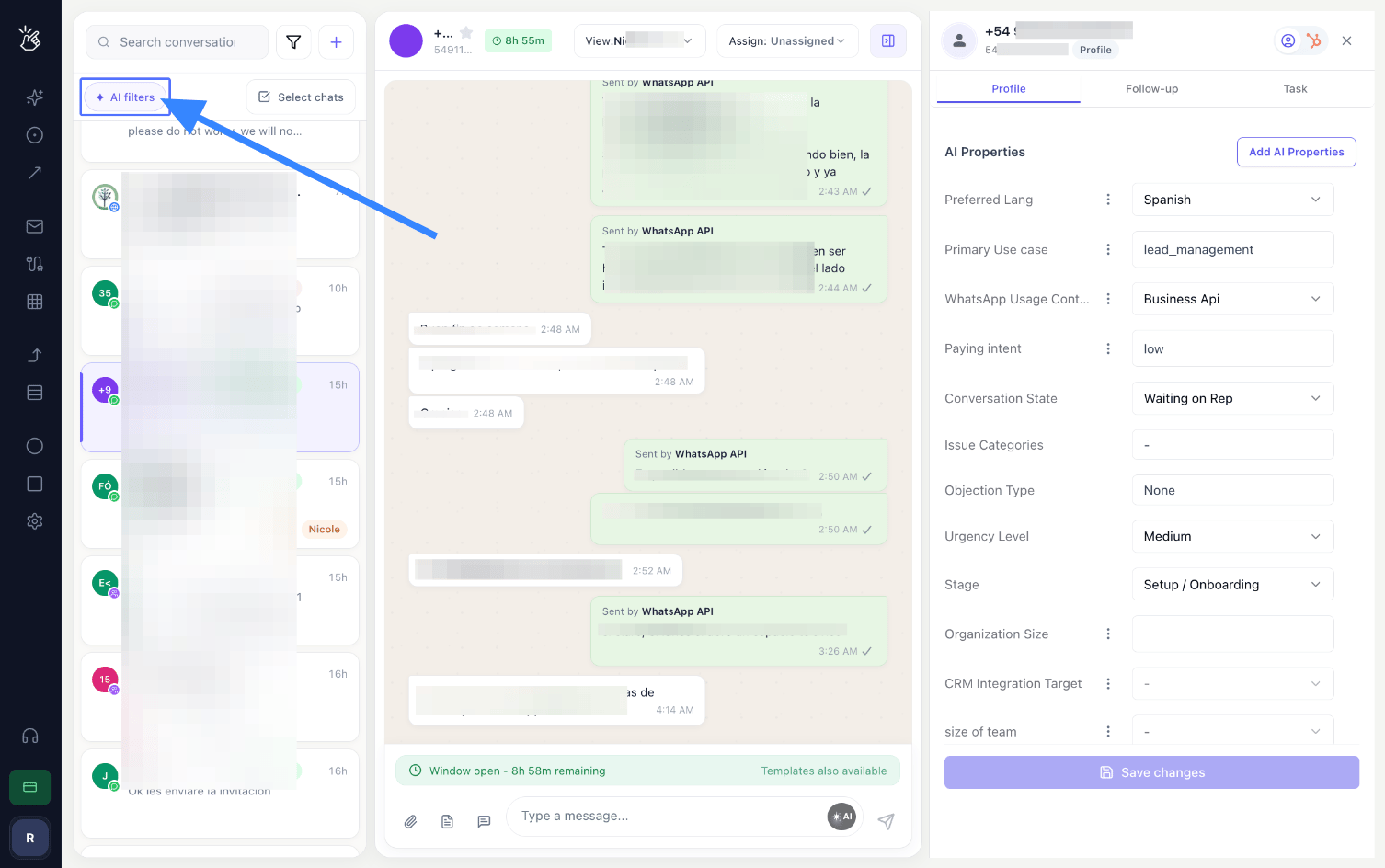
Click on **"AI filters"** to filter your chat list based on an AI property.
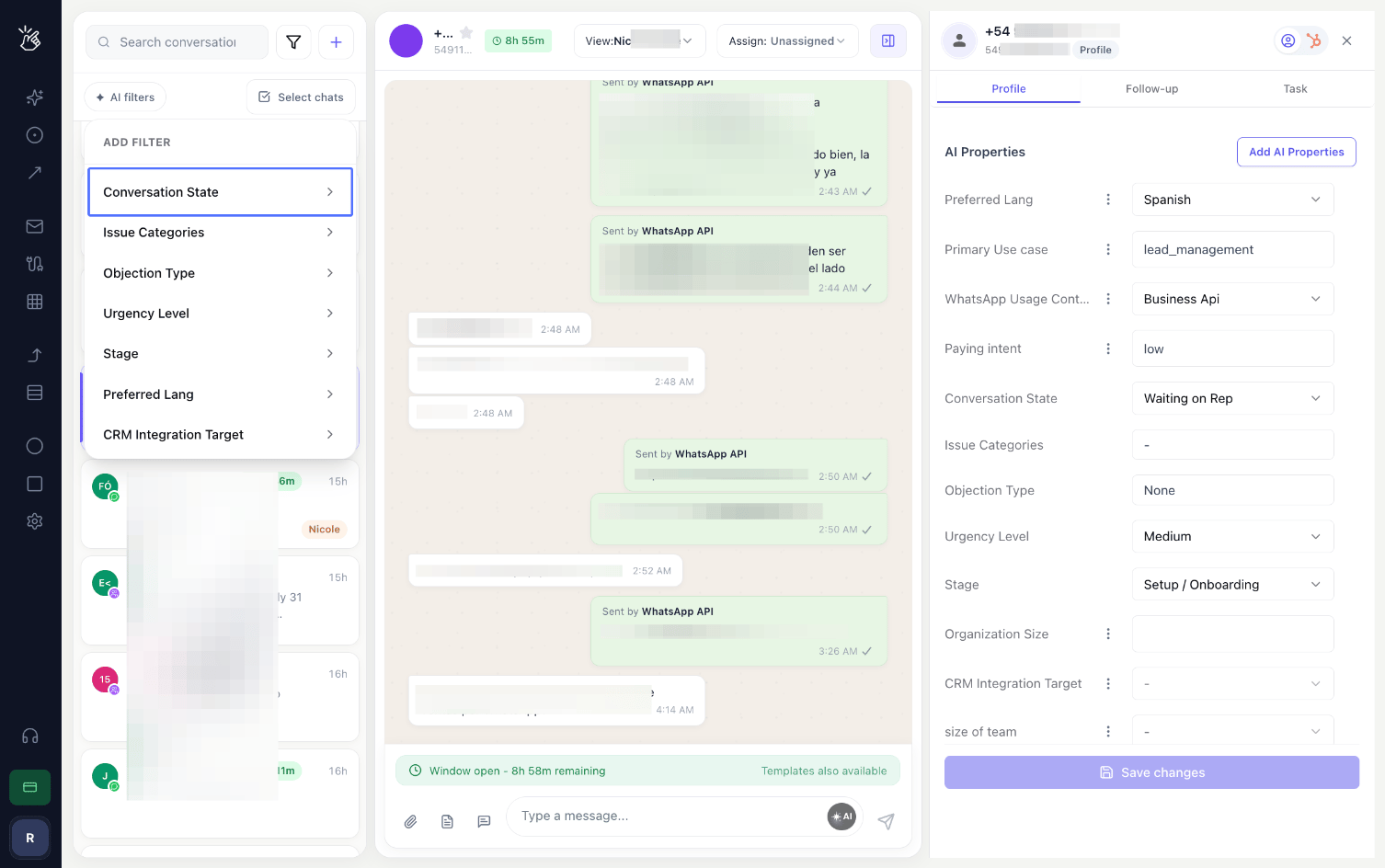
 Select the AI property you want to filter by — for example, **"Conversation State"**.
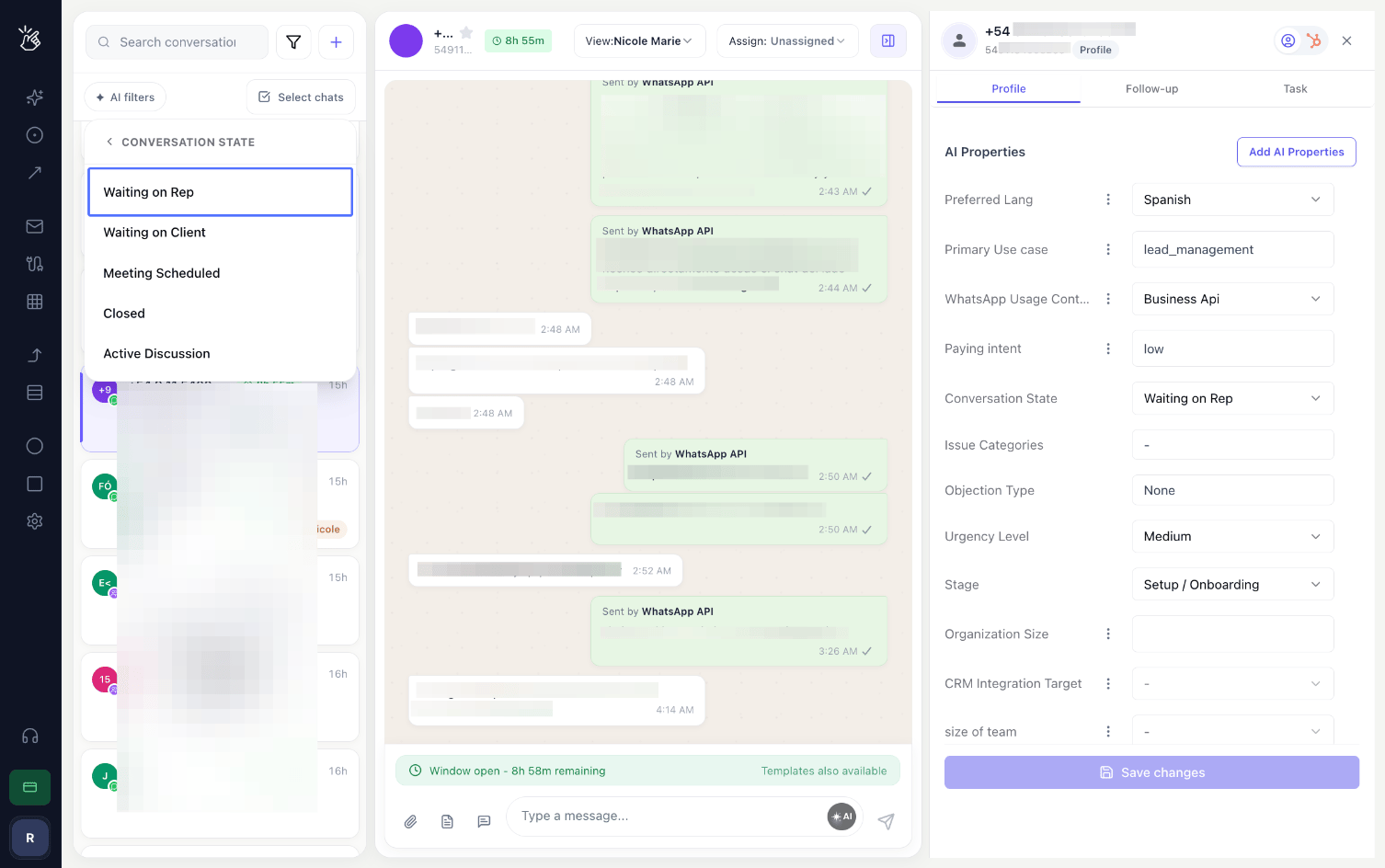
 Then select the property value — for example, **"Waiting on Rep"**.
 In the same way, you can add more filters to build a tighter, more optimised chat list.
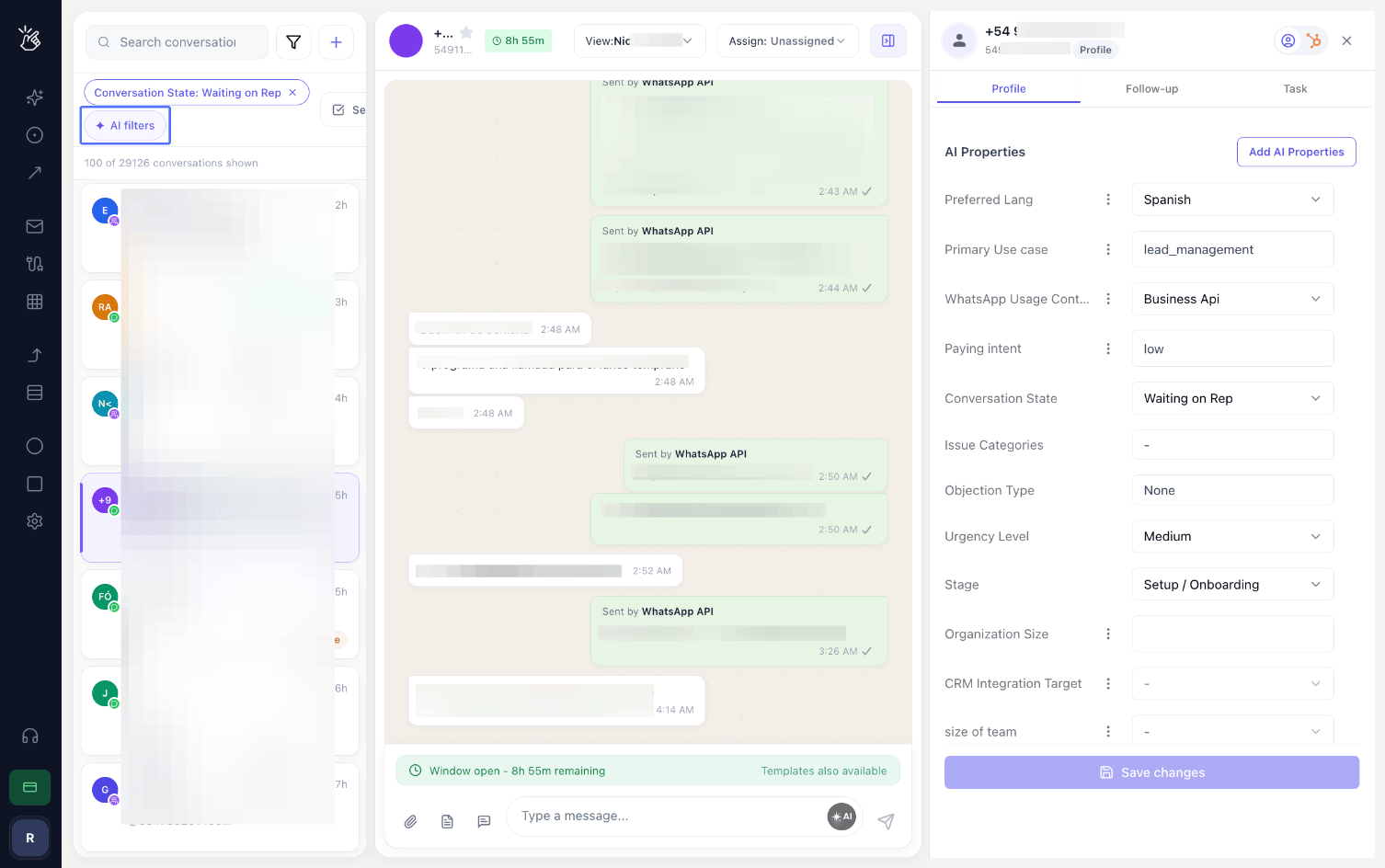 AI filters can be combined with the standard chat filters for an even more optimised list.
## Next Steps
Add your own fields so you can filter by them
How BEA Radar works end to end
AI filters can be combined with the standard chat filters for an even more optimised list.
## Next Steps
Add your own fields so you can filter by them
How BEA Radar works end to end